[TUTO] How to flash GigaBlue UHD Quad 4K Pro
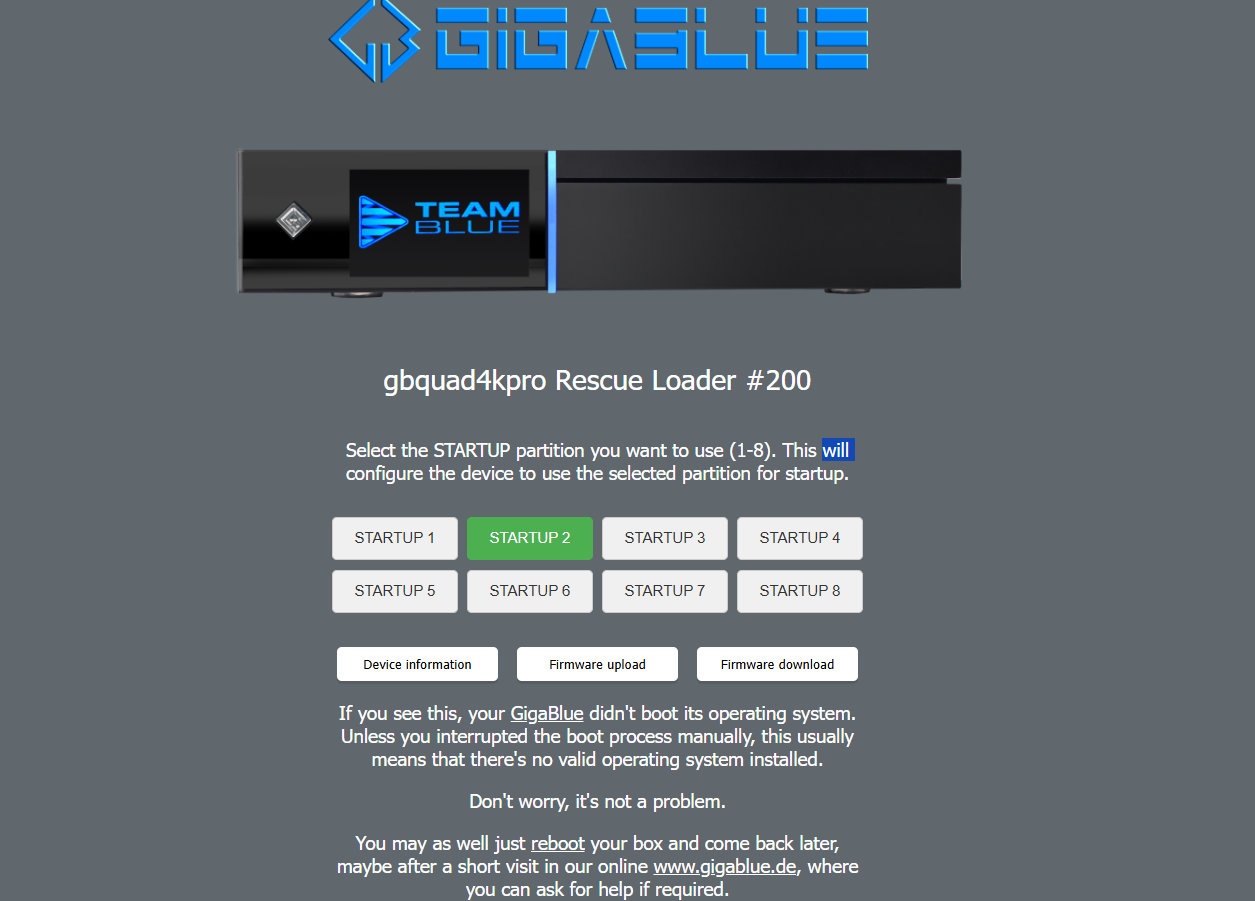
Recovery Mode: 1. Shut down the box completely 2. Switch off the box using the switch on the back (de-energize)
Read More
HOW TO FLASH
Recovery Mode: 1. Shut down the box completely 2. Switch off the box using the switch on the back (de-energize)
Read MoreUser will require a USB stick formatted FAT32. 1) Download your chosen image. 2) Transfer the complete zip file to
Read MoreWhat you need before we start: 1) A USB stick formatted to FAT32. (Preferably compatibility issues while flashing the image).
Read MoreWhat you need before we start: 1) A USB stick formatted to FAT32. (Preferably compatibility issues while flashing the image).
Read MoreWhat you need before we start: 1) A USB stick formatted to FAT32. (Preferably compatibility issues while flashing the image).
Read MoreWhat you need before we start: 1) A USB stick formatted to FAT32. (Preferably compatibility issues while flashing the image).
Read MoreFLASHING THE RECEIVER. image https://www.enigma2.net/category/images/xsarius/galaxy-4k-fbc/ Unzip compressed file. Copy the content to a USB Pen Drive. Power off or
Read MoreFLASHING THE RECEIVER. image https://www.enigma2.net/category/images/xsarius/revo-4k/ Unzip compressed file. Copy the content to a USB Pen Drive. Power off or
Read MoreFLASHING THE RECEIVER. image https://www.enigma2.net/category/images/xsarius/pure-hd-se/ Unzip compressed file. Copy the content to a USB Pen Drive. Power off or reboot
Read MoreFLASHING THE RECEIVER. image https://www.enigma2.net/category/images/xsarius/fusion-hd-se/ Unzip compressed file. Copy the content to a USB Pen Drive. Power off or
Read More