[HOW TO FLASH] how to flash MaXytec Multi SE 4K
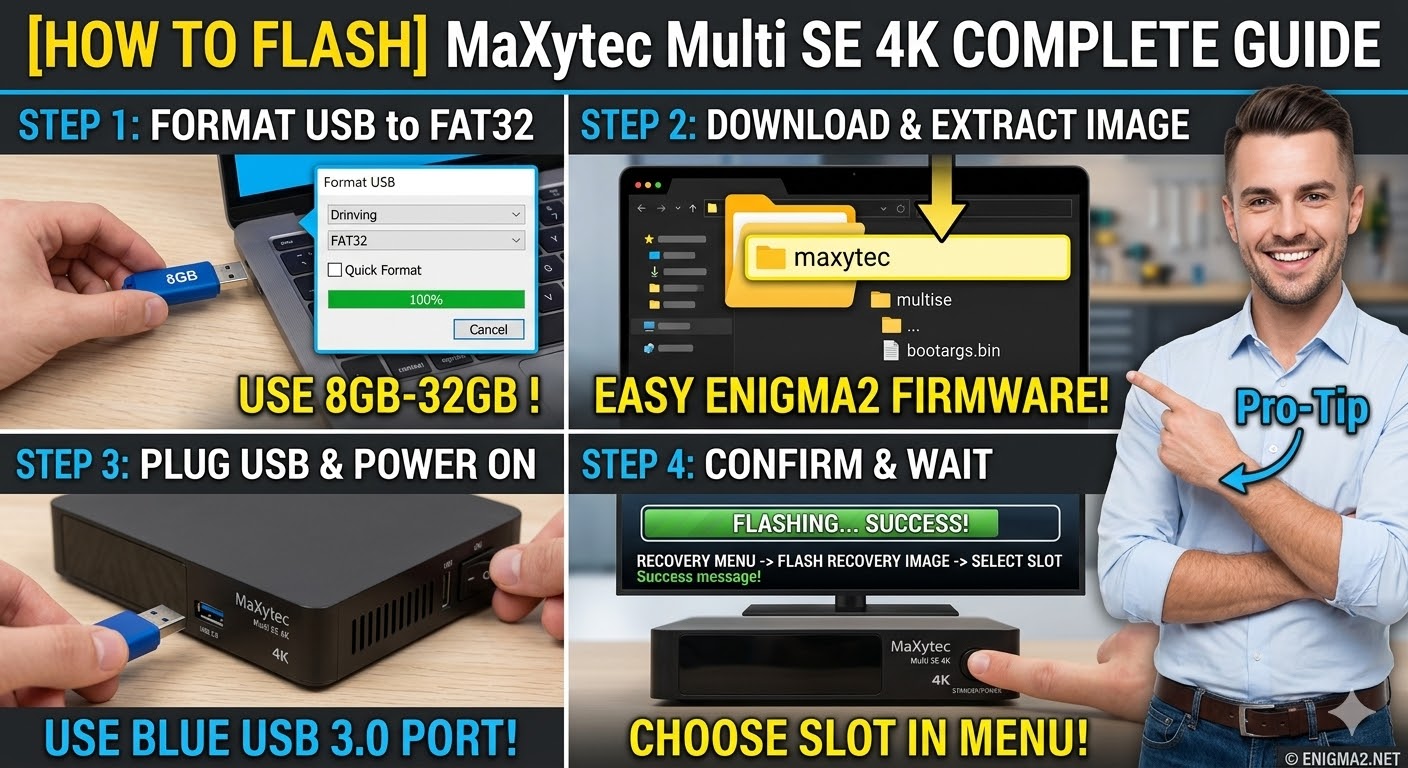
To flash the MaXytec Multi SE 4K, you will use a procedure typical for modern HiSilicon-based 4K receivers. These devices often support multiboot, so the folder structure is slightly different from the older HD models.
1. Preparation
-
USB Stick: Use a high-quality USB 2.0 or 3.0 stick (8GB to 32GB works best).
-
Format: The stick must be formatted to FAT32.
-
Firmware: Download the “recovery” or “USB” image specifically for the MaXytec Multi SE 4K (OpenATV is highly recommended for this hardware).
2. Folder Structure
-
Extract the downloaded
.zipfile. -
You will see a folder named
maxytec. -
Copy the entire
maxytecfolder to the root of your USB stick.-
Path:
USB:\maxytec\multise\ -
Contents: Inside the
multisefolder, you will see files likebootargs.bin,fastboot.bin,apploader.bin, and theimage.flashorrootfs.tar.bz2files.
-
3. The Flashing Process
-
Power Off: Turn off the receiver using the power switch at the back.
-
Insert USB: Plug the USB stick into the side USB 3.0 port (the blue one) for faster data transfer.
-
Initiate Flash:
-
Press and hold the Standby/Power button on the front panel (or the Reset button if your specific revision has a pinhole).
-
While holding the button, turn the back power switch to ON.
-
-
Menu Selection:
-
Keep holding the button until the “Boot Menu” or “Recovery Menu” appears on your TV screen.
-
Select “Flash Recovery Image” or “USB Multiboot Image Upgrade” using your remote.
-
-
Wait: The system will extract the files and flash the image to the selected slot.
-
Completion: Once finished, the receiver will reboot into the new image.

The flashing process should take approximately two to four minutes to complete, while the receiver
is being flashed it is vitally important that you DO NOT power the receiver down for any reason as
this can cause serious and or permanent damage.