[HOW TO FLASH] how to flash Miraclebox Premium Mini Plus HD
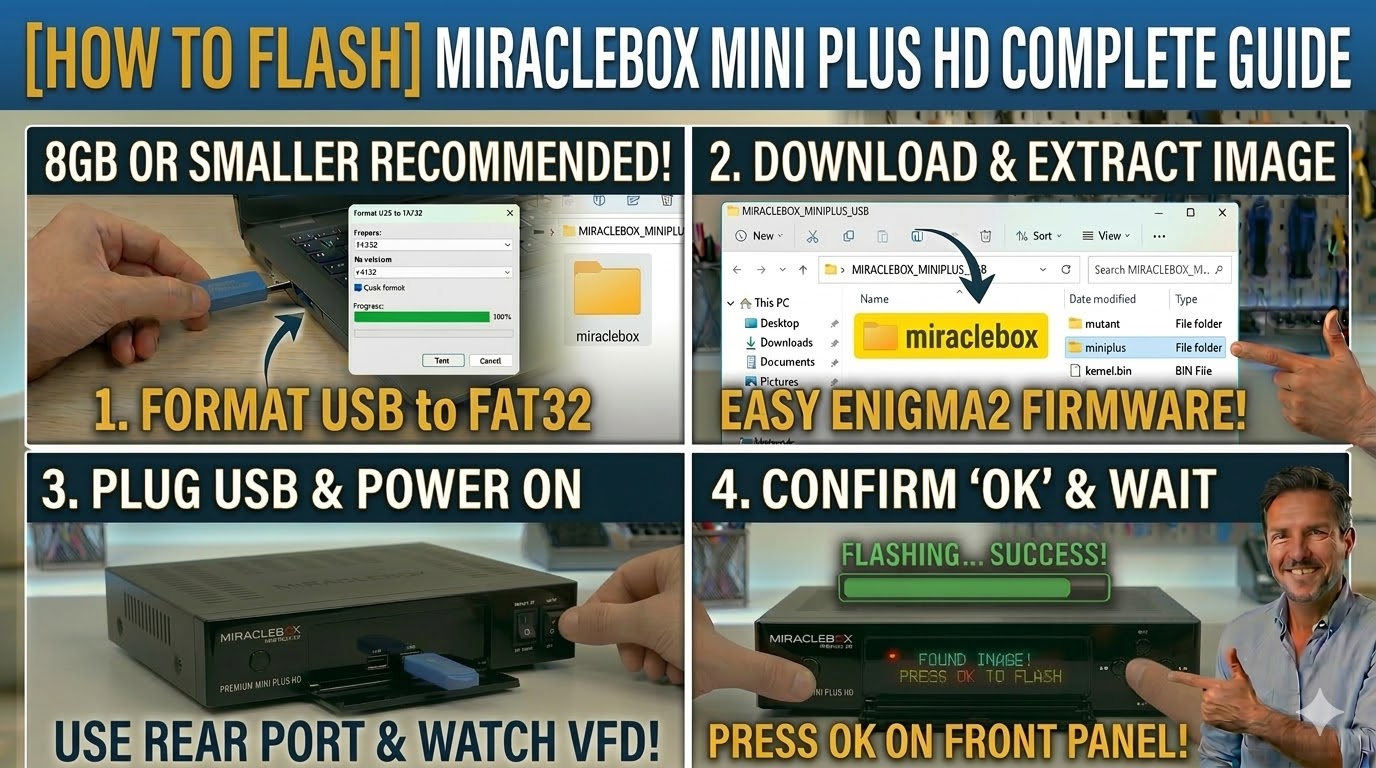
To flash the Miraclebox Premium Mini Plus HD, you will follow the standard procedure for the Premium series. This model is the compact, single-tuner version, but it maintains the same bootloader logic as its larger siblings.
1. Preparation
-
USB Stick: A high-quality USB stick (8GB or smaller is highly recommended).
-
Format: The stick must be formatted to FAT32.
-
Firmware: Download the image specifically for the Mini Plus HD (e.g., OpenATV, OpenPLi, or Egami).
2. Folder Structure
The receiver looks for the specific model subfolder within the manufacturer directory.
-
Extract the firmware
.zipfile. -
You will see a folder named
miraclebox. -
Copy the entire
miracleboxfolder to the root of your USB stick.-
Path:
USB:\miraclebox\miniplus\ -
Contents: Inside the
miniplussubfolder, you should see files likekernel.bin,rootfs.bin, andimageversion.
-
3. The Flashing Process
-
Power Off: Turn off the receiver using the power switch at the back (or unplug the external power brick).
-
Insert USB: Plug the USB stick into the rear USB port (on this mini model, the front port is often used for the IR extender or is less accessible).
-
Power On: Turn the power back ON.
-
Initiate Flash:
-
Watch the front panel display.
-
When the message “Found Image! Press OK to flash” appears, quickly press the OK button on the front panel to confirm.
-
-
Wait: The display will show the flashing progress. Do not interrupt the power.
-
Completion: The receiver will reboot automatically once finished. You can then remove the USB stick.
Pro-Tip for enigma2.net
The “Mini Plus” requires the folder name miniplus. It is a common error for users to try the folder name mini (for the non-Plus version) or twin. Remind your readers that if they don’t see the “Found Image” message, they should double-check that the subfolder name matches their specific model exactly.