[HOW TO FLASH] how to flash Octagon SFX6018 HD
To flash the Octagon SFX6018 HD, you follow a process very similar to other SFX series models. This receiver is a compact Full HD box that, like the 4K versions, uses a specific folder structure to trigger the update.
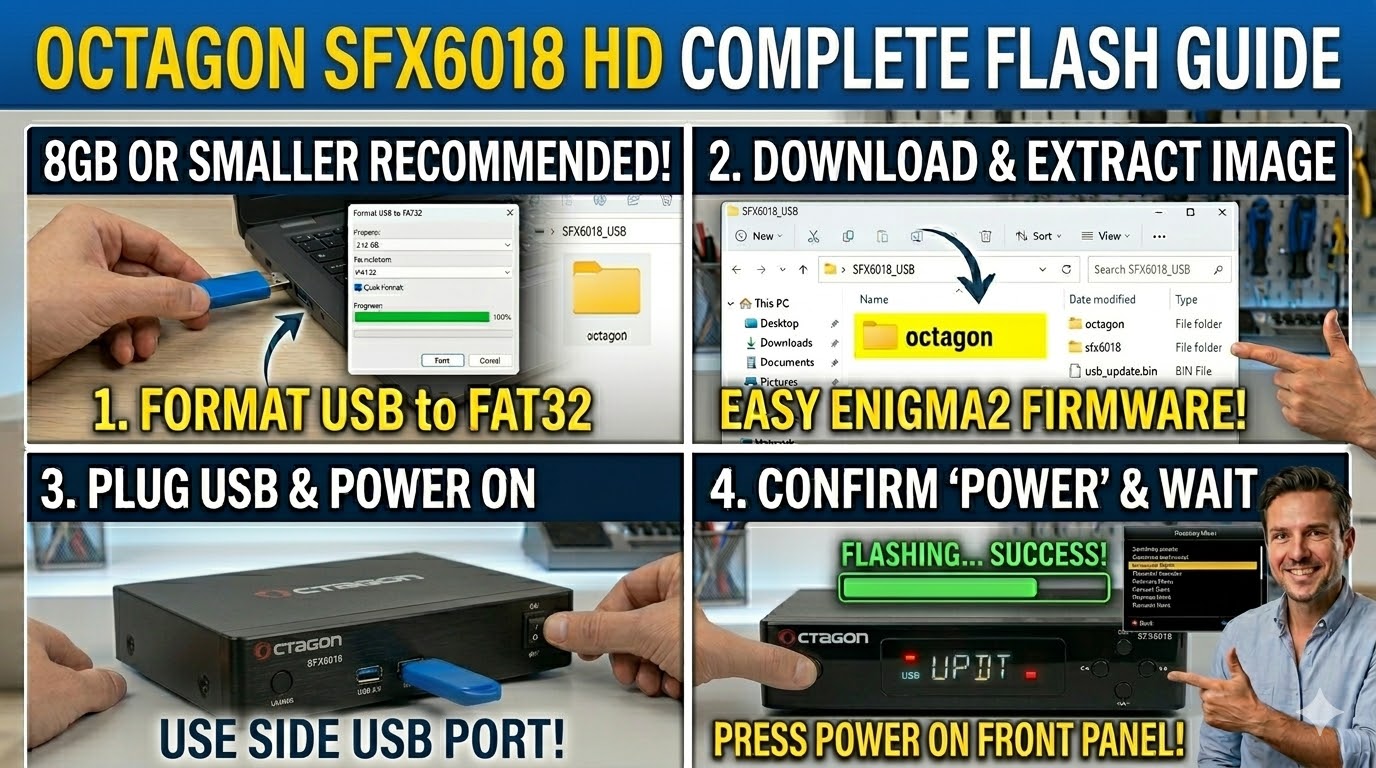
1. Preparation
-
USB Stick: A high-quality USB 2.0 or 3.0 stick (8GB or smaller is best).
-
Format: Must be formatted to FAT32.
-
Firmware: Download the SFX6018 specific Enigma2 image (e.g., OpenATV).
2. Folder Structure
The bootloader looks for the octagon directory.
-
Extract the firmware
.zipfile. -
Copy the entire
octagonfolder to the root of the USB stick.-
Path:
USB:\octagon\sfx6018\ -
Contents: Inside that folder, you should see files like
usb_update.bin,rootfs.tar.bz2, andimageversion.
-
3. The Flashing Process
-
Power Off: Turn off the receiver using the power switch at the back (or unplug the power lead).
-
Insert USB: Plug the USB stick into the USB port.
-
Initiate Flash: * Press and hold the Power button on the front panel (or on the remote for some SFX versions, though the front panel button is most reliable).
-
While holding the button, Power On the receiver.
-
-
Confirm Update: * Continue holding the button until you see “UPDT” on the front display or the Recovery Menu on the TV.
-
If the Recovery Menu appears, select “Flash Recovery Image” or “USB Multiboot Image Upgrade” using the remote and press OK.
-
-
Wait: The process will take a few minutes. Do not interrupt the power.
-
Reboot: Once finished, the box will reboot automatically.
Pro-Tip for enigma2.net
The SFX6018 is part of the “SFX” series (like the 6008), which bridges the gap between the old SX series and the newer 4K boxes. In your guide, you can mention that the sfx6018 folder name is the key distinction for the bootloader to recognize this specific hardware.