[HOW TO FLASH] how to flash SAB Alpha Triple
To flash the SAB Alpha Triple, you will need to follow a specific power-on sequence. This receiver is unique because it uses a specific button-press count to enter the flash mode.
Preparation
-
USB Drive: Use a USB stick formatted to FAT32.
-
Download Image: Get the latest firmware (e.g., OpenPLi or OpenATV) specifically for the SAB Alpha Triple.
-
Extract Files: Unzip the folder. You should see a folder named
sabor files likeapp_db_plugin. -
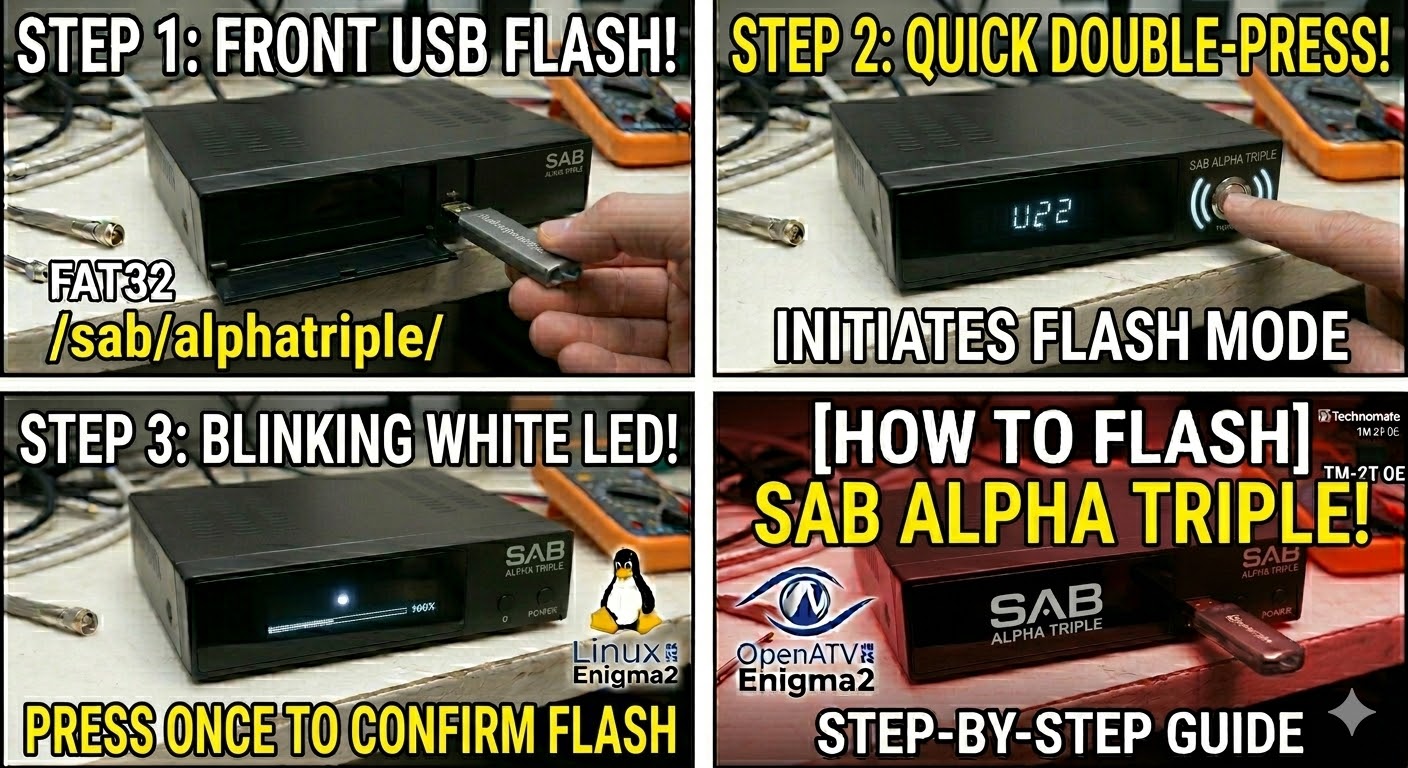
Copy to USB: Transfer the files to the root of the USB. For OpenPLi and similar images, the structure is usually:
-
USB Stick -> sab -> alphatriple -> (image files).
-
The Flashing Process
-
Power Down: Turn off the receiver using the power switch at the rear.
-
Insert USB: Plug the USB stick into the front USB port.
-
Power On & Initiate:
-
Turn the rear power switch to ON.
-
Immediately press the Power button on the front panel twice in quick succession.
-
-
Confirm: Watch for the white LED to start blinking. Once it blinks, press the Power button on the front panel one more time to start the update.
-
Wait: The receiver will begin the flashing process. Do not turn off the power until it is finished.
-
Complete: If successful, the receiver will reboot itself automatically. Once it reaches the setup wizard, you can remove the USB stick.
Quick Tips
-
USB Selection: Like many Enigma2 boxes, this model prefers smaller USB 2.0 drives (8GB or less).
-
LED Feedback: If the white LED does not blink after the double-press, turn off the rear switch and try the timing again. It needs to be a crisp “double-click.”

The flashing process should take approximately two to four minutes to complete, while the receiver
is being flashed it is vitally important that you DO NOT power the receiver down for any reason as
this can cause serious and or permanent damage.