[HOW TO FLASH] how to flash AX 4K HD60
The AX 4K HD60 is a HiSilicon-powered 4K receiver. Unlike its successor (the HD61), the HD60 usually requires a specific folder structure on the USB to trigger the flash, rather than a recovery menu.
Because HiSilicon boxes are very specific about files, ensuring you have all 6 recovery files is the key to success.
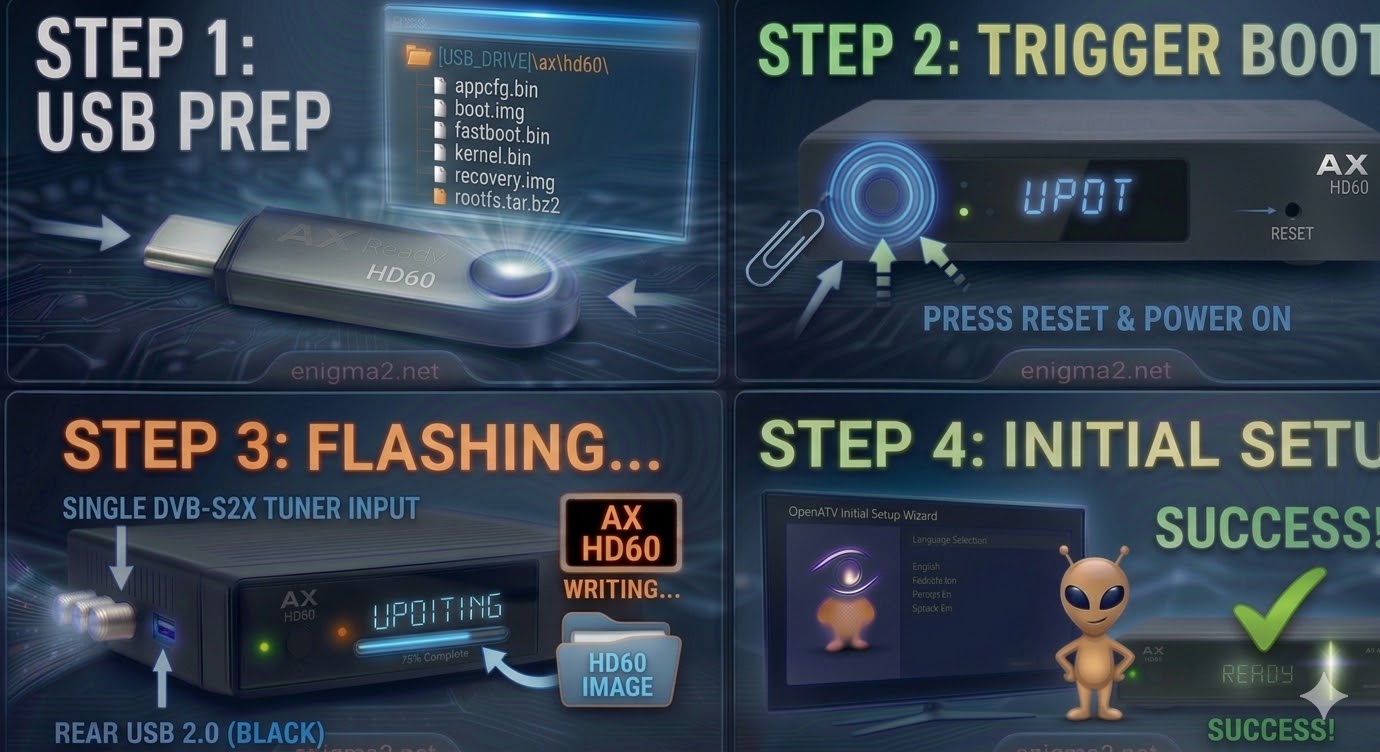
Step 1: USB Preparation
-
Format: The USB drive must be formatted to FAT32. A high-quality USB 2.0 stick (8GB or smaller) is highly recommended.
-
Folder Structure: Unzip your image (e.g., OpenATV). You will see a folder named
ax. -
Target Path: Inside the
axfolder, there must be a subfolder namedhd60.-
Path check:
USB_DRIVE:\ax\hd60\ -
Crucial Files: Ensure it contains
appcfg.bin,boot.img,fastboot.bin,kernel.bin,recovery.img, androotfs.tar.bz2.
-
Step 2: The Flashing Procedure
-
Power Down: Turn off the AX HD60 using the physical power switch at the back.
-
Insert USB: Plug the drive into the side USB port.
-
Boot & Trigger:
-
Find the Reset button (usually a small pinhole on the side or back).
-
While holding the Reset button down with a paperclip or pin, flip the rear power switch to ON.
-
Immediately watch the front panel or the TV screen. When you see “UPDT” or the flashing progress screen, release the Reset button.
-
-
Wait for Progress: The receiver will begin the flash. This process takes 3–5 minutes. Do not interrupt the power.
-
Reboot: Once finished, the box will automatically reboot. Remove the USB drive during the first reboot logo to avoid a loop.

The flashing process should take approximately two to four minutes to complete, while the receiver
is being flashed it is vitally important that you DO NOT power the receiver down for any reason as
this can cause serious and or permanent damage.