[HOW TO FLASH] how to flash Optibox E3 HD
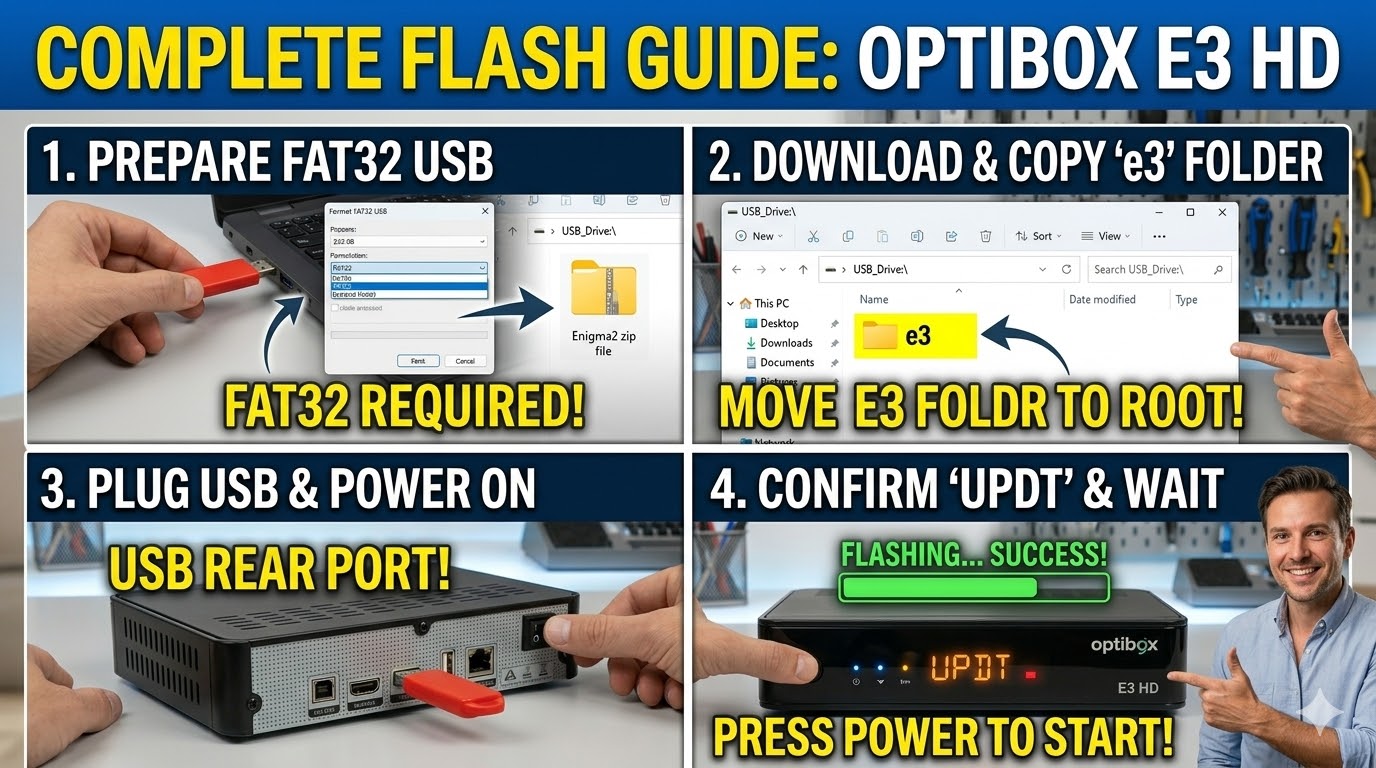
To flash your Optibox E3 HD, you’ll need a USB stick and a compatible Enigma2 firmware image (like OpenATV, OpenPLi, or OpenDroid). The process is straightforward but requires a specific folder structure to be recognized by the bootloader.
1. Preparation
-
USB Drive: Use a USB stick (8GB or smaller is often more reliable for flashing).
-
Format: Format the drive to FAT32.
-
Firmware: Download the image for the “E3 HD.” It will usually be a
.zipfile.
2. Folder Structure
The receiver looks for a specific folder name on the USB root.
-
Extract the firmware
.zipfile on your computer. -
You should see a folder named
e3. -
Copy that
e3folder directly to the root of your USB stick.-
Correct:
USB_Drive:\e3\ -
Incorrect:
USB_Drive:\OpenATV_7.3\e3\
-
3. The Flashing Process
-
Power Off: Turn off the receiver using the physical power switch at the back.
-
Insert USB: Plug the USB stick into one of the USB ports (the rear port is generally more stable for flashing).
-
Power On: Turn the back switch to ON.
-
Confirm Flash: Watch the front panel display. When it shows “PROG” or “UPDT”, you must press the Power button on the front panel of the receiver immediately.
-
Wait: The display will indicate the progress. The process usually takes 2–4 minutes.
Warning: Do not power off the device while it is flashing.
-
Reboot: Once finished, the receiver will automatically reboot into the new software’s setup wizard. You can then safely remove the USB stick.
Troubleshooting
-
Doesn’t start flashing: If it boots straight to the old software, try a different USB stick or ensure the folder is named exactly
e3and contains files likekernel.binandrootfs.bin. -
Stuck on “BOOT”: This can happen if the image is corrupted. Try downloading the firmware again or using a different team’s image (e.g., switching from OpenPLi to OpenATV).

The flashing process should take approximately two to four minutes to complete, while the receiver
is being flashed it is vitally important that you DO NOT power the receiver down for any reason as
this can cause serious and or permanent damage.