[HOW TO FLASH] how to flash Qviart OG2 OTT 4K
To flash the Qviart OG2 OTT 4K, you need to use the “Emergency Recovery” method. This model is a dedicated OTT (Over-the-Top) IPTV box running a specialized Linux OS, so the process differs slightly from the standard S2 satellite models.
Preparation
-
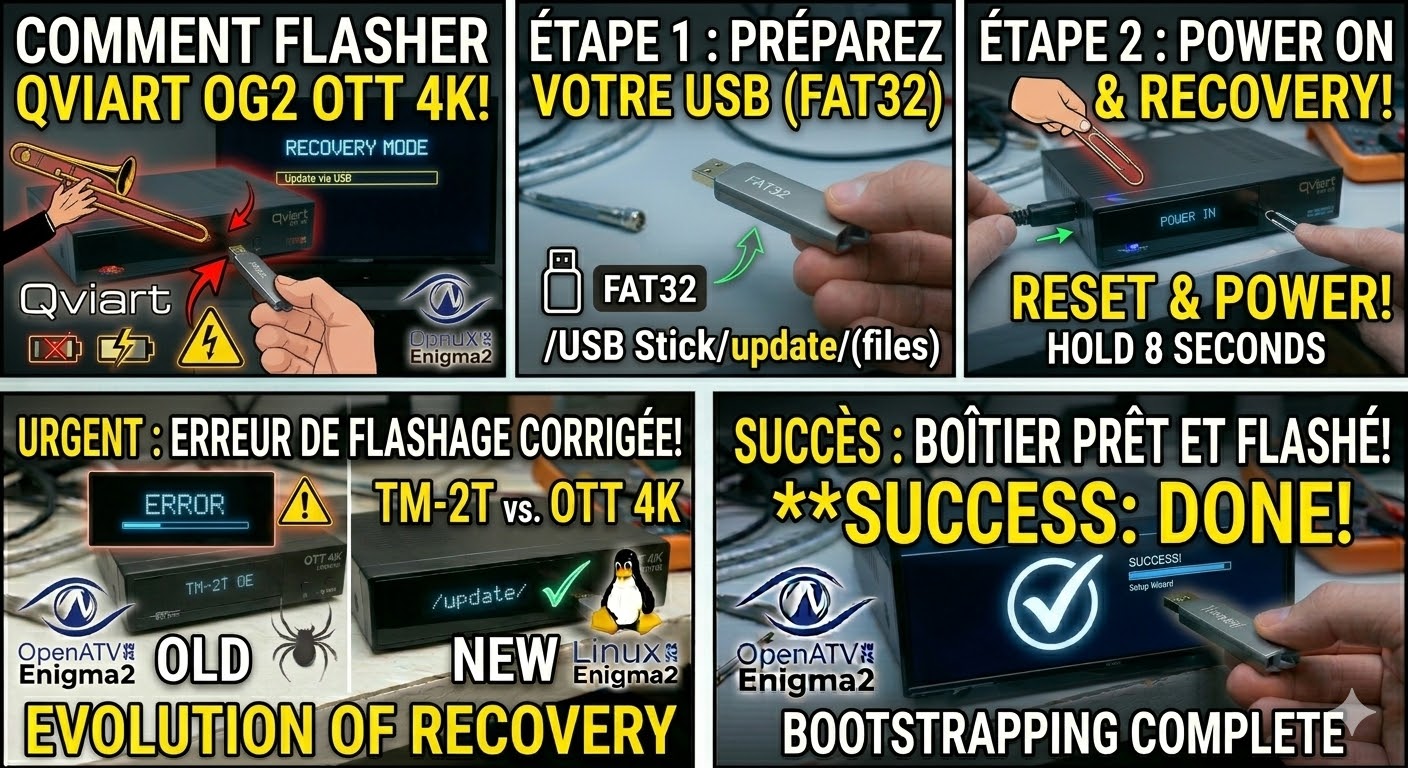
USB Drive: Use a USB 2.0 stick (max 8GB) formatted to FAT32.
-
Download Image: Ensure you have the specific firmware for the OG2 OTT 4K (not the S2 or standard OG model).
-
Extract Files: Unzip the archive. You should see a folder named
update. -
Copy to USB: Place the
updatefolder in the root of the USB drive.-
Structure:
USB Stick -> update -> (files like usb_update.bin).
-
The Flashing Process
-
Power Down: Unplug the power adapter from the back of the OG2 OTT.
-
Insert USB: Plug the USB stick into the side USB port.
-
Initiate Recovery:
-
Locate the Reset button (usually a small pinhole on the back or bottom).
-
Using a paperclip, press and hold the Reset button.
-
While holding it, plug the power adapter back in.
-
-
Trigger Update: * Keep holding the Reset button for about 5–8 seconds until the TV screen shows the Qviart Boot Menu or a blue progress bar.
-
If a menu appears, select “Update via USB” using the remote.
-
-
Wait: The system will begin writing the firmware. Do not touch the power cable during this time.
-
Complete: The box will reboot automatically into the new interface. Once the language selection screen appears, you can remove the USB stick.
Important Tips
-
LED Feedback: The front LED will often blink or change color (e.g., from Red to Blue) during the flashing process.
-
File Verification: If the box boots normally to the old menu, it means the
updatefolder wasn’t recognized. Double-check that the folder is at the root level and not buried inside another folder.

The flashing process should take approximately two to four minutes to complete, while the receiver
is being flashed it is vitally important that you DO NOT power the receiver down for any reason as
this can cause serious and or permanent damage.