[HOW TO FLASH] how to flash Xsarius fusion HD
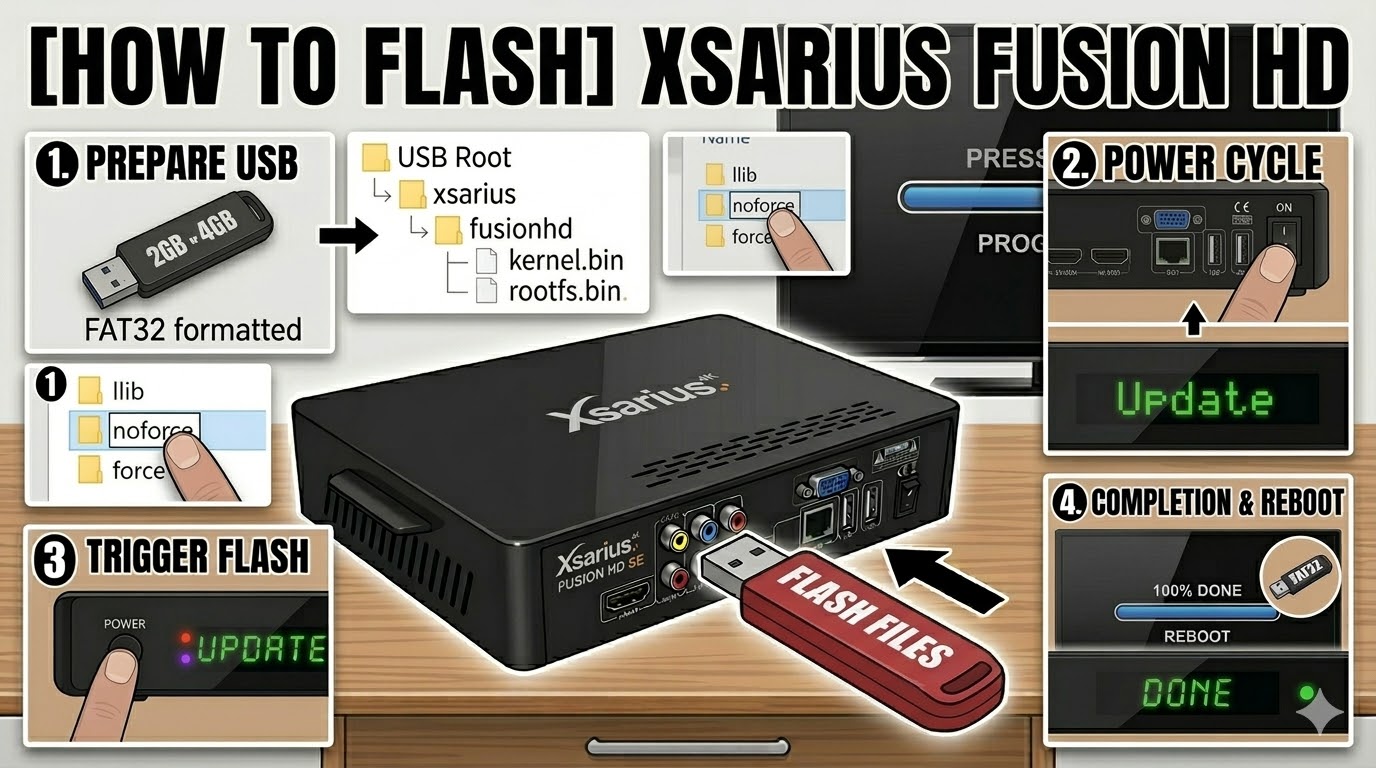
The original Xsarius Fusion HD is the predecessor to the SE version. While the physical hardware looks similar, ensuring the folder name matches the internal bootloader requirements is key to a successful flash.
Preparation
-
USB Drive: Use a FAT32 formatted USB stick. For these older HD models, it is best to use a small capacity drive (2GB or 4GB) to avoid detection issues.
-
The Files: Extract your image zip file. You need a folder named
xsariuscontaining a subfolder namedfusionhd. -
Root Directory: Copy the
xsariusfolder to the root of your USB drive.-
Path:
USB Drive -> xsarius -> fusionhd -> (files: kernel.bin, rootfs.bin, etc.)
-
Flashing Steps
-
Power Off: Turn off the receiver using the physical power switch at the back.
-
Insert USB: Plug the USB stick into the rear USB port.
-
Power On: Switch the receiver back on.
-
The Trigger: * Watch the front panel LED or your TV screen.
-
When the display shows “Update” or the LED begins to blink, press the Power Button on the front panel once.
-
-
Flashing Process: The LED will blink steadily, indicating the firmware is being written. This usually takes 3–5 minutes.
-
Completion: The receiver will automatically reboot once the process is complete.
-
Finalize: Remove the USB stick when the boot logo appears on your TV to prevent the box from entering the flash menu again on the next restart.
Troubleshooting
-
Box Ignores USB: Ensure the folder is named exactly
fusionhd. If it still fails, try a different USB port or a different brand of USB stick. -
The “Force” Method: If you cannot trigger the flash with the button, go into the
fusionhdfolder on your USB, find the file namednoforce, and rename it toforce. The receiver will then flash automatically upon power-up.