[HOW TO FLASH] how to flash T-Rex Galaxy M6
To flash the T-Rex Galaxy M6, you need to ensure the bootloader recognizes the specific folder structure on your USB drive. Since this is an Enigma2-based Linux receiver, it follows the standard “folder trigger” method.
Preparation
-
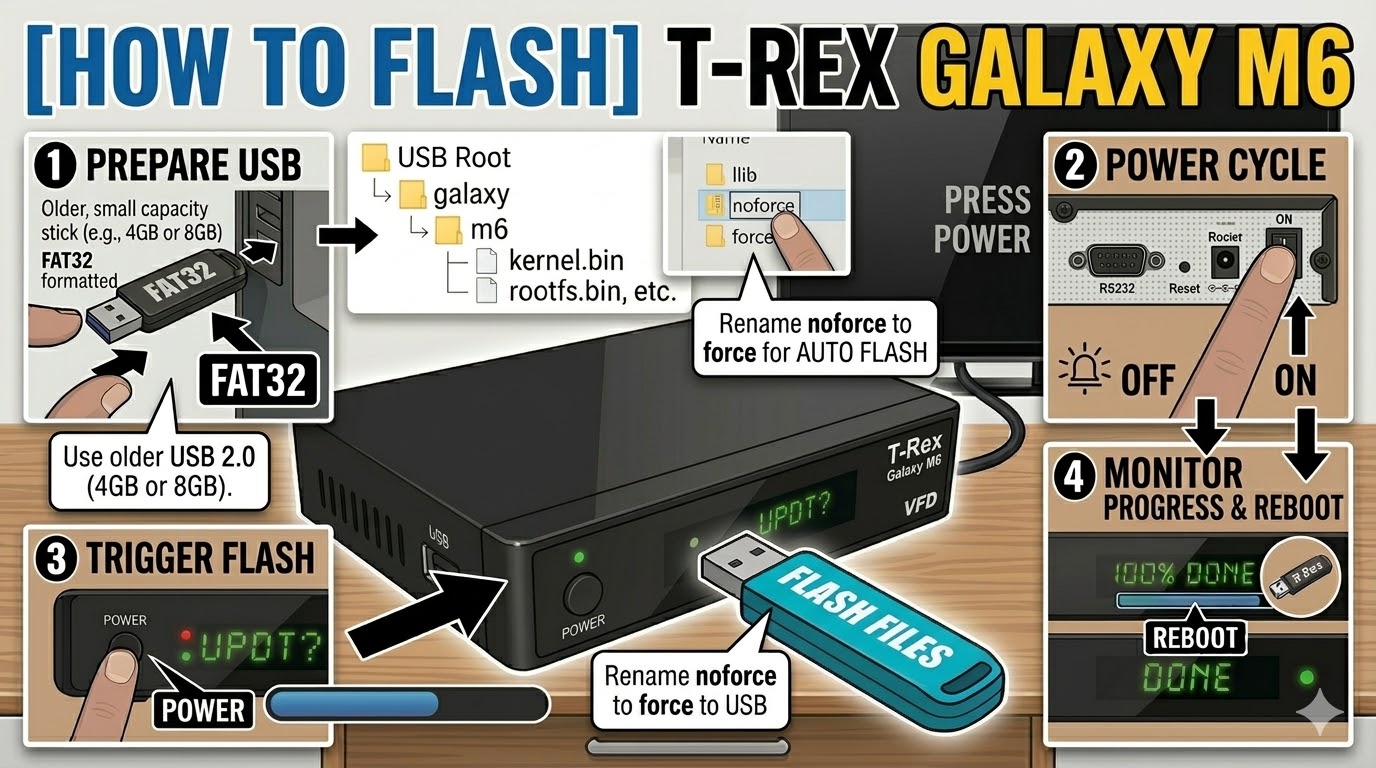
USB Stick: Use a FAT32 formatted USB drive. For the T-Rex M6, an older USB 2.0 (4GB or 8GB) drive is the most reliable. Newer USB 3.0 sticks often cause detection issues during boot.
-
The Files: Extract your image zip file (e.g., OpenATV, OpenHDF). You should find a folder named
galaxywith a subfolder inside it namedm6. -
Path: Copy the
galaxyfolder to the root of your USB stick.-
Structure:
USB Root > galaxy > m6 > (files: kernel.bin, rootfs.bin, etc.)
-
Flashing Steps
-
Power Off: Turn off the receiver using the physical power switch at the back.
-
Insert USB: Plug the USB stick into the rear USB port.
-
Power On: Flip the rear power switch to ON.
-
The Trigger:
-
Watch the front panel display. When the message “UPDT” or “Update?” appears, immediately press the Power Button on the front panel.
-
-
Flashing Process: The display will show “prog” or a progress bar. This typically takes 3 to 5 minutes. Do not turn off the power during this time.
-
Completion: Once finished, the box will display “DONE” and reboot automatically.
-
Finalize: Remove the USB stick as soon as the box starts to reboot to prevent it from entering the update cycle again.
Troubleshooting
-
Box Ignores USB: Ensure the folder is named exactly
m6. If it still fails to trigger, try a different USB port or a different brand of USB stick (older “no-name” sticks often work best). -
The “Force” Shortcut: If the front button is unresponsive, open the
m6folder on your PC, find the file namednoforce, and rename it toforce. This will make the box flash automatically upon power-up.