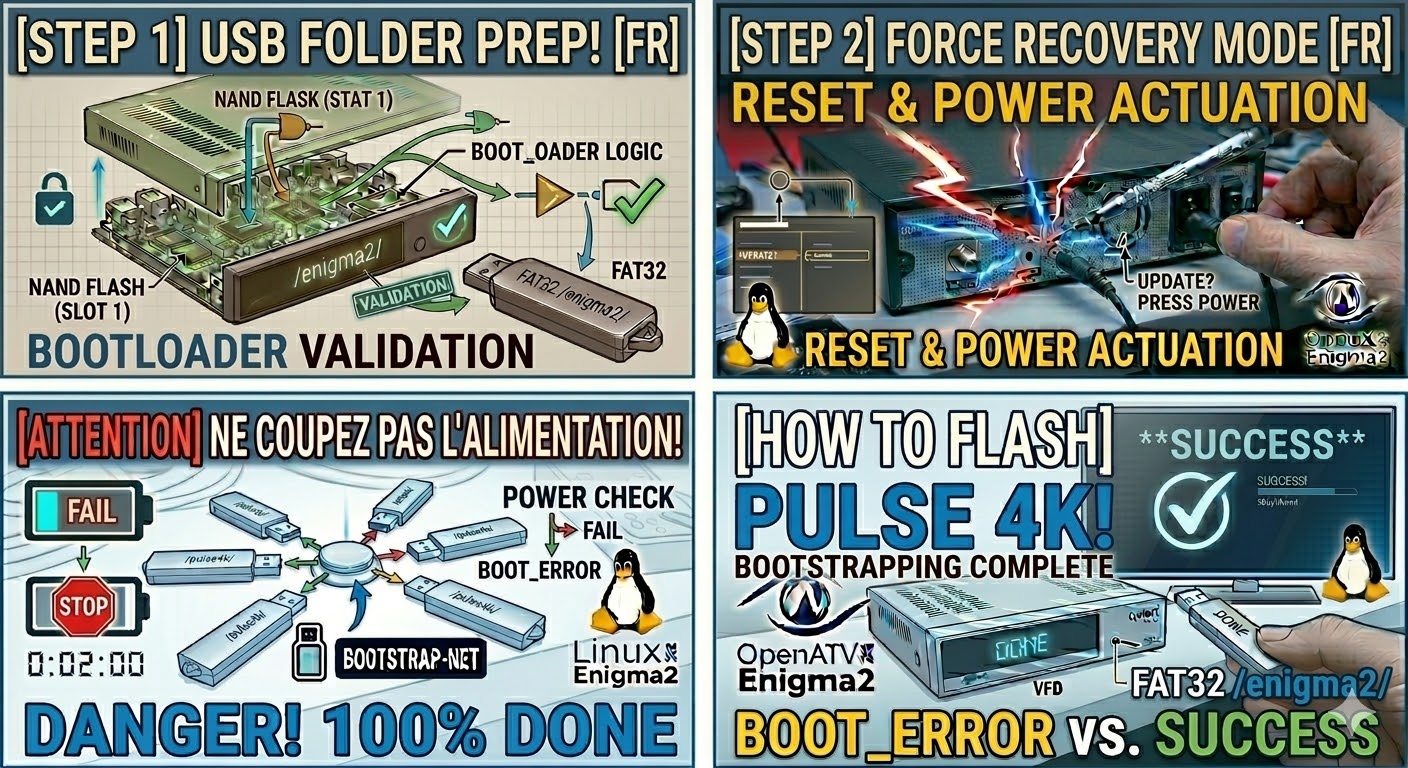
[HOW TO FLASH] how to flash Optibox EVO
To flash the Optibox EVO (specifically the EVO M7 model), you are working with a classic Enigma2 Broadcom receiver. The procedure is very reliable as long as the folder naming is precise, as the bootloader is programmed to look for the “EVO” brand specifically.
Preparation
-
USB Drive: Use a USB 2.0 stick (8GB or less is best) formatted to FAT32.
-
Download Image: Ensure the firmware is specifically for the Optibox EVO M7 (OpenATV, OpenHDF, etc.).
-
Extract Files: Unzip the archive on your PC. You will see a folder named
odin. -
Copy to USB: Transfer the entire
odinfolder to the root of the USB drive.-
Structure:
USB Stick -> odin -> m7 -> (image files: kernel.bin, rootfs.bin, etc.).
-
The Flashing Process
-
Power Down: Turn off the receiver using the physical power switch at the back.
-
Insert USB: Plug the USB stick into the rear USB port.
-
Power On: Flip the rear power switch to ON.
-
Initiate Flash:
-
Watch the front panel LED display.
-
When the display shows “UPDT” or “Update?”, press the Standby/Power button on the front panel immediately.
-
-
Wait: The display will cycle through the flashing progress. Do not interrupt the power supply until the box finishes and reboots.
-
Complete: Once the setup wizard appears on your TV screen, the flash is successful and you can remove the USB stick.
Key Tips for Optibox EVO
-
Folder Name: The subfolder inside
odinmust be named exactlym7. If it is namedaxortwin, the bootloader will skip it. -
The “Force” Method: If the front button isn’t triggering the flash, find the file
noforcein them7folder on your USB and rename it toforce. This will automate the flash as soon as the box is powered on. -
USB Compatibility: If the box boots to the old image, try an older, slower USB 2.0 drive, as these older Broadcom chipsets can be picky about modern high-speed USB sticks.