[HOW TO FLASH] how to flash Qviart OG2 S 4K
To flash the Qviart OG2 S 4K, you need to follow a procedure specific to Qviart’s Linux-based STBs. Unlike some older Enigma2 boxes, this model is quite robust during the update process as long as you use the correct file structure.
Preparation
-
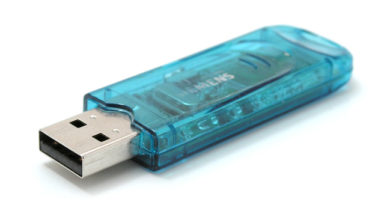
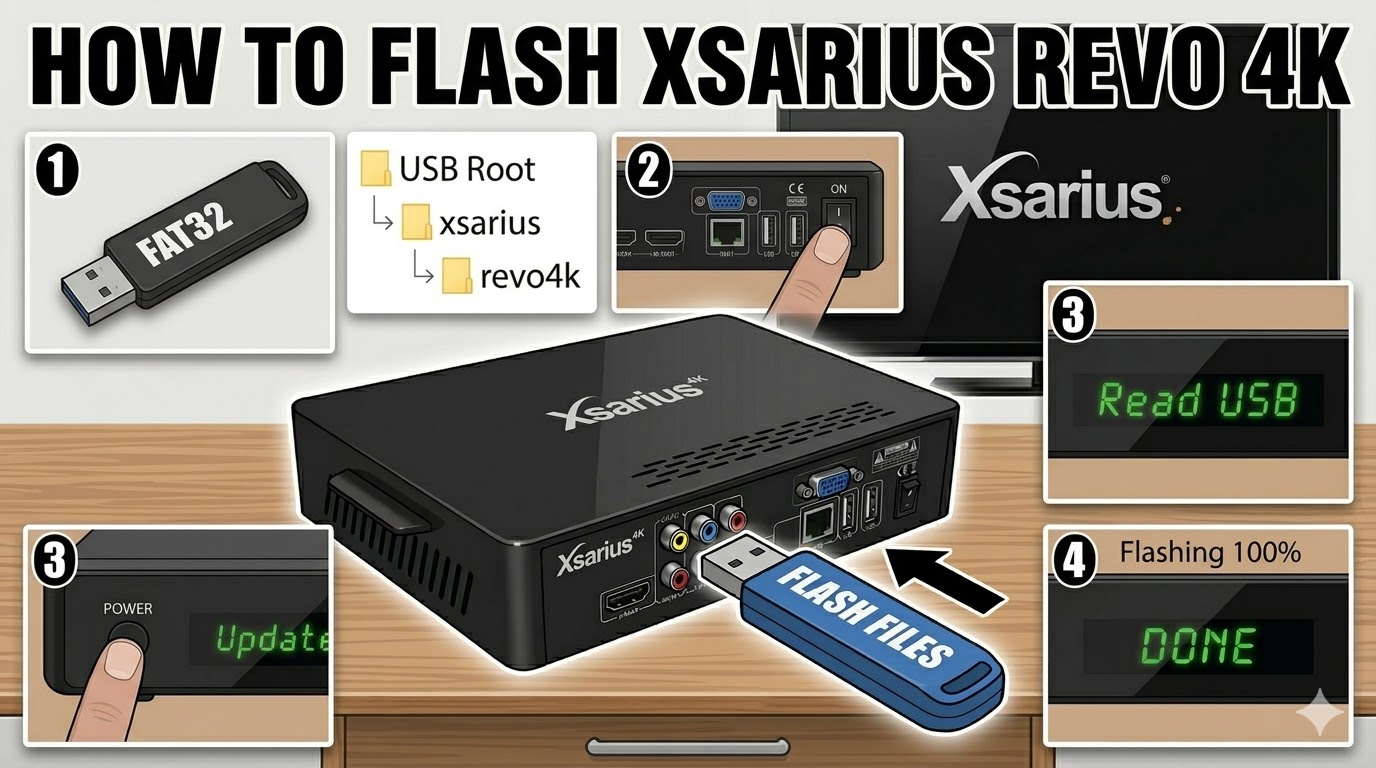
USB Drive: Use a USB stick formatted to FAT32. A smaller, older USB 2.0 drive (8GB or less) is recommended for maximum compatibility.
-
Download Image: Ensure you have the firmware specifically for the Qviart OG2 S 4K.
-
Extract Files: Unzip the image file on your PC. You should see a folder named
updatecontaining files likeusb_update.binor similar. -
Copy to USB: Transfer the entire
updatefolder to the root of your USB stick.-
Structure:
USB Stick -> update -> (firmware files).
-
The Flashing Process
-
Power Down: Turn off the receiver using the power switch at the back (or unplug the power cable).
-
Insert USB: Plug the USB stick into the side or rear USB port.
-
Power On & Trigger:
-
Turn the rear power switch to ON (or plug it in).
-
Immediately start tapping the Power button on the front panel (or the OK button on the remote, depending on the specific image version) repeatedly.
-
-
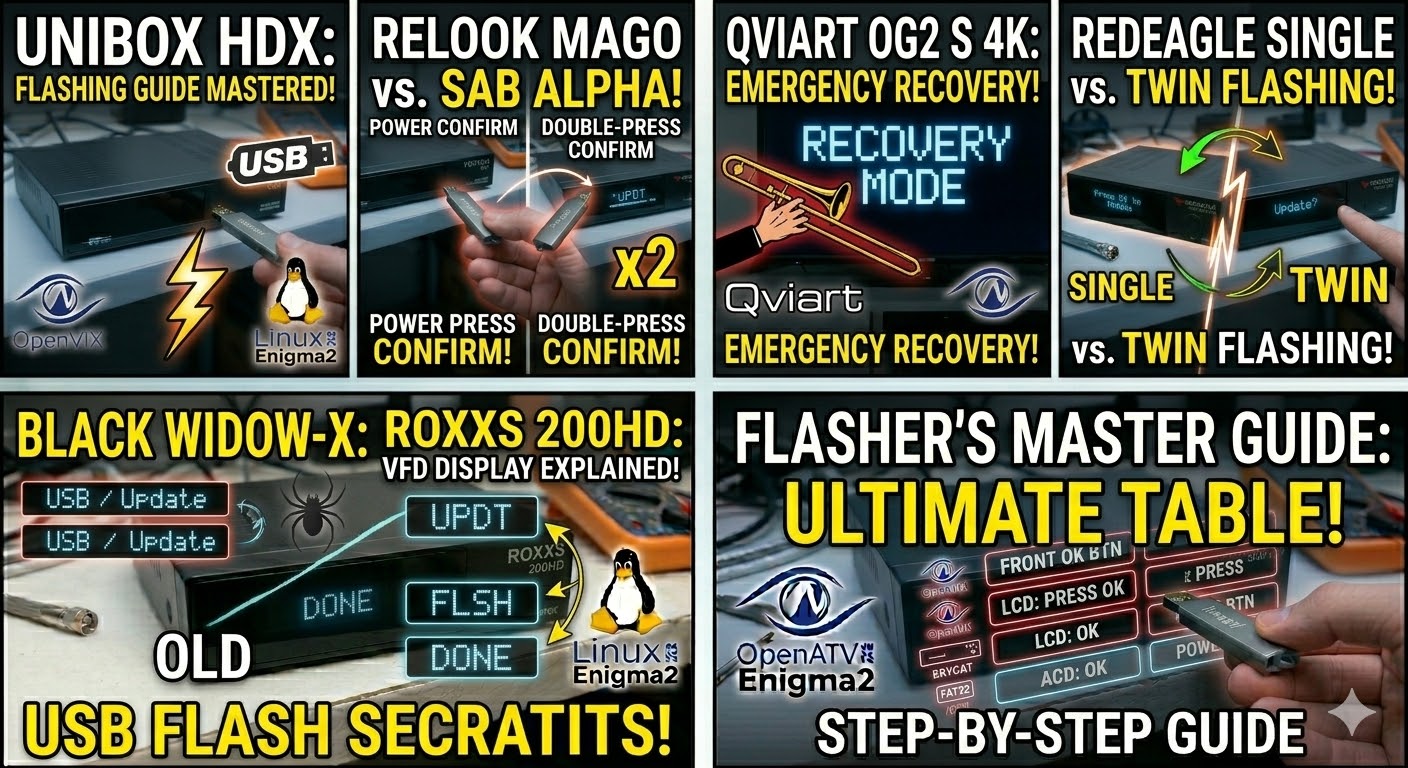
Confirmation: Watch the TV screen. You should see a blue or black “Boot Menu” or “Emergency Flash” screen.
-
Select Update: Use the remote to navigate to “Update via USB” or “Flash Recovery” and press OK.
-
Wait: The progress bar will appear on your TV. Do not turn off the power until the process hits 100%.
-
Complete: The box will reboot into the new system. You can remove the USB stick once you reach the startup wizard.
Quick Tips for Qviart
-
The “Recovery” Button: Some OG2 models have a small “Reset” or “Recovery” button on the back. If the front button method doesn’t work, hold this button down with a paperclip while powering the box on.
-
File Name: If the box doesn’t detect the update, ensure the folder is named exactly
updateand the main file inside hasn’t been renamed.