[HOW TO FLASH] how to flash T-Rex Galaxy M6
To flash the T-Rex Galaxy M6, you need to ensure the bootloader recognizes the specific folder structure on your USB drive. Since this is an Enigma2-based Linux receiver, it follows the standard “folder trigger” method.
Preparation
-
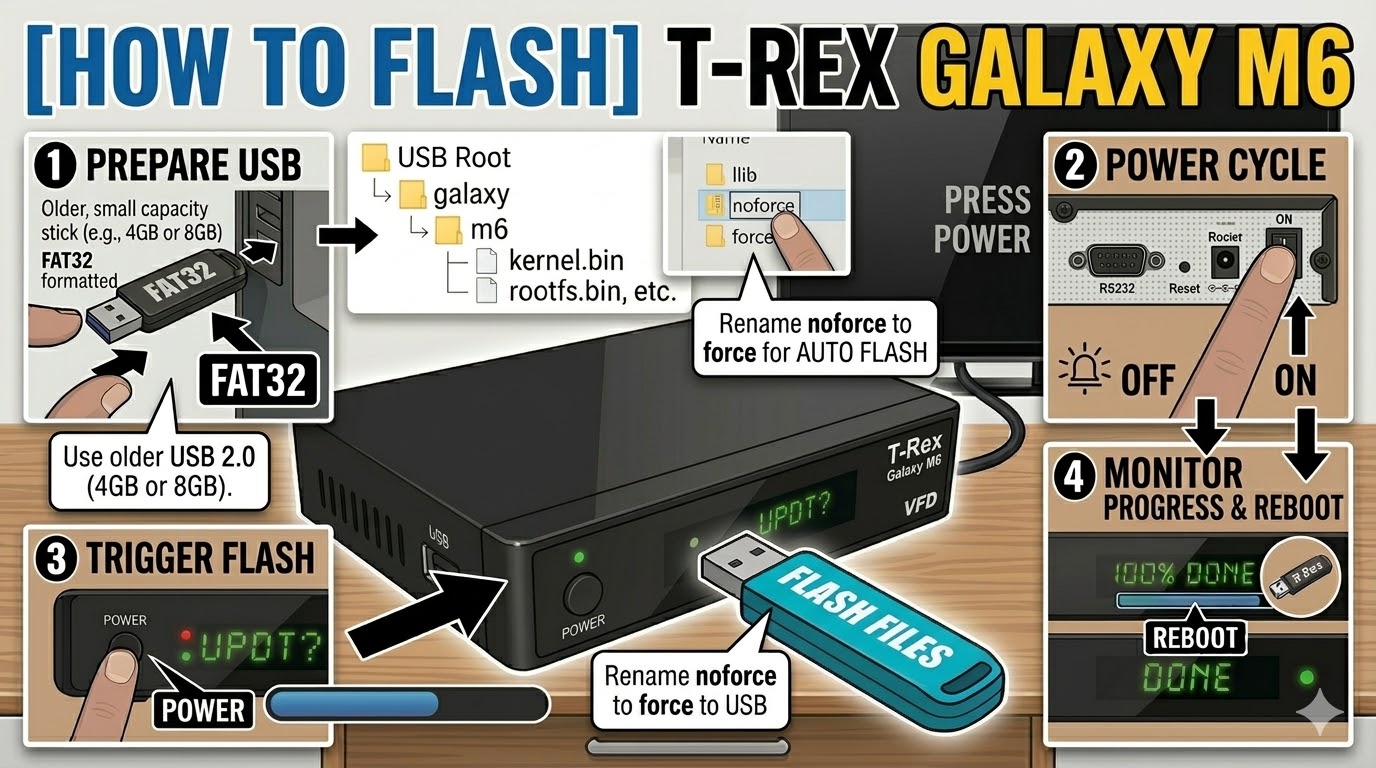
USB Stick: Use a FAT32 formatted USB drive. For the T-Rex M6, an older USB 2.0 (4GB or 8GB) drive is the most reliable. Newer USB 3.0 sticks often cause detection issues during boot.
-
The Files: Extract your image zip file (e.g., OpenATV, OpenHDF). You should find a folder named
galaxywith a subfolder inside it namedm6. -
Path: Copy the
galaxyfolder to the root of your USB stick.-
Structure:
USB Root > galaxy > m6 > (files: kernel.bin, rootfs.bin, etc.)
-
Flashing Steps
-
Power Off: Turn off the receiver using the physical power switch at the back.
-
Insert USB: Plug the USB stick into the rear USB port.
-
Power On: Flip the rear power switch to ON.
-
The Trigger:
-
Watch the front panel display. When the message “UPDT” or “Update?” appears, immediately press the Power Button on the front panel.
-
-
Flashing Process: The display will show “prog” or a progress bar. This typically takes 3 to 5 minutes. Do not turn off the power during this time.
-
Completion: Once finished, the box will display “DONE” and reboot automatically.
-
Finalize: Remove the USB stick as soon as the box starts to reboot to prevent it from entering the update cycle again.
Troubleshooting
-
Box Ignores USB: Ensure the folder is named exactly
m6. If it still fails to trigger, try a different USB port or a different brand of USB stick (older “no-name” sticks often work best). -
The “Force” Shortcut: If the front button is unresponsive, open the
m6folder on your PC, find the file namednoforce, and rename it toforce. This will make the box flash automatically upon power-up.

The flashing process should take approximately two to four minutes to complete, while the receiver
is being flashed it is vitally important that you DO NOT power the receiver down for any reason as
this can cause serious and or permanent damage.