[HOW TO FLASH] how to flash Xsarius fusion HD SE
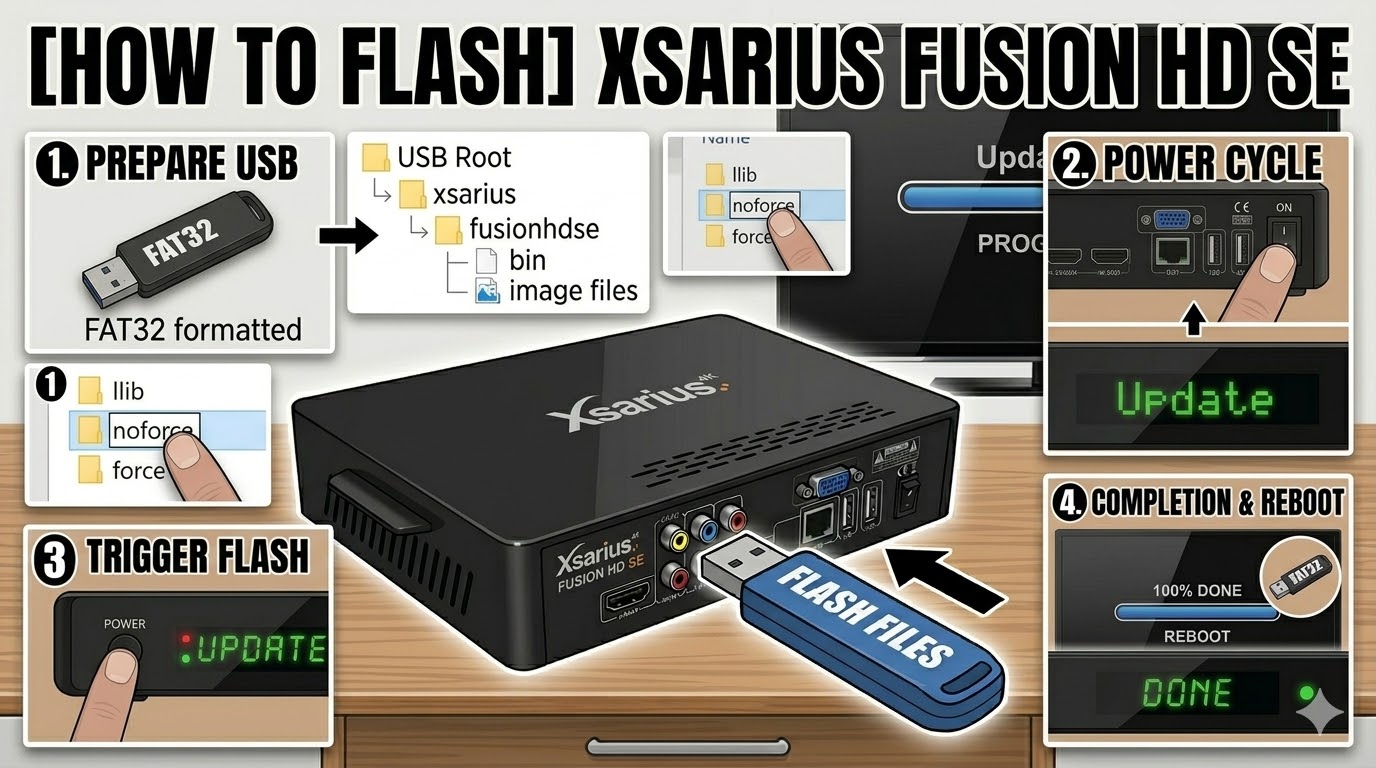
The Xsarius Fusion HD SE follows a similar logic to the Pure HD series but requires the specific fusionhdse folder structure to trigger the bootloader.
Preparation
-
USB Drive: Use a FAT32 formatted USB stick. It is highly recommended to use a smaller capacity drive (e.g., 4GB or 8GB) for better compatibility during the boot phase.
-
The Files: Extract your chosen Enigma2 image. You must see a folder named
xsariusand a subfolder inside it namedfusionhdse. -
Root Path: Ensure the
xsariusfolder is at the very root of your USB drive.-
Structure:
USB Stick -> xsarius -> fusionhdse -> (bin and image files)
-
Flashing Steps
-
Power Down: Turn off the receiver using the physical rocker switch at the back.
-
Insert USB: Plug the USB stick into the rear USB port.
-
Power On: Flip the rear power switch to ON.
-
The Trigger: * Watch the front panel LED and the TV screen.
-
When the front LED starts flashing or you see an “Update” message on the TV, press the Power Button on the front panel.
-
-
Flashing Process: The LED will blink in a specific pattern (usually alternating colors) to show the image is being written. Do not turn off the power during this 3–5 minute process.
-
Completion: The receiver will automatically reboot once the flash is finished.
-
Final Step: Unplug the USB stick as soon as the new boot logo appears to prevent a loop.
Quick Troubleshooting
-
Not Booting into Flash: If the box starts up normally, rename the folder
fusionhdseto simplyfusionhd(some older bootloaders look for the shorter name). -
Automatic Flash: If the front button is faulty or hard to time, find the
noforcefile inside thefusionhdsefolder and rename it toforce. The receiver will then flash automatically upon power-up.

The flashing process should take approximately two to four minutes to complete, while the receiver
is being flashed it is vitally important that you DO NOT power the receiver down for any reason as
this can cause serious and or permanent damage.