[HOW TO FLASH] how to flash Xsarius PURE HD
The Xsarius PURE HD (the original version) is a reliable Enigma2 workhorse. While it looks similar to the “SE” version, the hardware requires a specific folder name to recognize the update files during boot.
Preparation
-
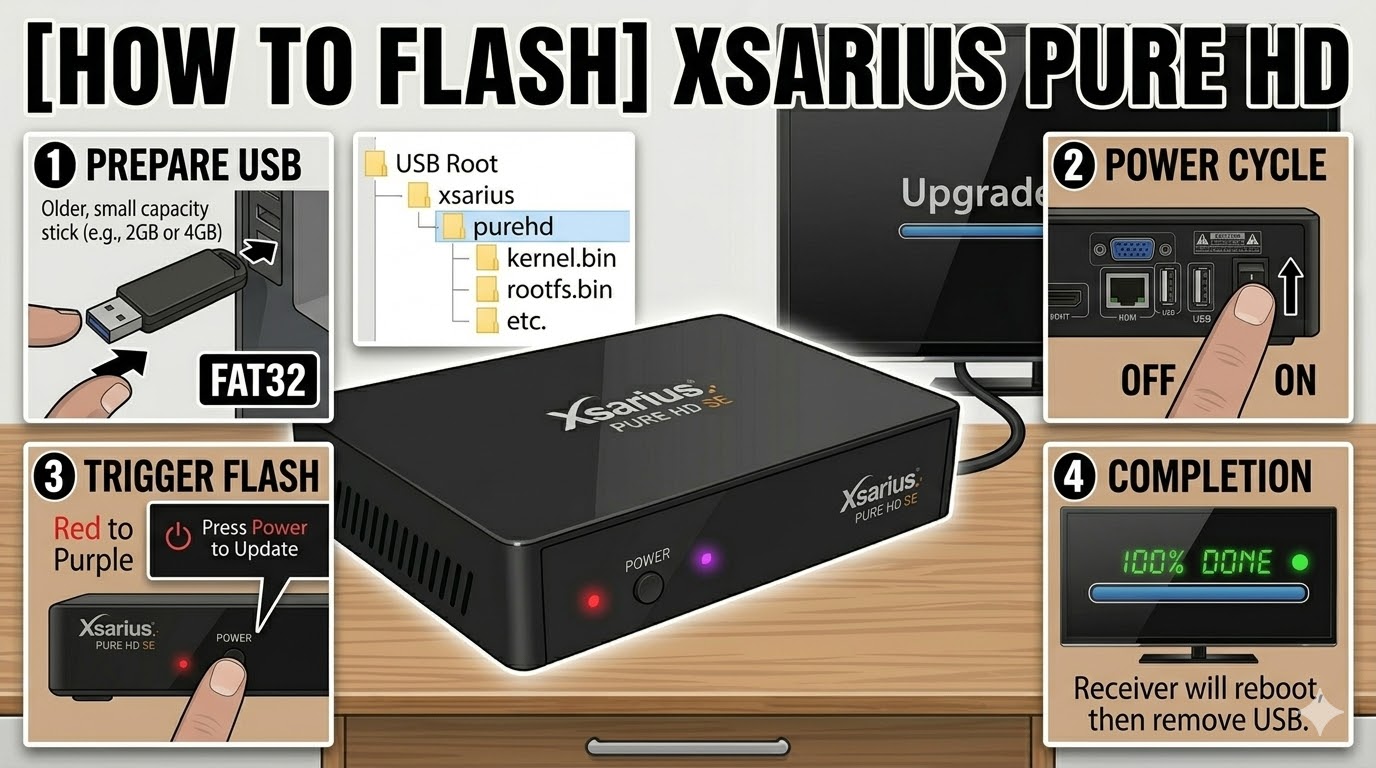
USB Drive: Use a FAT32 formatted USB stick. These older HD models are notoriously picky—if possible, use an old 2GB or 4GB USB 2.0 stick.
-
The Files: Extract your image zip file. You are looking for a folder named
xsariuscontaining a subfolder namedpurehd. -
Root Path: Copy the
xsariusfolder to the root of your USB stick.-
Structure:
USB Drive -> xsarius -> purehd -> (files: kernel.bin, rootfs.bin, etc.)
-
Flashing Steps
-
Power Down: Turn off the receiver using the rocker switch at the back.
-
Insert USB: Plug the stick into the rear USB port.
-
Power On: Turn the back switch to ON.
-
The Trigger: * Watch the front panel LED. When it changes color or starts to blink, press the Power Button on the front of the receiver once.
-
If your TV is on, you may see a splash screen saying “Upgrade.”
-
-
Flashing Process: The LED will blink steadily (usually red/green or purple depending on the image). This takes about 3–5 minutes.
-
Completion: The receiver will automatically reboot once the flash is successful.
-
Post-Flash: Remove the USB stick as soon as you see the boot logo (e.g., OpenATV logo) to prevent it from asking to flash again on the next boot.
Troubleshooting
-
Folder Name Check: Ensure the folder is named exactly
purehd. If the receiver ignores the USB, double-check that you don’t have a “double folder” (e.g.,xsarius/xsarius/purehd). -
The “Force” Trick: If the front button is unresponsive, go into the
purehdfolder on your USB, find the file namednoforce, and rename it toforce. Re-insert and power on; it will flash automatically without a button press.

The flashing process should take approximately two to four minutes to complete, while the receiver
is being flashed it is vitally important that you DO NOT power the receiver down for any reason as
this can cause serious and or permanent damage.