[HOW TO FLASH] how to flash Qviart Lunix3 4K
To flash the Qviart Lunix3 4K, you will follow a procedure very similar to other high-end Enigma2 4K receivers. This model is known for its speed, but the bootloader is strict about the USB file structure.
Preparation
-
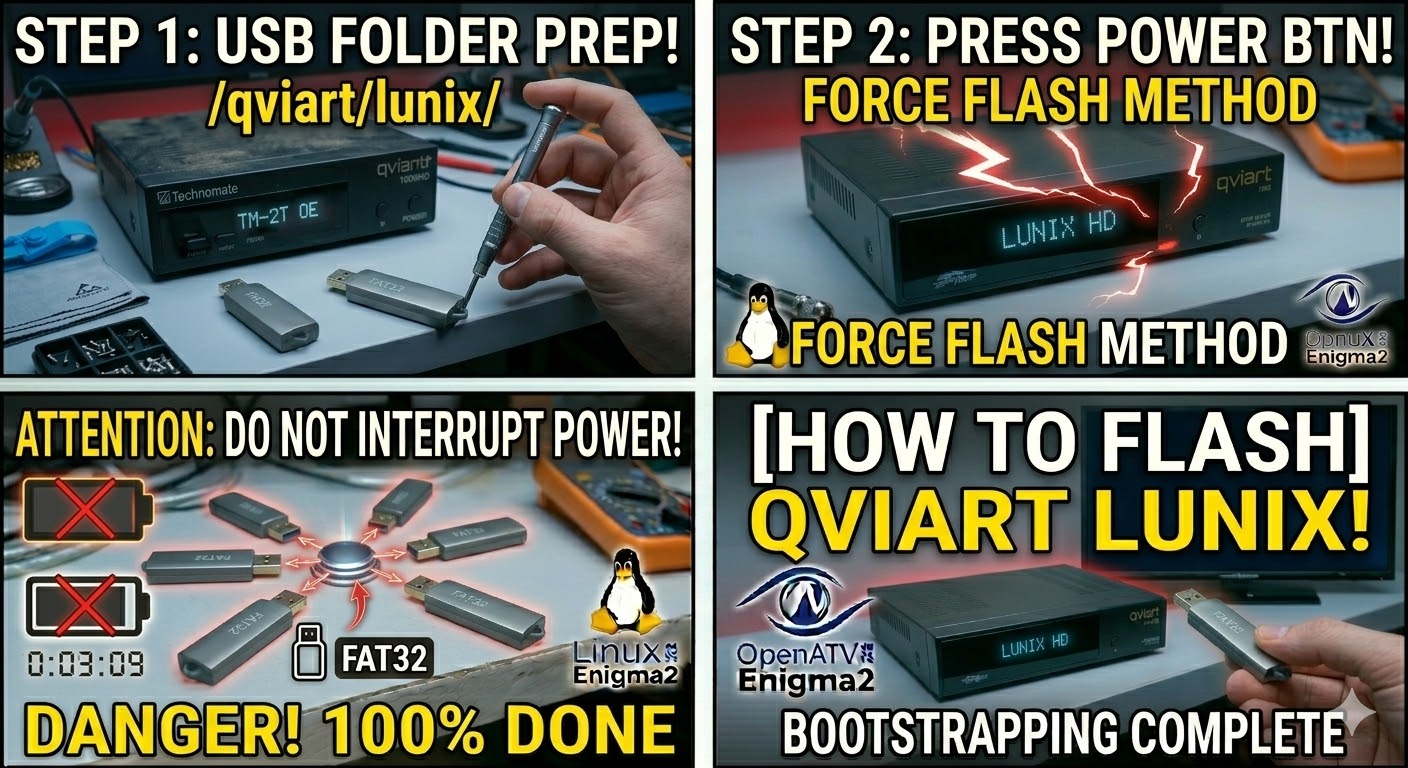
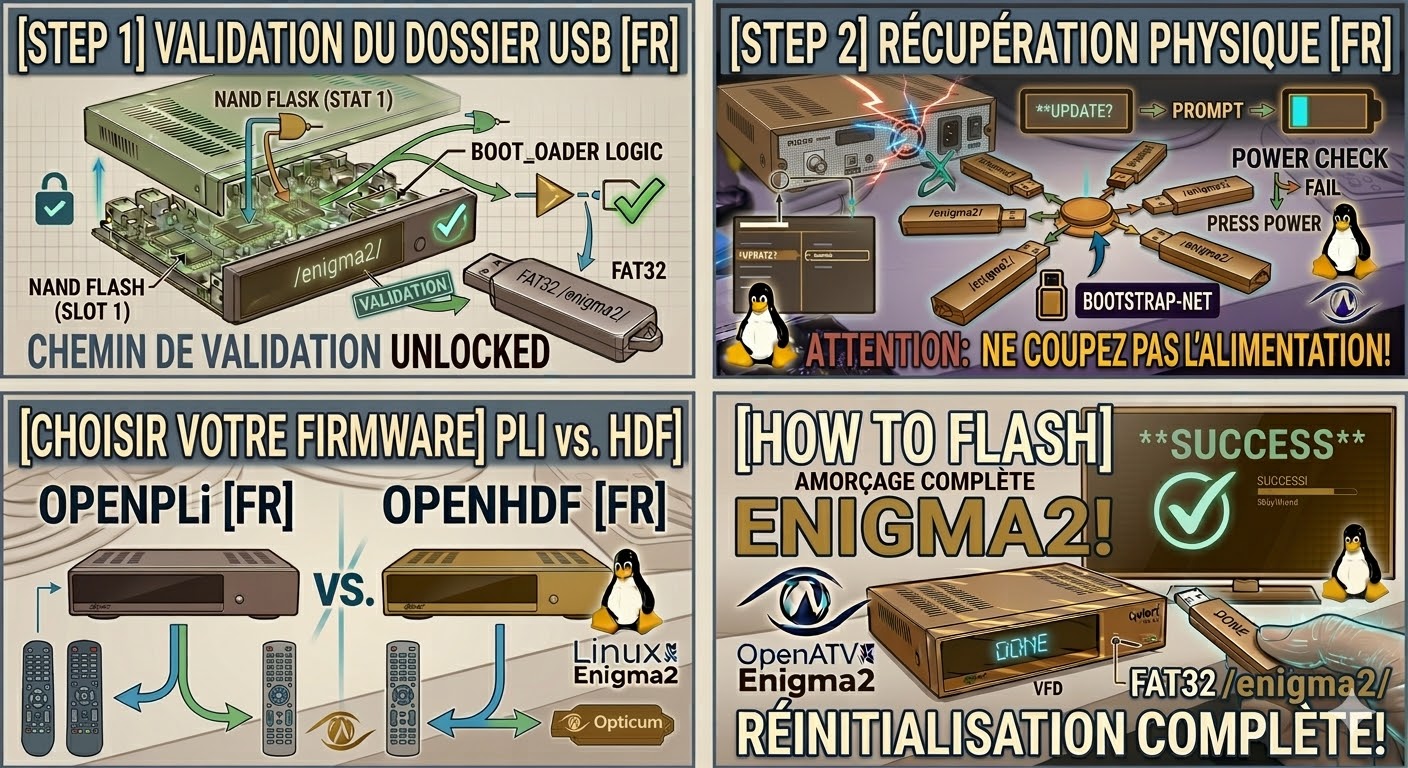
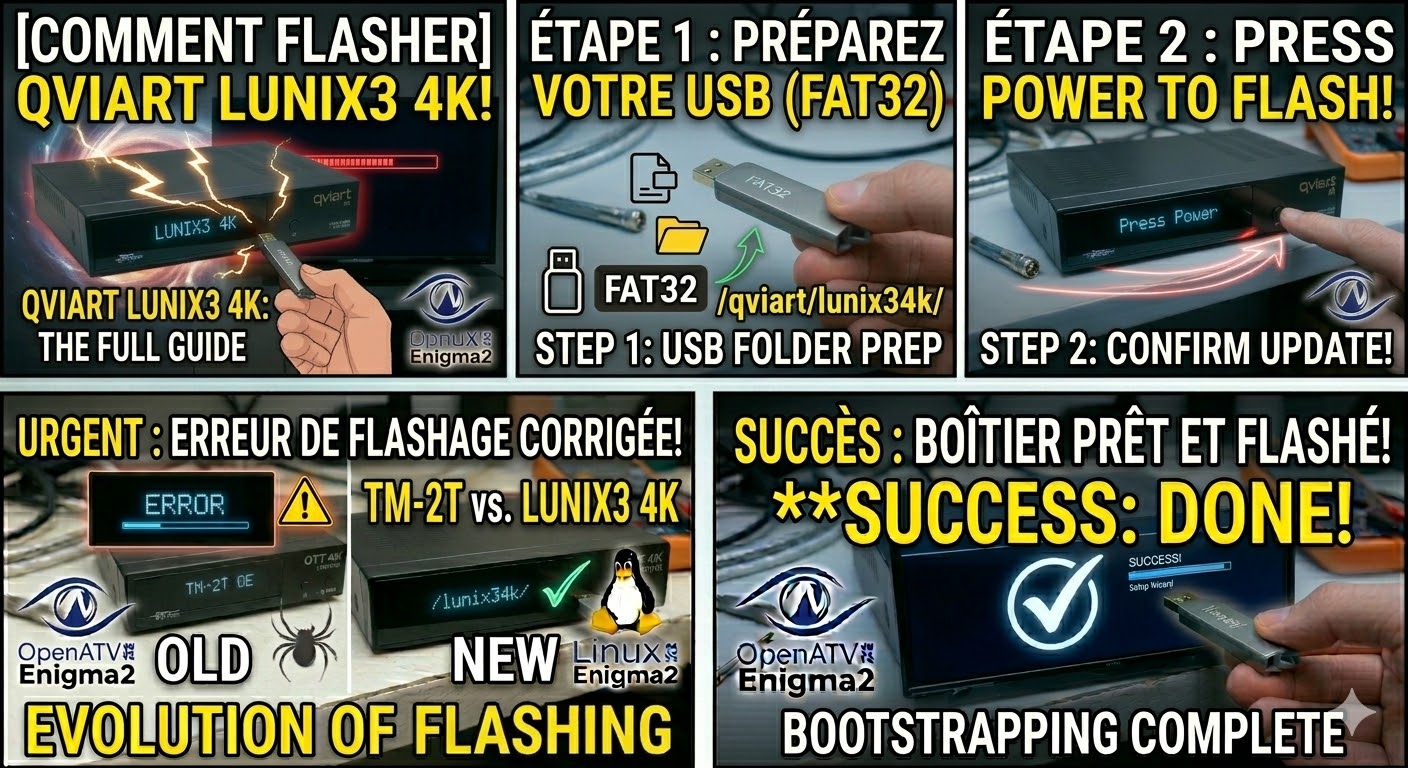
USB Drive: Use a USB 2.0 stick (maximum 8GB is best), formatted to FAT32.
-
Download Image: Ensure you have the firmware (OpenATV, OpenPLi, or EGAMI) specifically for the Lunix3 4K.
-
Extract Files: Unzip the archive on your computer. You should see a folder named
qviart. -
Copy to USB: Transfer the entire
qviartfolder to the root of the USB drive.-
Structure:
USB Stick -> qviart -> lunix34k -> (image files like kernel.bin, rootfs.bin, etc.).
-
The Flashing Process
-
Power Down: Turn off the receiver using the physical power switch at the rear.
-
Insert USB: Plug the USB stick into the front USB port (located behind the flap).
-
Power On: Flip the rear power switch to ON.
-
Initiate Flash: * Watch the front panel VFD display.
-
When the display shows “Update?” or “Press Power”, press the Power button on the front panel immediately.
-
-
Wait: The display will show “Flashing” and a progress percentage. Do not interrupt the power supply during this time.
-
Complete: Once the process is finished, the receiver will reboot automatically. You can remove the USB stick when the first-time installation wizard appears on your TV.
Troubleshooting Tips
-
Folder Name: Ensure the subfolder inside
qviartis exactlylunix34k. If it is misspelled, the box will ignore the files. -
Force Flash: If the front button is unresponsive, find the file named
noforcein thelunix34kfolder and rename it toforce. The box will then flash automatically upon power-up. -
USB Port: If the front port fails to read the stick, try the rear USB ports, although the front is usually preferred for flashing.