[HOW TO FLASH] how to flash Qviart Lunix
To flash the standard Qviart Lunix (the original HD model), the process is identical to its siblings but relies on its specific hardware folder name. This box is very stable but requires the exact folder structure to trigger the bootloader.
Preparation
-
USB Drive: Use a USB 2.0 stick (maximum 8GB), formatted to FAT32.
-
Download Image: Ensure the firmware is specifically for the Qviart Lunix (HD version).
-
Extract Files: Unzip the archive. You should see a folder named
qviart. -
Copy to USB: Place the
qviartfolder in the root of the USB stick.-
Structure:
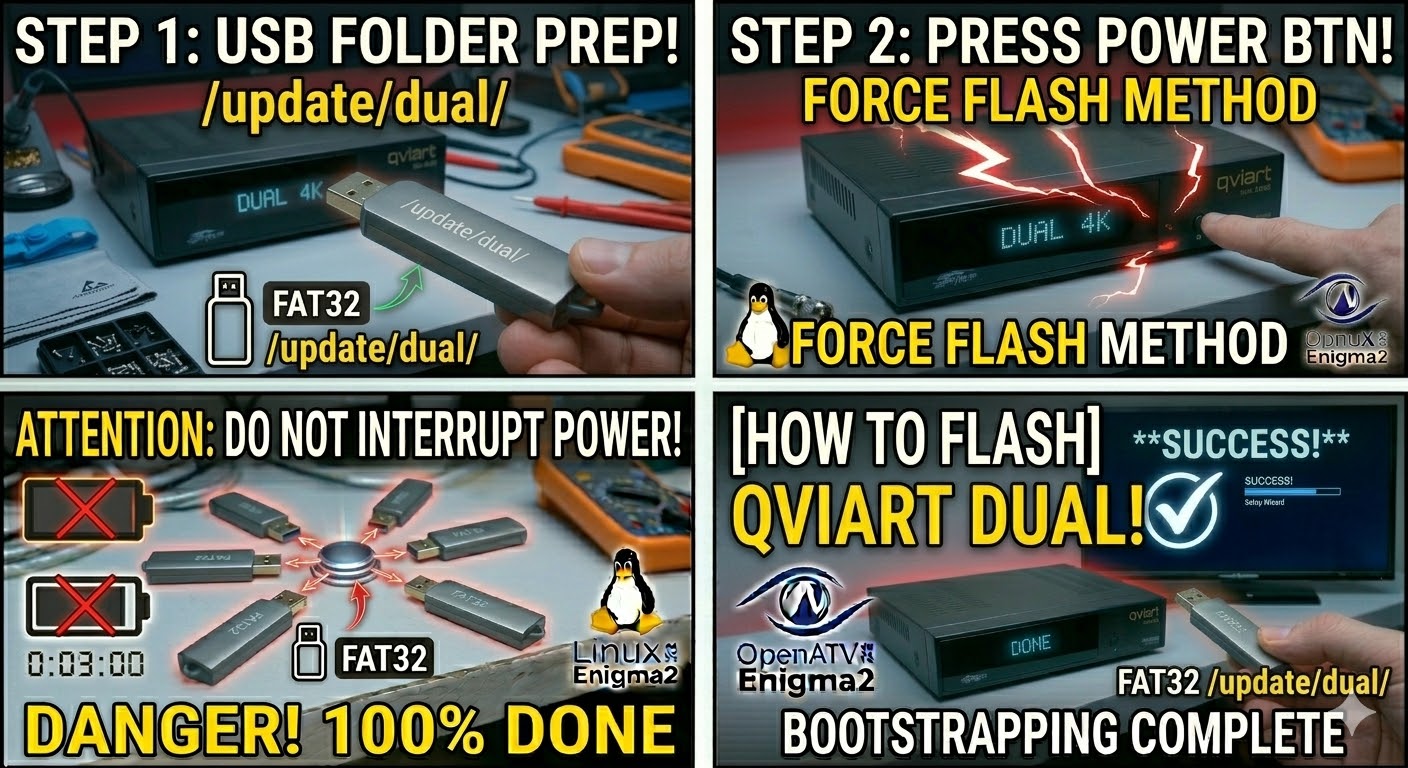
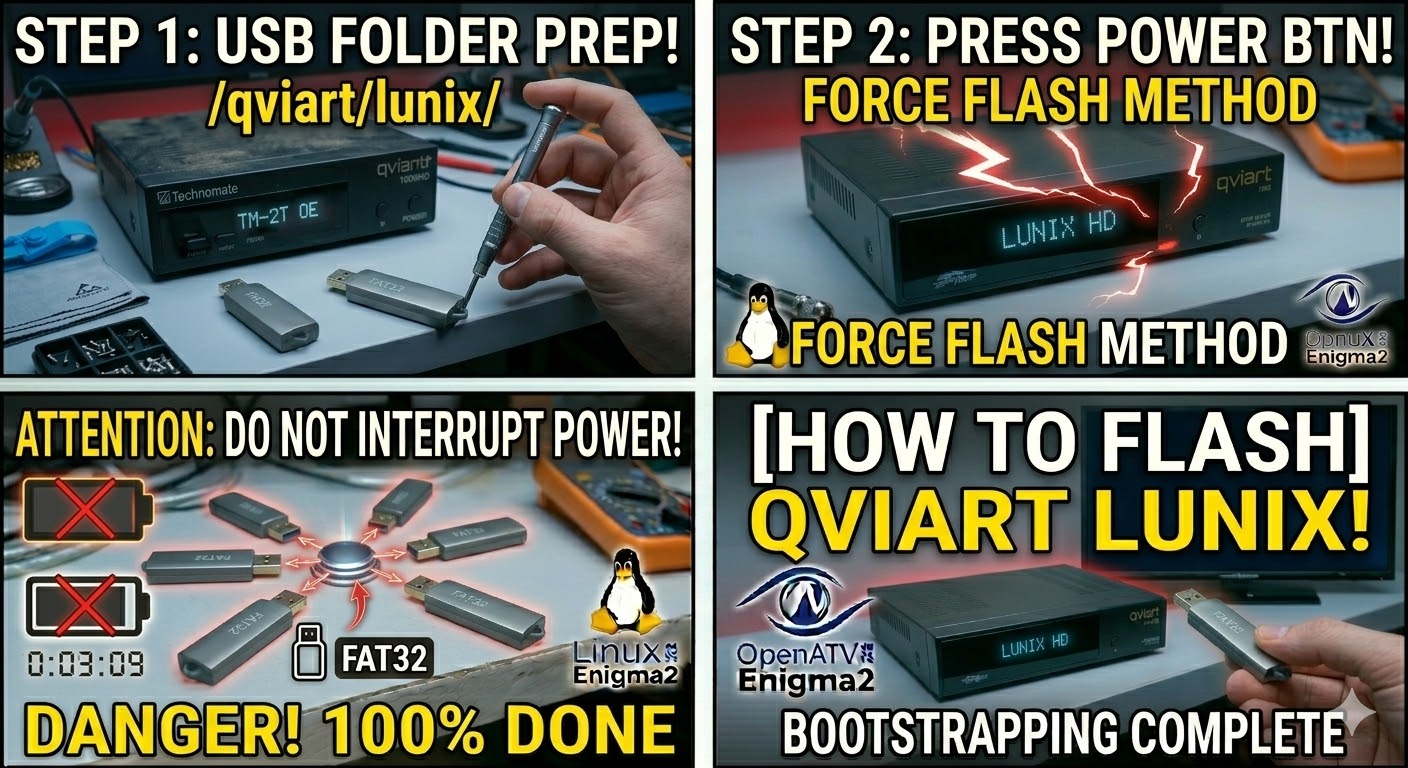
USB Stick -> qviart -> lunix -> (image files: kernel.bin, rootfs.bin, etc.).
-
The Flashing Process
-
Power Down: Turn off the receiver using the rear power switch.
-
Insert USB: Plug the USB stick into the rear USB port.
-
Power On: Flip the rear power switch to ON.
-
Initiate Flash: * Watch the front panel LED or the TV screen.
-
When the prompt “Update?” appears on the screen (or the LED changes behavior), press the Power button on the front panel of the box immediately.
-
-
Wait: The LED will flash during the update. Do not turn off the power until the box reboots itself.
-
Complete: Once the setup wizard appears, the process is finished and you can remove the USB.
Quick Tips
-
Folder Name: Ensure the subfolder is simply named
lunix. If it sayslunixcoorlunix4k, the standard Lunix will ignore it. -
The “Force” Method: If you can’t get the front button to respond, open the
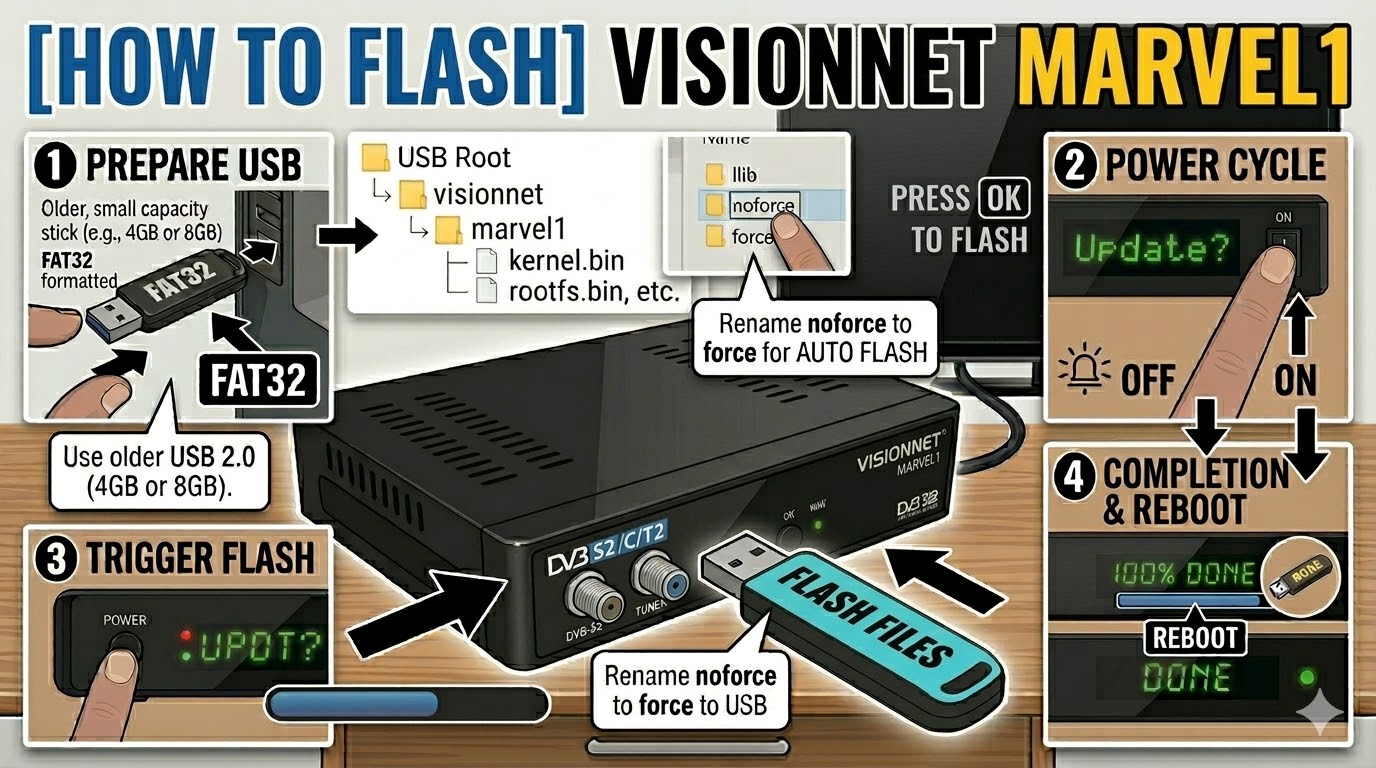
lunixfolder on your USB, find the filenoforce, and rename it toforce. This will automate the flash.