[HOW TO FLASH] how to flash Protek 4K X2
To flash the Protek 4K X2, you are working with a Broadcom-based 4K receiver. The process is very straightforward, provided you use the correct folder naming convention, which is the most common pitfall for this specific model.
Preparation
-
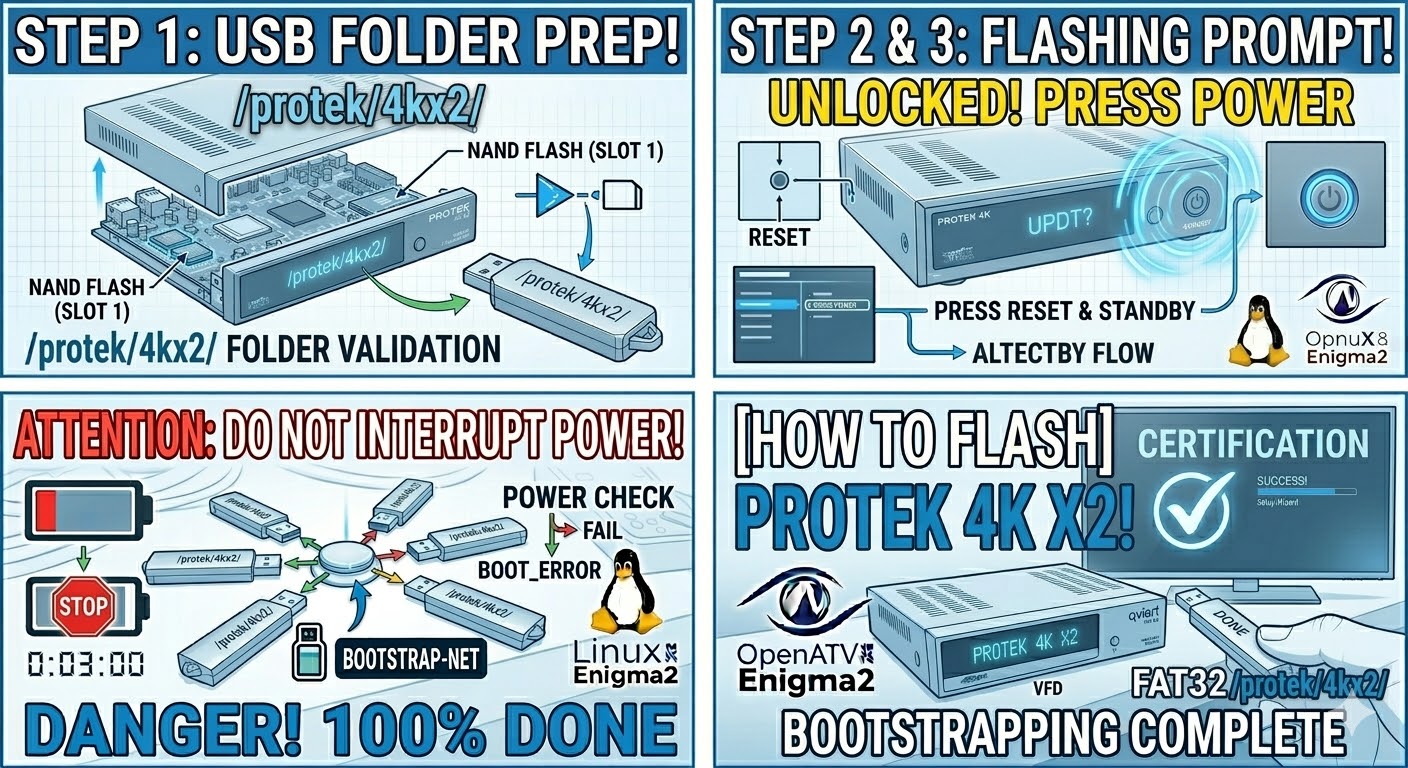
USB Drive: Use a high-quality USB 2.0 or 3.0 stick (8GB or less is recommended) formatted to FAT32.
-
Download Image: Get the latest firmware (OpenATV, OpenHDF, etc.) specifically for the Protek 4K X2.
-
Extract Files: Unzip the file on your PC. You will see a folder named
protek. -
Copy to USB: Transfer the entire
protekfolder to the root of the USB drive.-
Structure:
USB Stick -> protek -> 4kx2 -> (image files: kernel.bin, rootfs.bin, etc.).
-
The Flashing Process
-
Power Down: Turn off the receiver using the physical power switch at the back.
-
Insert USB: Plug the USB stick into one of the USB ports (the side port is often faster to recognize during boot).
-
Power On: Flip the rear power switch to ON.
-
Initiate Flash: * Watch the front panel LED or the TV screen.
-
When you see the prompt “Update?” or “Press Power”, press the Standby/Power button on the front panel immediately.
-
-
Wait: The LED will blink or the screen will show a progress bar. Do not turn off the power until the box finishes and reboots itself.
-
Complete: Once the setup wizard appears, you can safely remove the USB stick.
Quick Tips for Protek 4K X2
-
Folder Name Check: Ensure the subfolder inside
protekis exactly4kx2. If it is renamed or missing, the bootloader will skip the update. -
The “Force” Method: If you find it difficult to time the button press, open the
4kx2folder on your USB, find the filenoforce, and rename it toforce. The receiver will then flash automatically upon power-up. -
USB Selection: If the box boots normally to the old image, try a different USB port or a different USB stick brand.
Would you like me to generate a set of high-quality thumbnails for the Protek 4K X2 in the new blue technical style?