[HOW TO FLASH] how to flash Optibox E3 HD
To flash your Optibox E3 HD, you’ll need a USB stick and a compatible Enigma2 firmware image (like OpenATV, OpenPLi, or OpenDroid). The process is straightforward but requires a specific folder structure to be recognized by the bootloader.
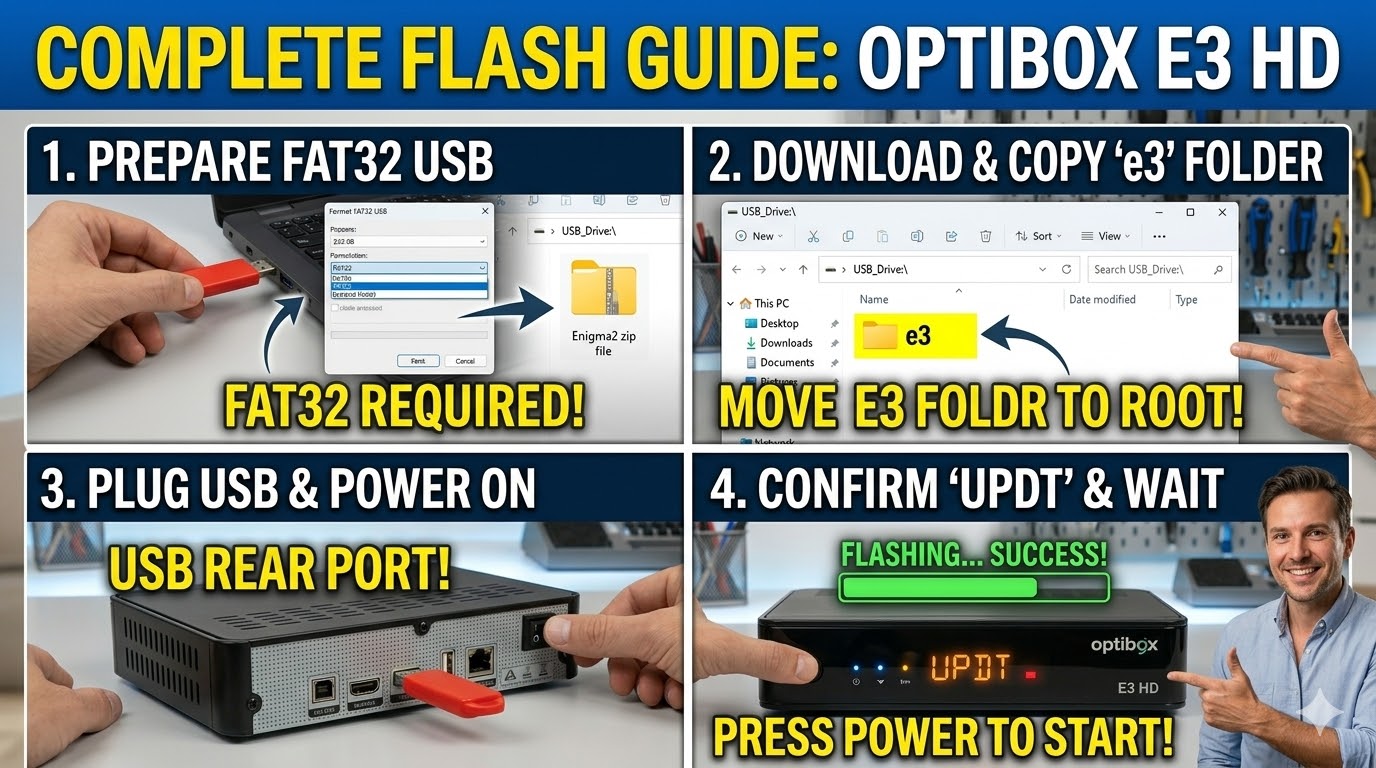
1. Preparation
-
USB Drive: Use a USB stick (8GB or smaller is often more reliable for flashing).
-
Format: Format the drive to FAT32.
-
Firmware: Download the image for the “E3 HD.” It will usually be a
.zipfile.
2. Folder Structure
The receiver looks for a specific folder name on the USB root.
-
Extract the firmware
.zipfile on your computer. -
You should see a folder named
e3. -
Copy that
e3folder directly to the root of your USB stick.-
Correct:
USB_Drive:\e3\ -
Incorrect:
USB_Drive:\OpenATV_7.3\e3\
-
3. The Flashing Process
-
Power Off: Turn off the receiver using the physical power switch at the back.
-
Insert USB: Plug the USB stick into one of the USB ports (the rear port is generally more stable for flashing).
-
Power On: Turn the back switch to ON.
-
Confirm Flash: Watch the front panel display. When it shows “PROG” or “UPDT”, you must press the Power button on the front panel of the receiver immediately.
-
Wait: The display will indicate the progress. The process usually takes 2–4 minutes.
Warning: Do not power off the device while it is flashing.
-
Reboot: Once finished, the receiver will automatically reboot into the new software’s setup wizard. You can then safely remove the USB stick.
Troubleshooting
-
Doesn’t start flashing: If it boots straight to the old software, try a different USB stick or ensure the folder is named exactly
e3and contains files likekernel.binandrootfs.bin. -
Stuck on “BOOT”: This can happen if the image is corrupted. Try downloading the firmware again or using a different team’s image (e.g., switching from OpenPLi to OpenATV).