[HOW TO FLASH] how to flash Octagon SX988 4K UHD
To flash the Octagon SX988 4K UHD, the process is slightly different from the older XP-series because this model is part of the newer “Define OS” and “Enigma2” hybrid family (similar to the SF8008 or SX88 series).
1. Preparation
-
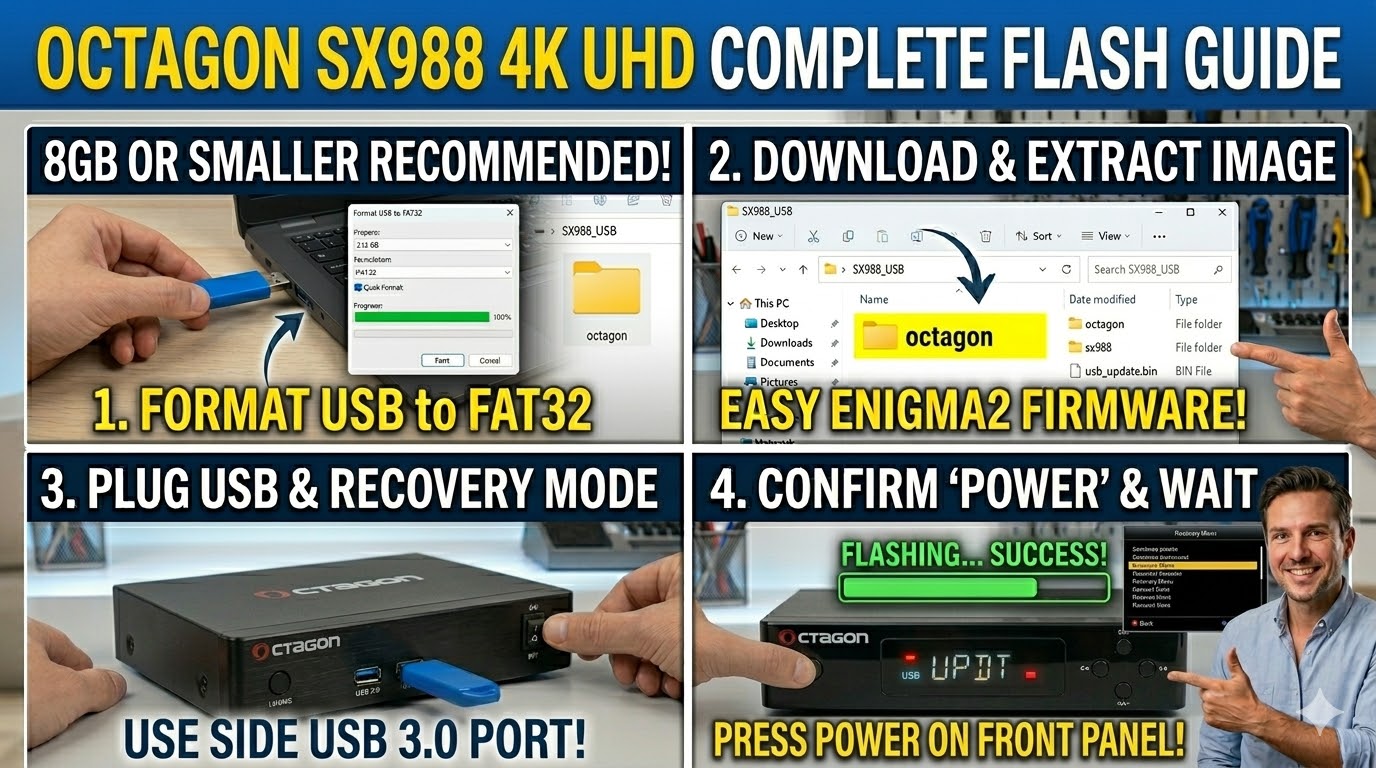
USB Stick: A high-quality USB 2.0 or 3.0 stick (8GB or smaller is recommended).
-
Format: Must be formatted to FAT32.
-
Firmware: Download the image specifically for the SX988.
-
If you are installing Enigma2 (e.g., OpenATV), look for the
mmc.ziporrecovery.zipversion.
-
2. Folder Structure
Unlike the older boxes, modern Octagon 4K models often look for a folder named after the chip or a specific update file:
-
Extract the downloaded zip file.
-
You will typically see a folder named
octagonorsx988. -
Copy that folder (and its subfolders/files) to the root of the USB.
-
Path:
USB:\octagon\sx988\ -
Inside, you should see files like
usb_update.binorrootfs.tar.bz2.
-
3. The Flashing Process (Recovery Method)
The SX988 often uses a “Recovery Menu” to handle flashing:
-
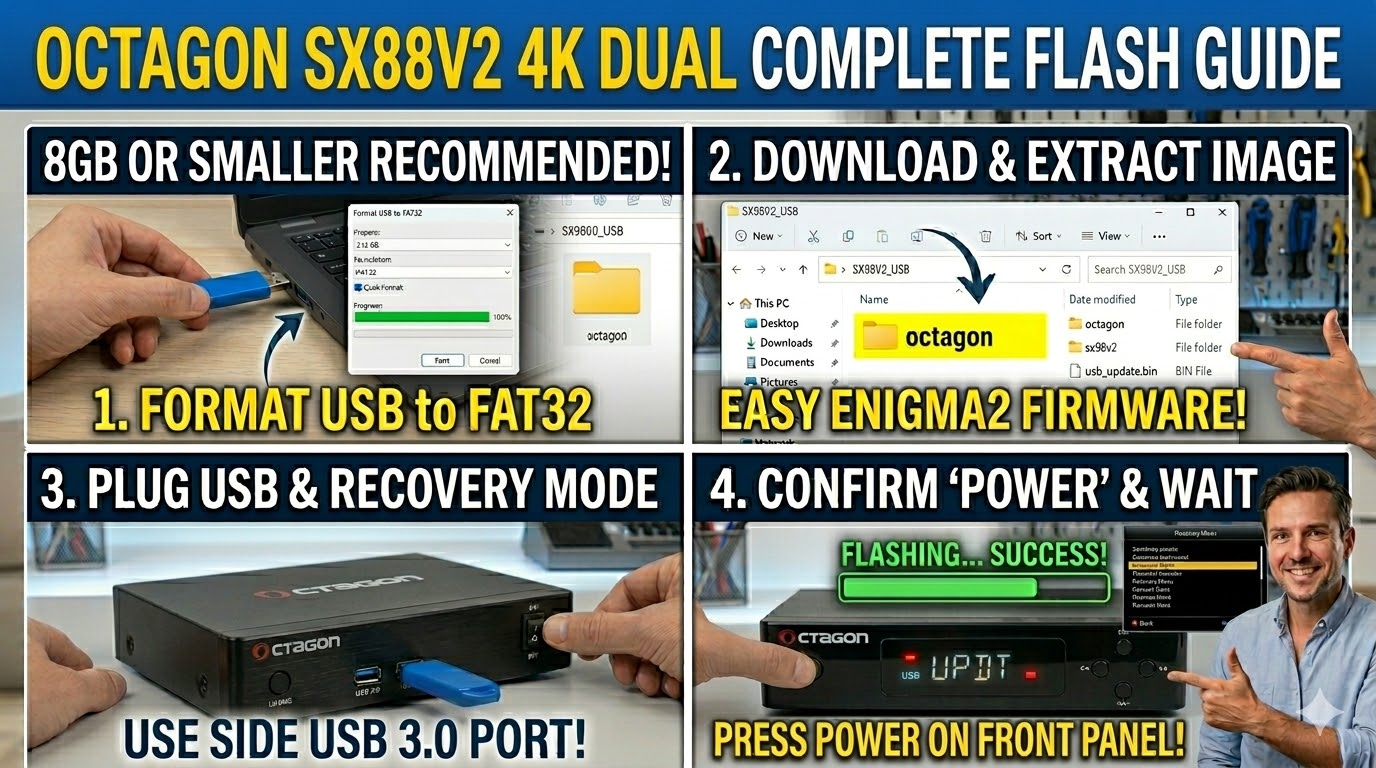
Power Off: Turn off the power using the back switch.
-
Insert USB: Plug the USB stick into the side USB 3.0 port (usually blue).
-
Initiate Recovery: * Press and hold the Power button on the front panel (or the Reset button if your version has a pinhole).
-
While holding the button, turn the back power switch to ON.
-
-
Enter Menu: Keep holding the button until you see the Recovery Menu on your TV screen.
-
Select Flash: Use the remote to select “Flash Recovery Image” or “USB Multiboot Image Upgrade”.
-
Confirm: Select the file on your USB and press OK.
4. Alternative “Front Panel” Method
If the Recovery Menu doesn’t appear:
-
With the USB inserted, power on the box.
-
Rapidly tap the Power button on the front panel.
-
The display should show “UPDT” or “USB”. It will then begin the automated flashing process.
Comparison for enigma2.net
The SX988 4K is unique because it uses the Hi3798MV200 chipset, which allows for Multiboot. This means you can have the original “Define OS” in Slot 1 and “OpenATV” in Slot 2.