[HOW TO FLASH] how to flash IQON Force 2 nano
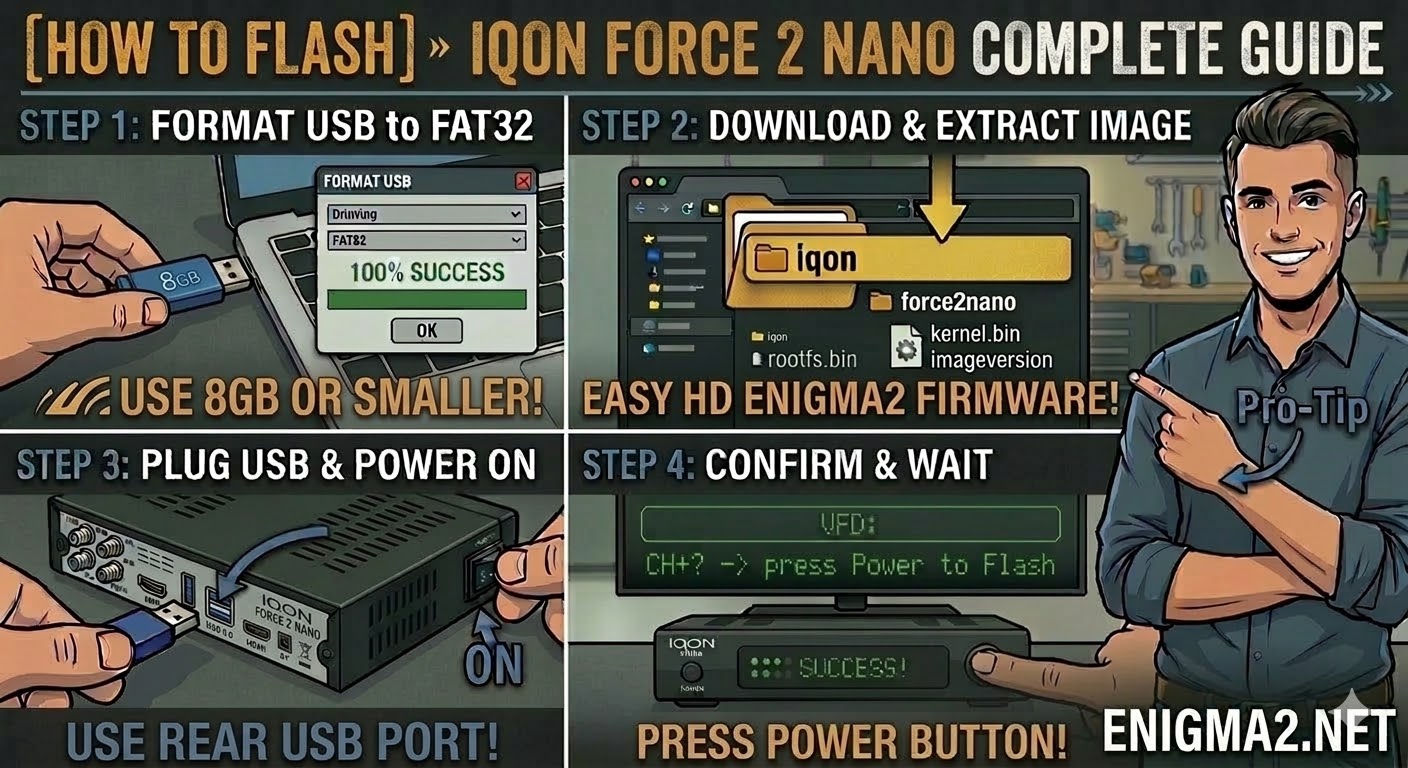
To flash the IQON Force 2 Nano, you will follow the standard procedure for the IQON Force series. Despite its “Nano” size, it uses a similar Broadcom architecture that requires a specific folder structure on a FAT32-formatted USB stick to initiate the update.
1. Preparation
-
USB Stick: Use a high-quality USB 2.0 stick. For the Nano model, a capacity of 8GB or smaller is ideal for the best compatibility with the bootloader.
-
Format: Ensure the stick is formatted to FAT32.
-
Firmware: Download the Enigma2 image specifically built for the IQON Force 2 Nano.
2. Folder Structure
The bootloader identifies the update via the iqon directory and the specific force2nano subfolder.
-
Extract the downloaded firmware
.zipfile on your PC. -
You should see a folder named
iqon. -
Copy the entire
iqonfolder to the root of your USB stick.-
Path:
USB:\iqon\force2nano\ -
Contents: Inside the subfolder, you should see files like
kernel.bin,rootfs.bin, andimageversion.
-
3. The Flashing Process
-
Power Off: Turn off the receiver using the power switch at the back (or unplug the power cable).
-
Insert USB: Plug the USB stick into the rear USB port.
-
Power On: Turn the power back to ON.
-
Initiate Flash:
-
Watch the front panel display (or the LED indicator if there is no VFD).
-
When the receiver detects the USB files, it will display a prompt like “USB” or “Found Image”.
-
Quickly press the Power/OK button on the front panel to confirm.
-
-
Wait: The process will take a few minutes. Do not remove the power or the USB stick while it is flashing.
-
Completion: The receiver will reboot automatically once the installation is finished.

The flashing process should take approximately two to four minutes to complete, while the receiver
is being flashed it is vitally important that you DO NOT power the receiver down for any reason as
this can cause serious and or permanent damage.