[HOW TO FLASH] how to flash EVO SLIM
Since the EVO Slim (the non-SE version) often shares similar hardware with the M7 and other Broadcom-based receivers, the flashing process is almost identical, but the folder naming on your USB is the most critical part to get it to recognize the update.
Flashing the EVO Slim (Step-by-Step)
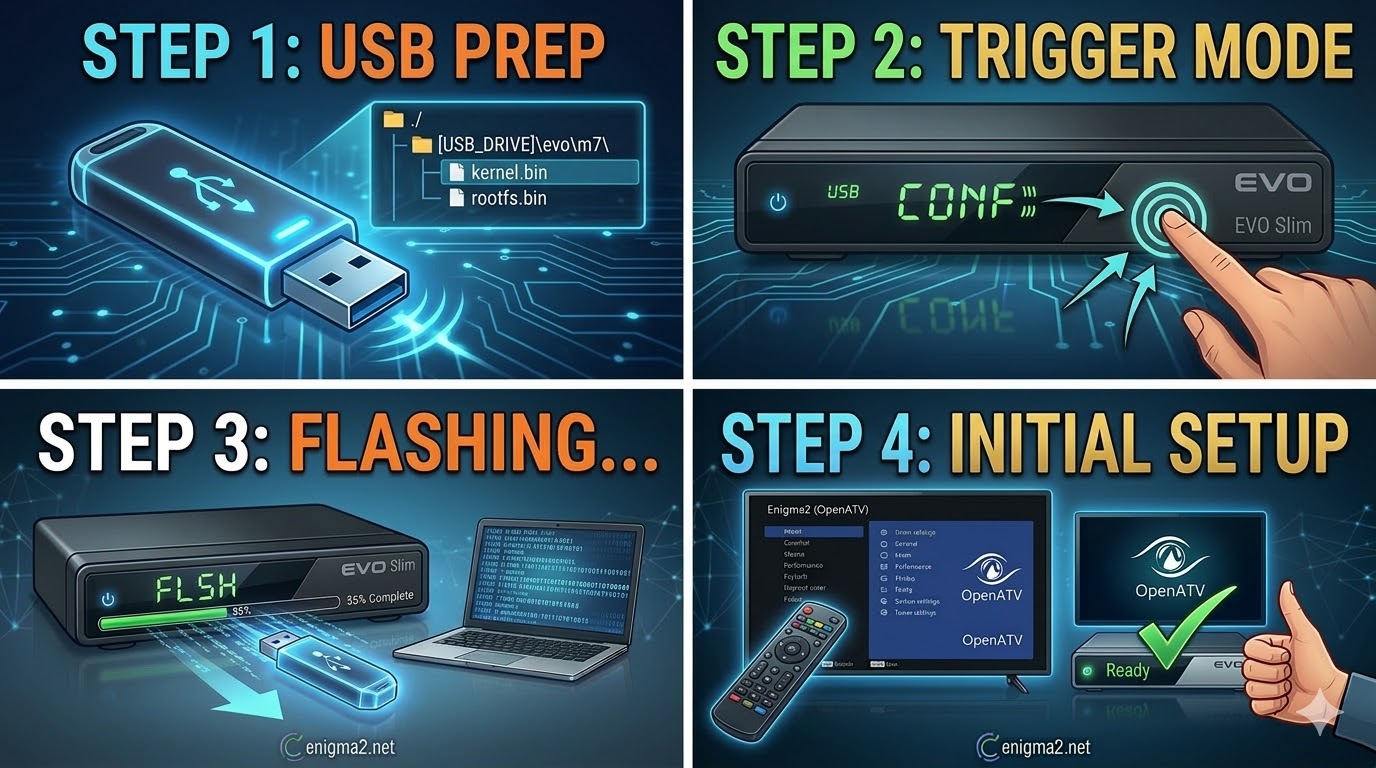
1. USB Preparation
-
Format: Use a high-quality USB stick (8GB or smaller is best) formatted to FAT32.
-
Folder Structure: Download your Enigma2 image (OpenATV, OpenPLi, etc.). When you unzip it, ensure the folder structure on the USB is:
-
USB_ROOT/evo/m7/ -
(Note: Many EVO Slim models actually use the m7 folder designation. If the receiver doesn’t recognize it, try renaming the subfolder to
slim.)
-
-
Files: Inside the final folder, you should see files like
kernel.binandrootfs.bin.
2. The Flashing Procedure
-
Power Down: Turn off the receiver at the back using the power switch.
-
Insert USB: Plug the stick into the rear USB port.
-
The Trigger:
-
Turn the power switch back to ON.
-
Immediately look at the front panel display. When it shows “CONF” or “USB”, press the Power Button on the front panel of the receiver (not the remote).
-
-
Progress: The display should change to “FLSH” or show a counting progress. This usually takes 2–4 minutes.
-
Finish: The receiver will automatically reboot. Once you see the startup wizard on your TV, you can safely remove the USB stick.

The flashing process should take approximately two to four minutes to complete, while the receiver
is being flashed it is vitally important that you DO NOT power the receiver down for any reason as
this can cause serious and or permanent damage.