[HOW TO FLASH] how to flash Ariva Twin
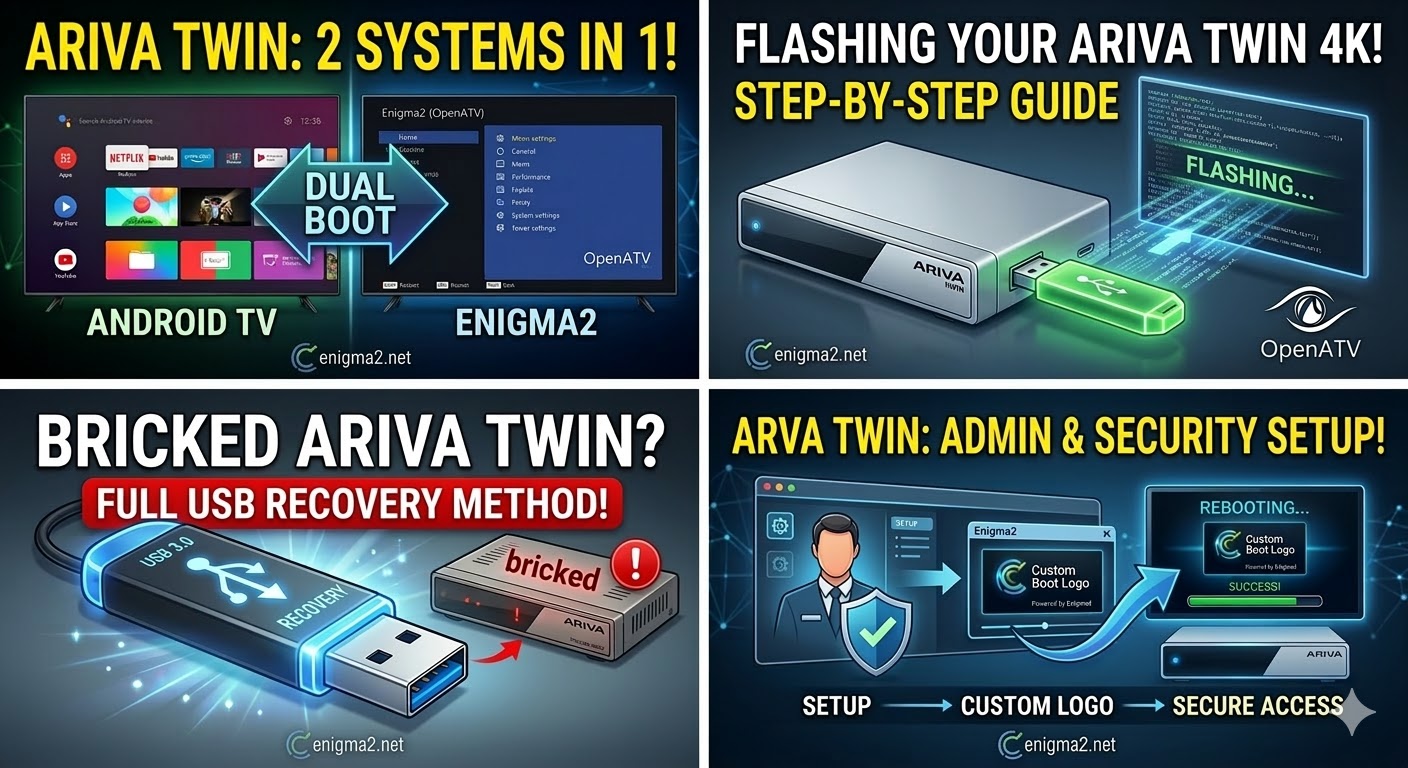
Flashing the Ferguson Ariva Twin (specifically the Ariva ATV TT 4K model) usually involves two different paths depending on whether you want to update the official Android-based software or boot into a Linux Enigma2 image (like OpenATV).
Given your interest in Enigma2 and your work with security administration, you’ll likely find the second method more useful for customization.
1. Flashing Enigma2 (OpenATV)
The Ariva Twin is a dual-boot machine. To flash a new Enigma2 image:
Preparation
-
Format a USB Stick: Use a drive (FAT32 format) and ensure it has at least 1GB of space.
-
Download the Image: Get the latest image for the “arivatwin” (usually from the OpenATV image team).
-
File Structure: Unpack the archive and copy the files to the USB. The files (usually three specific files) must be placed in a folder named
e2inside another folder namedupdate(path:USB_ROOT/e2/update/).
Flashing Process
-
Enable Enigma2 Mode: In the official Android LiveTV app, go to Setup -> Misc -> Preference and set Use E2 to Enable.
-
Power Down: Turn off the receiver completely (using the rear power switch).
-
Initiate Flash: * Insert the USB drive into one of the USB ports.
-
Turn the receiver back on.
-
As it boots, press and hold the GREEN button on the remote control.
-
-
Selection: When the system selection board appears on your screen, press the BLUE button to start the Enigma2 update/boot process.
2. Flashing Official Firmware (Android)
If you just want to update the standard system:
-
Format USB to FAT32.
-
Copy the Update: Download the official
.zipfirmware and copy it to the root of the USB (do not unzip it). -
Internal Update:
-
Insert the USB into the receiver.
-
Navigate to Applications -> Update -> Update Local.
-
Select your USB drive and the zip file, then press OK.
-
-
Factory Reset: It is highly recommended to perform a Factory Data Reset immediately after the update to ensure system stability.
Important Safety Tips
-
Don’t Unplug: Never turn off the power or pull out the USB while the progress bar is moving. This will “brick” the device.
-
USB Selection: These receivers can be picky; if the update doesn’t start, try a different USB port or a smaller-capacity USB 2.0 stick.

The flashing process should take approximately two to four minutes to complete, while the receiver
is being flashed it is vitally important that you DO NOT power the receiver down for any reason as
this can cause serious and or permanent damage.