[HOW TO FLASH] how to flash Edision Optimuss OS1
Flashing the Edision Optimuss OS1 (Step-by-Step)
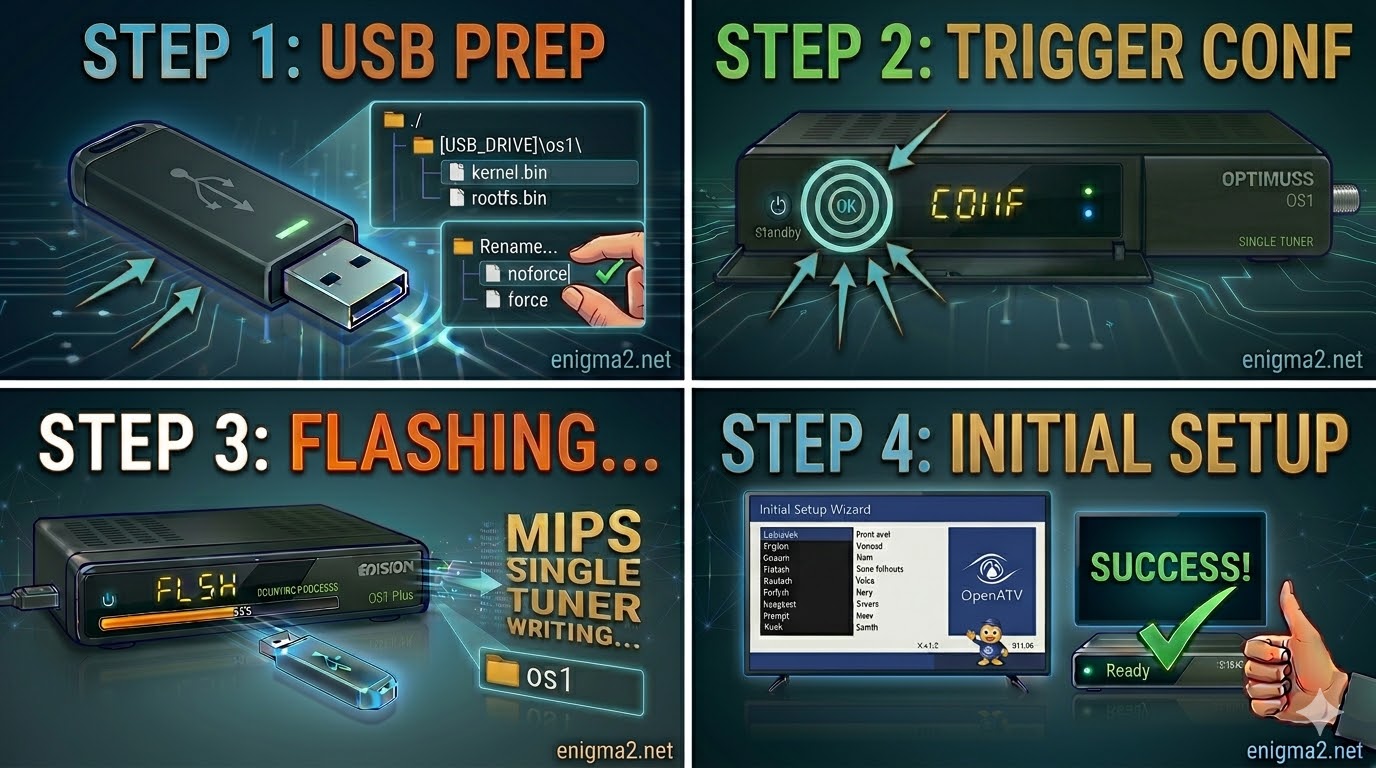
1. Prepare the USB Drive
-
Format: Use a high-quality USB 2.0 stick (FAT32 formatted). This older Broadcom bootloader is notorious for being picky; a 4GB or 8GB stick is the “sweet spot” for detection.
-
The Folder Path: Extract your Enigma2 image (OpenATV, OpenPLi, etc.). The root of your USB drive must contain this exact folder:
-
USB_ROOT/os1/
-
-
Verify Files: Inside the
os1folder, ensure these files are present:-
kernel.bin -
rootfs.bin -
imageversion
-
-
Automation Hack: If your image contains a file named
noforce, rename it toforce. This ensures the receiver starts flashing immediately upon power-on.
2. The Flashing Procedure
-
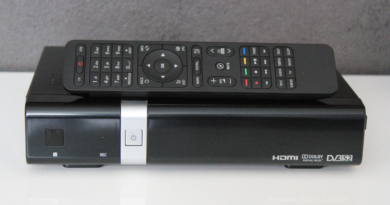
Power Off: Turn off the receiver using the physical power switch at the back.
-
Insert USB: Open the front drop-down flap and plug your prepared USB stick into the front USB port.
-
The Trigger:
-
Turn the power switch back to ON.
-
If using
force: The front VFD display will change immediately (showing “FLSH” or progress) and the flashing process will begin. -
If using
noforce: Watch the front VFD display. When it shows “CONF” or “USB”, press the OK button on the front panel (behind the flap) or on your Remote Control.
-
-
Wait: The process typically takes 3–5 minutes. Do not power off while the VFD shows it is writing data.
-
Finish: The receiver will reboot automatically. You can safely remove the USB stick when the first-time setup wizard appears on your TV.

The flashing process should take approximately two to four minutes to complete, while the receiver
is being flashed it is vitally important that you DO NOT power the receiver down for any reason as
this can cause serious and or permanent damage.