[HOW TO FLASH] how to flash Edision OS mio + 4k
Flashing the Edision OS mio+ 4K (Step-by-Step)
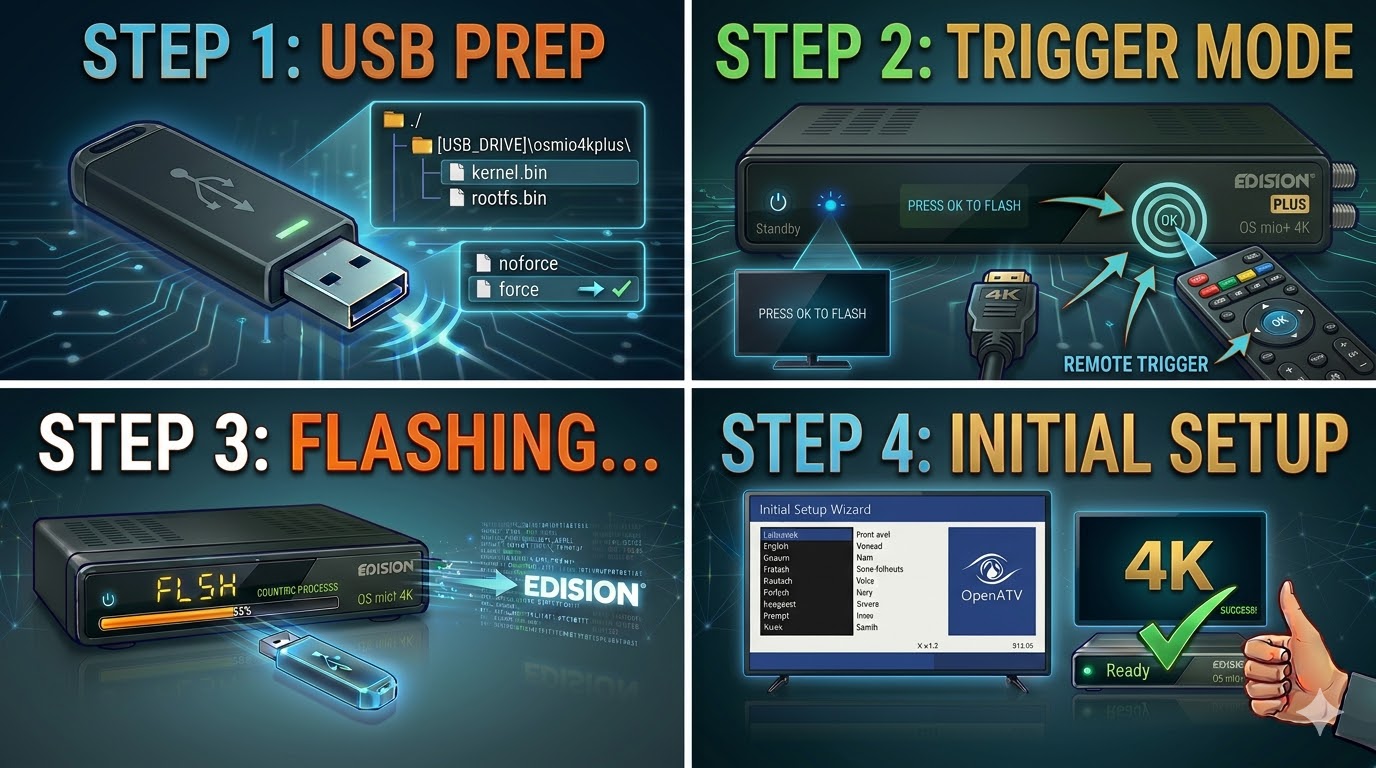
1. Prepare the USB Drive
-
Format: Use a high-quality USB 2.0 stick (FAT32). As with most Edision bootloaders, sticks 8GB or smaller are highly recommended.
-
The Folder Path: Extract the Enigma2 image ZIP (OpenATV, etc.). The root of your USB drive must contain a folder named
osmio4kplus.-
Path:
USB_ROOT/osmio4kplus/ -
(Note: It is important to use the
osmio4kplusfolder to distinguish it from the standard version files.)
-
-
Verify Files: Ensure the
osmio4kplusfolder containskernel.bin,rootfs.bin, andimageversion.
2. The Flashing Procedure
-
Power Off: Turn off the receiver using the physical power switch at the back.
-
Insert USB: Plug the stick into either the rear or side USB port.
-
The Trigger:
-
Turn the power switch back to ON.
-
Watch the front OLED display: It will show “Press OK to flash”.
-
Immediately press and hold the OK button on your Remote Control (or the front panel if accessible).
-
-
Wait: The OLED display will show the progress of the flash. This typically takes 2–4 minutes.
-
Finish: Once the process is complete, the receiver will reboot into the new image automatically. Remove the USB once the setup wizard (language selection) appears on your TV.

The flashing process should take approximately two to four minutes to complete, while the receiver
is being flashed it is vitally important that you DO NOT power the receiver down for any reason as
this can cause serious and or permanent damage.