[HOW TO FLASH] how to flash Protek 9920 LX
Flashing the Protek 9920 LX follows the standard procedure for HD-era Enigma2 boxes. Since this model uses a Broadcom chipset, the folder structure on your USB drive is the most critical factor for a successful update.
Preparation
-
USB Drive: Use a USB 2.0 stick (smaller is better, ideally 2GB to 8GB) formatted to FAT32.
-
Download Image: Ensure the firmware is specifically for the Protek 9920 LX (OpenATV, OpenPLi, etc.).
-
Extract Files: Unzip the archive on your computer. You will see a folder named
protek. -
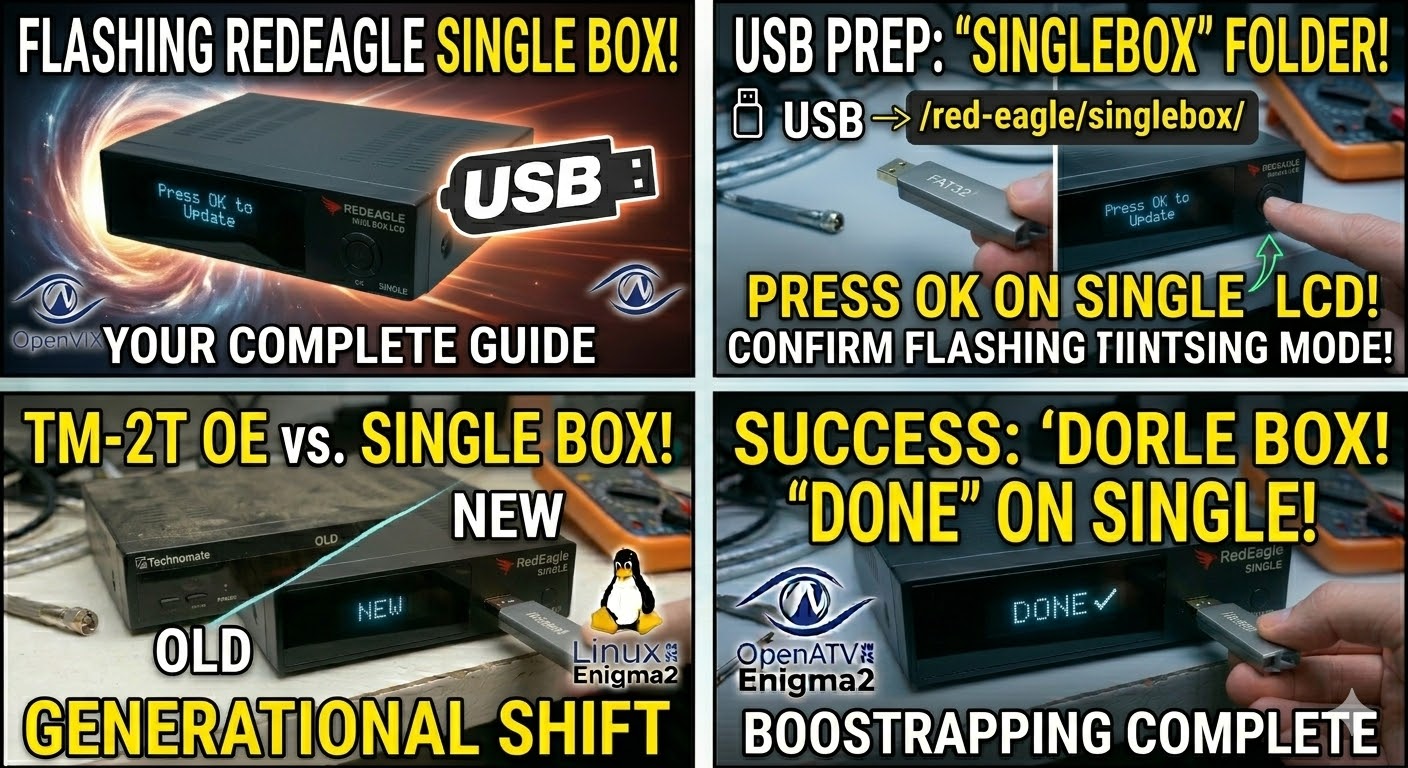
Copy to USB: Transfer the entire
protekfolder to the root of the USB drive.-
Structure:
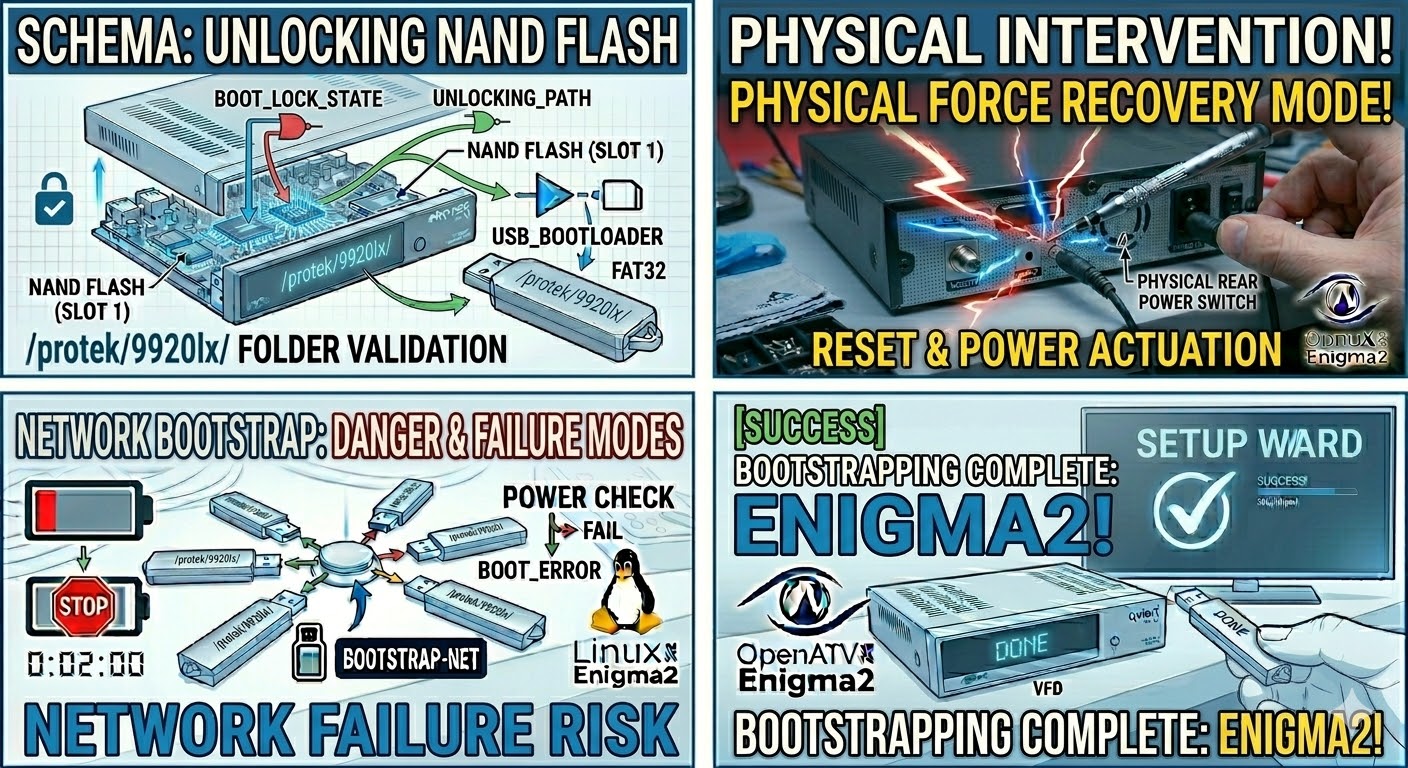
USB Stick -> protek -> 9920lx -> (image files: kernel.bin, rootfs.bin, etc.).
-
The Flashing Process
-
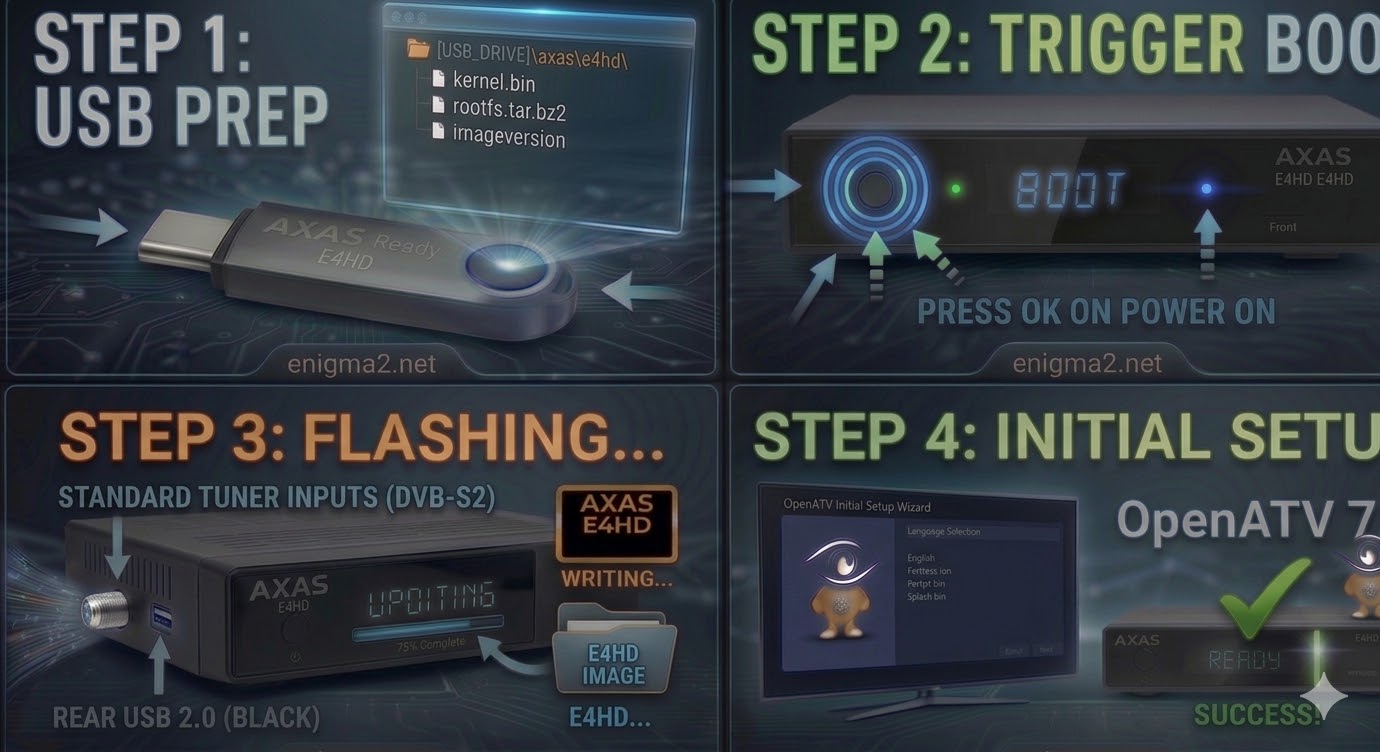
Power Down: Turn off the receiver using the physical power switch at the rear.
-
Insert USB: Plug the USB stick into the rear USB port (the front port can be used, but the rear is often more stable for boot-level tasks).
-
Power On: Flip the rear power switch to ON.
-
Initiate Flash:
-
Watch the front panel display.
-
When the display shows “Update?” or “Press OK”, press the OK button (located behind the front flap) or the Standby/Power button immediately.
-
-
Wait: The display will show “Flashing” or “Loading”. Do not turn off the power during this phase.
-
Complete: The box will reboot automatically. Once you see the Enigma2 logo or the setup wizard on your TV, you can remove the USB stick.
Quick Tips for 9920 LX
-
Folder Name: Ensure the subfolder is exactly
9920lx. If it is named differently, the bootloader will ignore the update. -
Force Update: If you cannot trigger the flash with the button, open the
9920lxfolder on your USB, find the filenoforce, and rename it toforce. This will automate the process upon power-up. -
USB Compatibility: This older hardware can be picky. If the box boots normally to the old image, try a different (older) USB stick.

The flashing process should take approximately two to four minutes to complete, while the receiver
is being flashed it is vitally important that you DO NOT power the receiver down for any reason as
this can cause serious and or permanent damage.