[HOW TO FLASH] how to flash Qviart Lunix3 4K
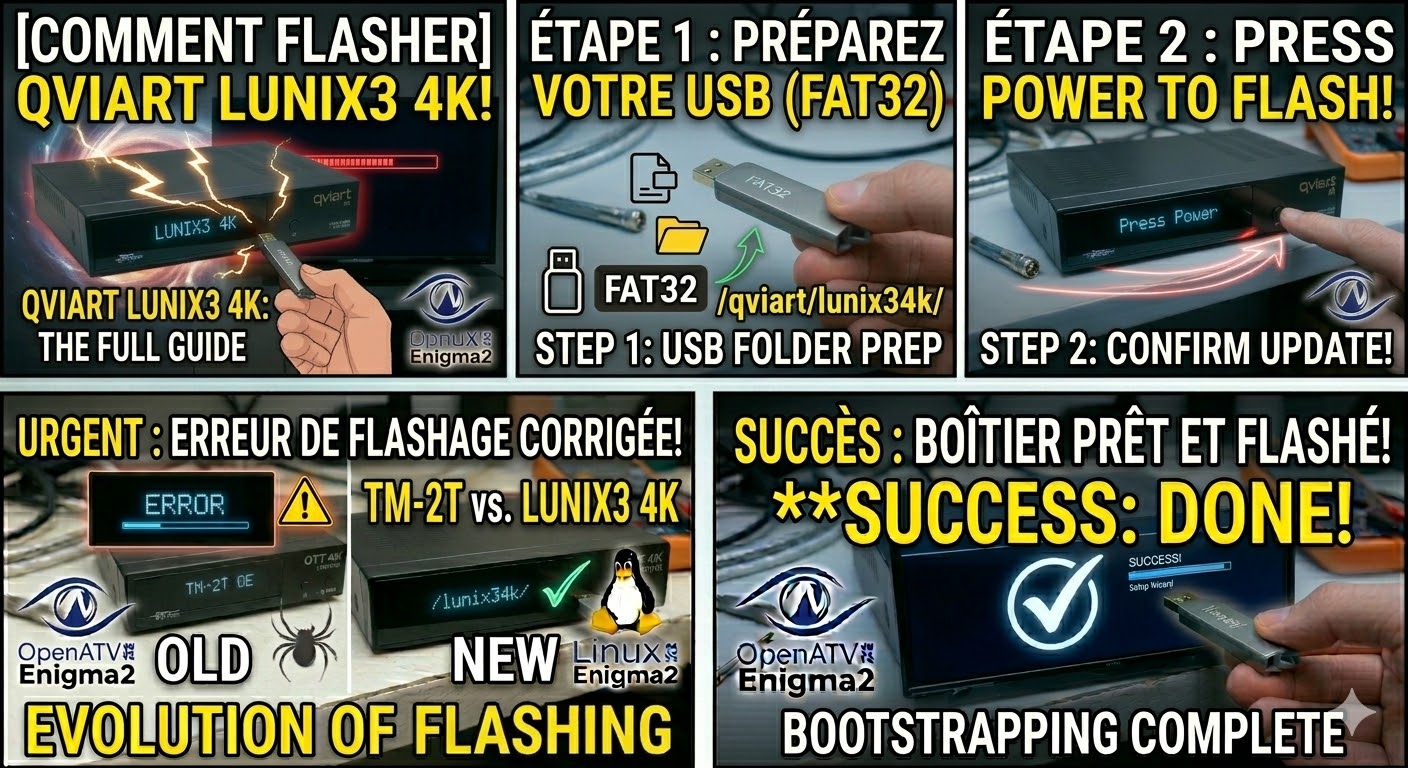
To flash the Qviart Lunix3 4K, you will follow a procedure very similar to other high-end Enigma2 4K receivers. This model is known for its speed, but the bootloader is strict about the USB file structure.
Preparation
-
USB Drive: Use a USB 2.0 stick (maximum 8GB is best), formatted to FAT32.
-
Download Image: Ensure you have the firmware (OpenATV, OpenPLi, or EGAMI) specifically for the Lunix3 4K.
-
Extract Files: Unzip the archive on your computer. You should see a folder named
qviart. -
Copy to USB: Transfer the entire
qviartfolder to the root of the USB drive.-
Structure:
USB Stick -> qviart -> lunix34k -> (image files like kernel.bin, rootfs.bin, etc.).
-
The Flashing Process
-
Power Down: Turn off the receiver using the physical power switch at the rear.
-
Insert USB: Plug the USB stick into the front USB port (located behind the flap).
-
Power On: Flip the rear power switch to ON.
-
Initiate Flash: * Watch the front panel VFD display.
-
When the display shows “Update?” or “Press Power”, press the Power button on the front panel immediately.
-
-
Wait: The display will show “Flashing” and a progress percentage. Do not interrupt the power supply during this time.
-
Complete: Once the process is finished, the receiver will reboot automatically. You can remove the USB stick when the first-time installation wizard appears on your TV.
Troubleshooting Tips
-
Folder Name: Ensure the subfolder inside
qviartis exactlylunix34k. If it is misspelled, the box will ignore the files. -
Force Flash: If the front button is unresponsive, find the file named
noforcein thelunix34kfolder and rename it toforce. The box will then flash automatically upon power-up. -
USB Port: If the front port fails to read the stick, try the rear USB ports, although the front is usually preferred for flashing.

The flashing process should take approximately two to four minutes to complete, while the receiver
is being flashed it is vitally important that you DO NOT power the receiver down for any reason as
this can cause serious and or permanent damage.