[HOW TO FLASH] how to flash starsat lx
The StarSat LX is an Enigma2-based receiver that belongs to the “Spark” family of dual-boot devices. Flashing it requires a specific folder structure to trigger the bootloader during the startup sequence.
Preparation
-
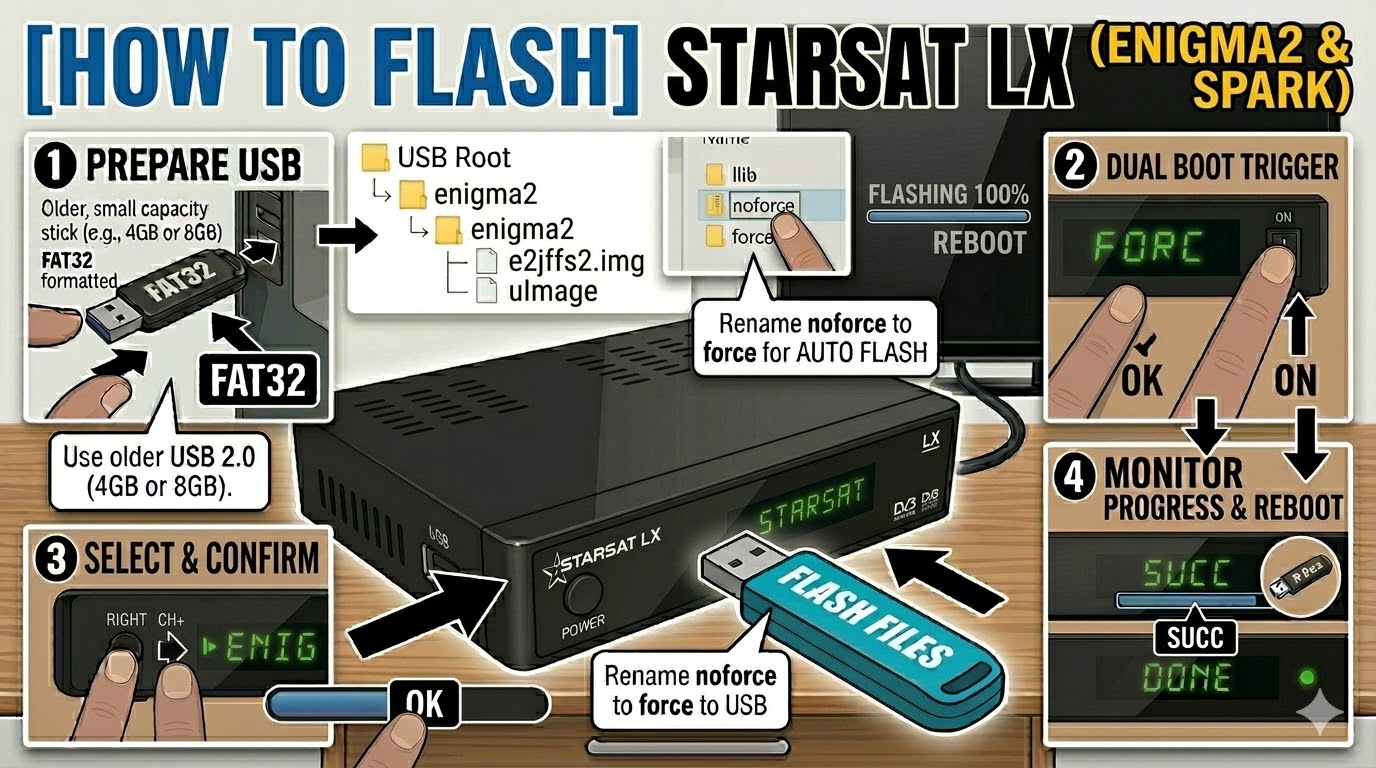
USB Drive: Use a FAT32 formatted USB stick. It is highly recommended to use an older USB 2.0 (8GB or less) drive. These receivers often fail to recognize larger or newer USB 3.0/3.1 sticks.
-
The Files: Extract your chosen image (e.g., OpenATV). You must see a folder named
enigma2. -
Root Path: Copy the
enigma2folder directly to the root of the USB drive.-
Structure:
USB Root > enigma2 > (files: e2jffs2.img and uImage)
-
Flashing Steps
-
Power Down: Turn off the receiver using the physical rocker switch at the back.
-
Insert USB: Plug the USB stick into the rear USB port.
-
The Trigger:
-
Press and hold the OK button on the front panel of the receiver.
-
While holding OK, flip the rear power switch to ON.
-
-
Select Mode:
-
Keep holding OK until the front panel display shows “FORC”.
-
Release the OK button.
-
Press the Right Arrow button (or CH+) on the front panel until the display shows “ENIG” (this selects the Enigma2 partition).
-
Press OK to confirm.
-
-
Flashing Process: The display will show “U LD” (Upload) or progress numbers. This typically takes 3 to 5 minutes. Do not turn off the power during this time.
-
Completion: Once the process is finished, the display will show “SUCC” (Success), and the box will reboot automatically into your new image.
-
Finalize: You can remove the USB stick once the boot logo appears on your TV.
Quick Troubleshooting
-
Stuck on “TTO” or “NULL”: This usually means the USB drive is not compatible or the files are not in the correct folder. Try a different (older) USB stick and ensure the folder is named exactly
enigma2. -
Dual Boot: If you want to boot back into the original Spark firmware, repeat the “Trigger” steps but select “SPAR” instead of “ENIG” when the display shows “FORC”.