[HOW TO FLASH] how to flash Xsarius PURE HD SE
The Xsarius PURE HD SE is a popular, compact Enigma2 receiver. Much like other Xsarius models, the flashing process is reliable as long as your USB folder structure is exactly right.
Preparation
-
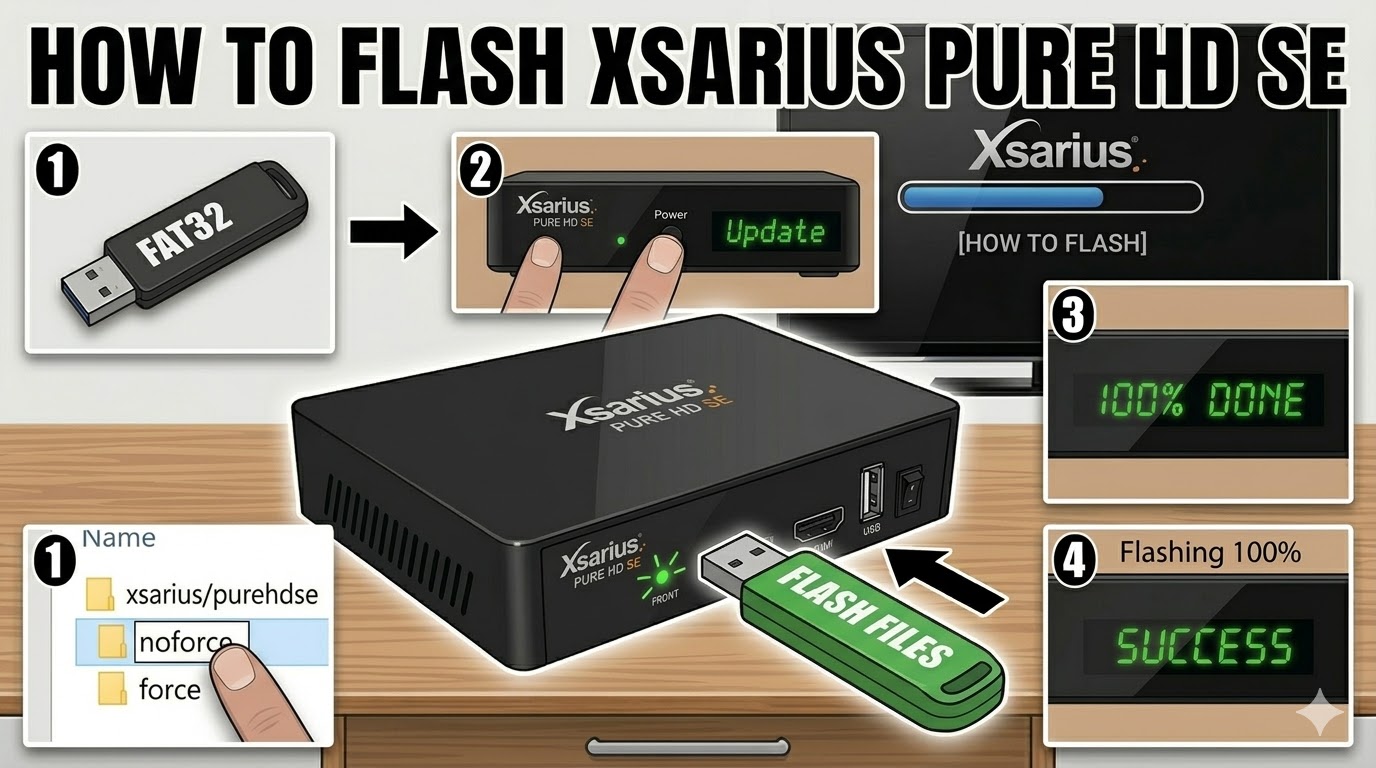
USB Drive: Use a FAT32 formatted USB stick. For these SE models, a smaller USB 2.0 drive (4GB or 8GB) is often more compatible than larger USB 3.0/3.1 drives.
-
The Files: Extract your image (e.g., OpenATV, PurE2). You must see a folder named
xsariusand inside that, a subfolder namedpurehdse. -
Correct Path: Copy the
xsariusfolder to the root of the USB.-
Path:
USB -> xsarius -> purehdse -> (files like 'kernel.bin', 'rootfs.bin')
-
Flashing Steps
-
Power Off: Turn off the receiver using the power switch at the back (or unplug the power adapter).
-
Insert USB: Plug your prepared USB stick into the rear USB port.
-
Power On: Flip the power switch to ON.
-
The Trigger: Look at the front panel LED.
-
When the LED starts flashing or the TV displays a prompt to update, press the Power Button on the front panel of the receiver.
-
-
Flashing Process: The LED will blink at a different rhythm (usually faster) to indicate it is writing the data.
-
Completion: Once the process is finished, the receiver will automatically reboot.
-
Finalize: Unplug the USB stick as soon as the boot logo appears on your TV to avoid accidental re-flashing.
Troubleshooting
-
Box boots normally: If the receiver ignores the USB, ensure the folder is named
purehdseand not justpurehd. Also, try a different USB port or a different brand of USB stick. -
Automatic Flash: If you find it hard to catch the button-press timing, rename the
noforcefile inside thepurehdsefolder toforce. This will make the box flash automatically upon power-up.