[HOW TO FLASH] how to flash Xsarius Revo 4K
The Xsarius Revo 4K is a powerful Enigma2 receiver, and like its Pure and Fusion siblings, the flashing process is straightforward but requires precise button timing during boot.
Preparation
-
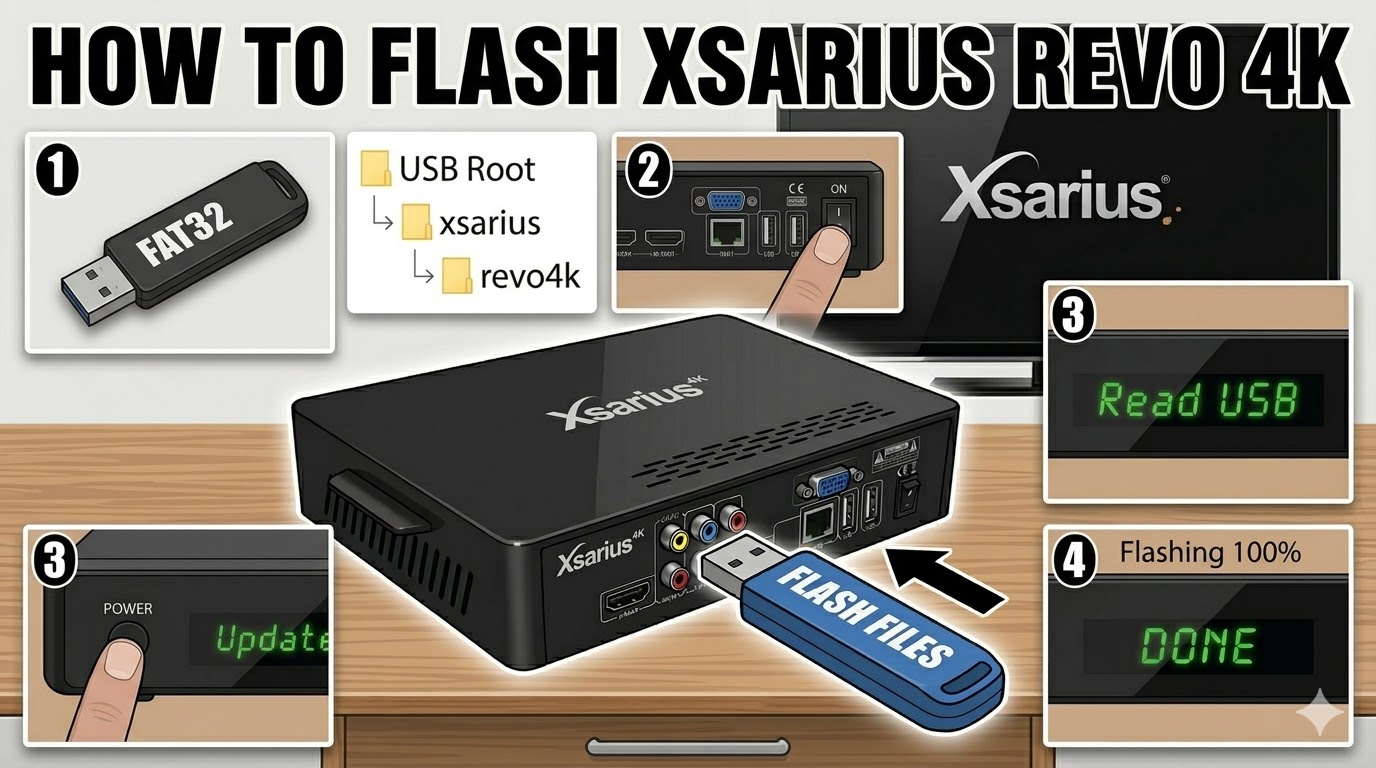
USB Drive: Use a FAT32 formatted USB stick. For 4K receivers, a high-speed USB 3.0 drive usually works best, but if it fails, try an older USB 2.0 drive (8GB or smaller).
-
Folder Structure: When you unzip the image (e.g., OpenATV, PurE2, or OpenPLi), you must have a folder named
xsariusand a subfolder namedrevo4k.-
Structure:
USB Root > xsarius > revo4k > (6 files including 'kernel.bin', 'rootfs.tar.bz2', etc.).
-
Flashing Steps
-
Power Down: Turn off the receiver using the rocker switch at the rear.
-
Insert USB: Plug the USB drive into the side or rear USB port.
-
Power On & Trigger: * Flip the rear power switch to ON.
-
As soon as you see “Read USB” or “Update” appear on the front panel display, immediately press the Power Button (on the front panel, not the remote).
-
-
Monitoring: The display will change to “Flashing” or show a progress percentage.
-
Completion: Once the process hits 100% or says “Success”, the receiver will typically reboot itself.
-
Tip: Remove the USB stick as soon as the box starts to reboot to prevent it from entering the flash cycle again.
-
Important Notes
-
The “Force” Method: If you cannot get the front button to trigger the flash, look for a file named
noforceinside therevo4kfolder and rename it toforce. This will bypass the button-press requirement. -
HDMI Connection: Ensure your TV is on the correct HDMI input before starting so you can see the initial setup wizard once the flash is done.