
[TUTORIAL] How to add iptv playlist to KODI
Here is a tutorial on the configuration of IPTV subscription on KODI plugin under enigma2 receiver.
IMPORTANT: This tutorial is valid for all Enigma2 image like OpenATV, OpenPLi, VTi, OpenDroid, OpenBH, EGAMI…etc
For this tutorial you need.
Material:
- Enigma2 receiver, 4K receiver is recommended like VU+ UNO 4K SE, ZERO 4K, SOLO 4K, DREAMBOX 920, DM900, …etc
IPTV subscription
If you do not have a IPTV subscription for KODI you can order it here

Here are the instructions on how to install IPTV Simple Client:
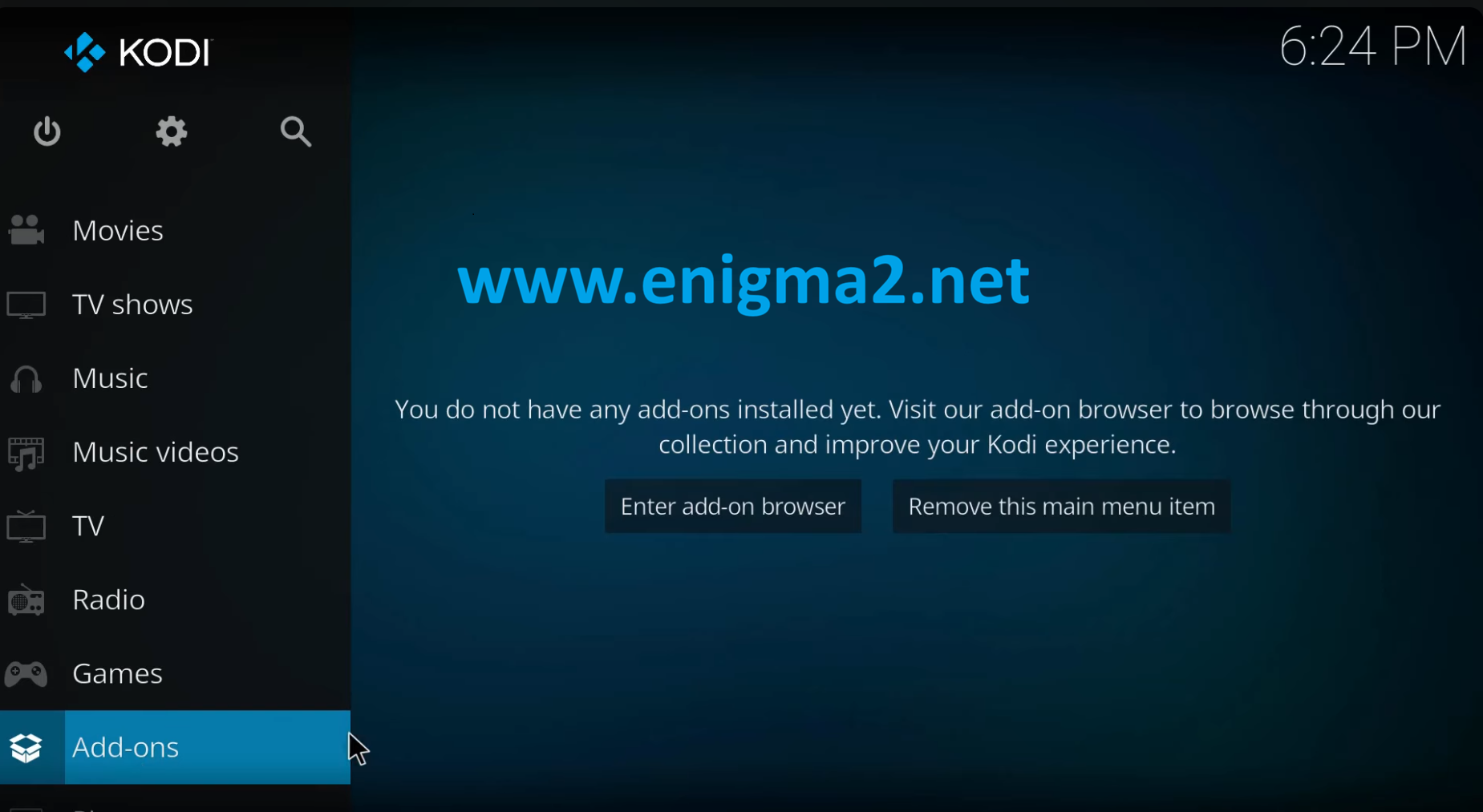
- Launch Kodi
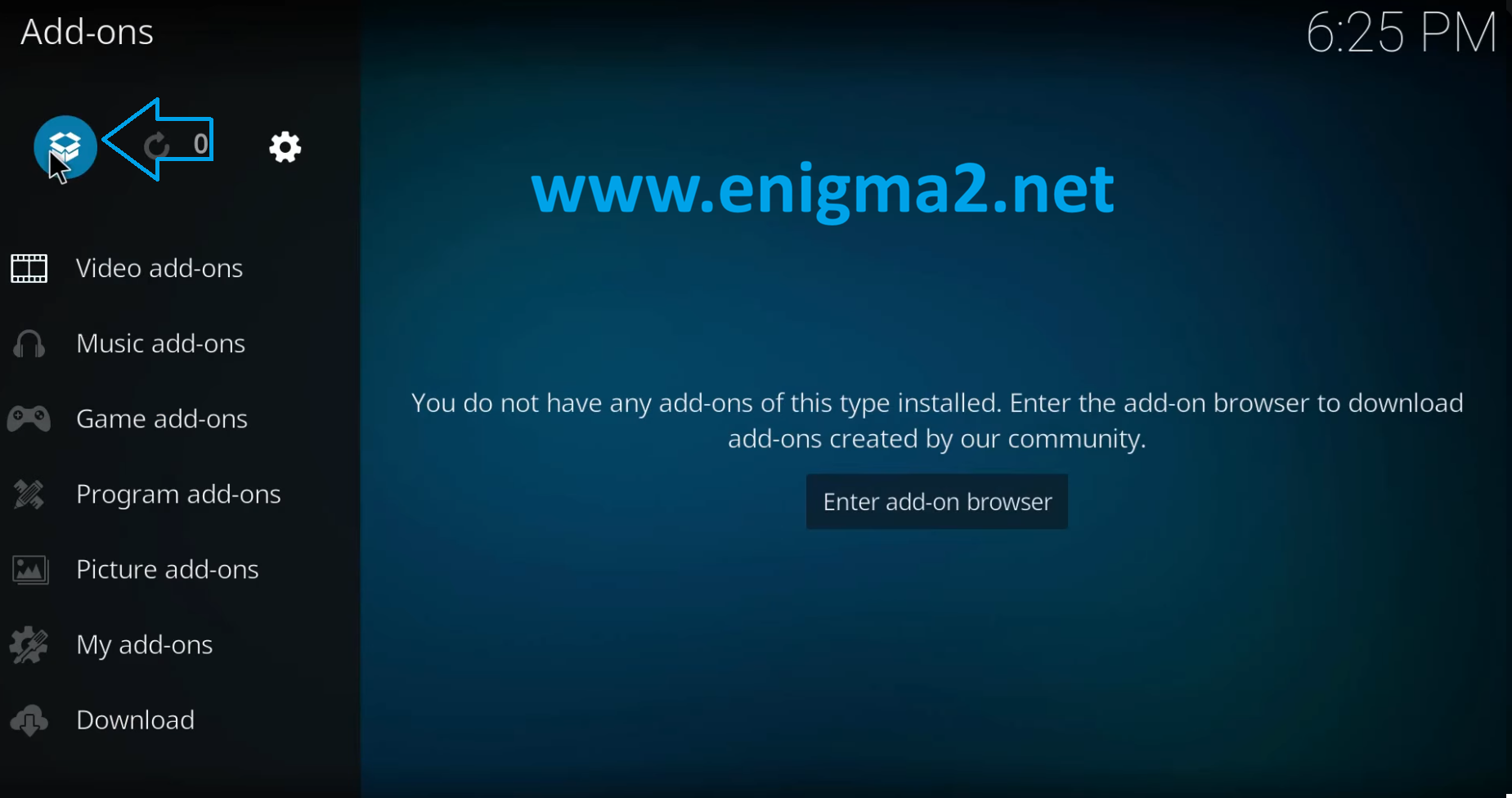
- Click Add-ons
- Click the add-on browser icon

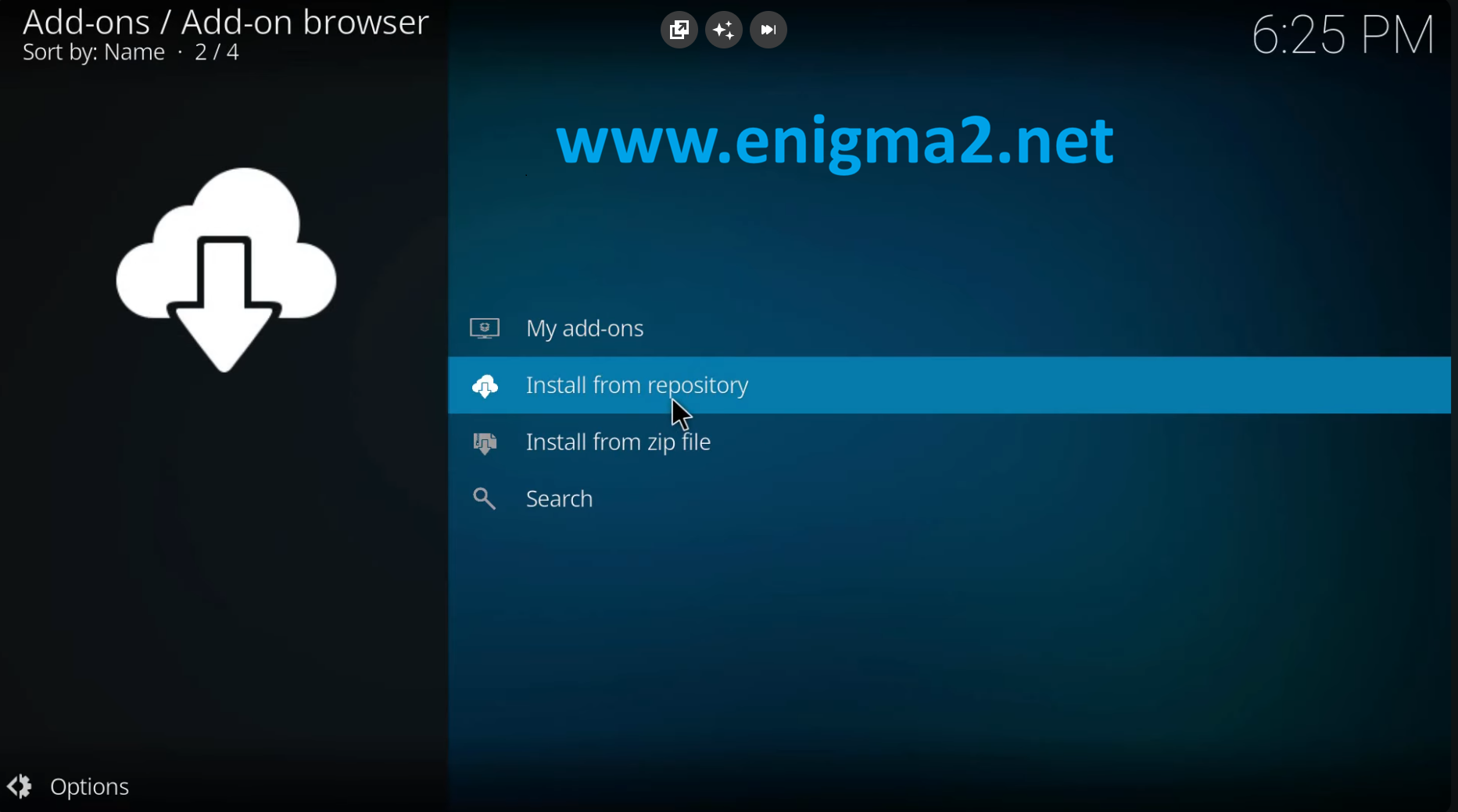
- Click Install from repository
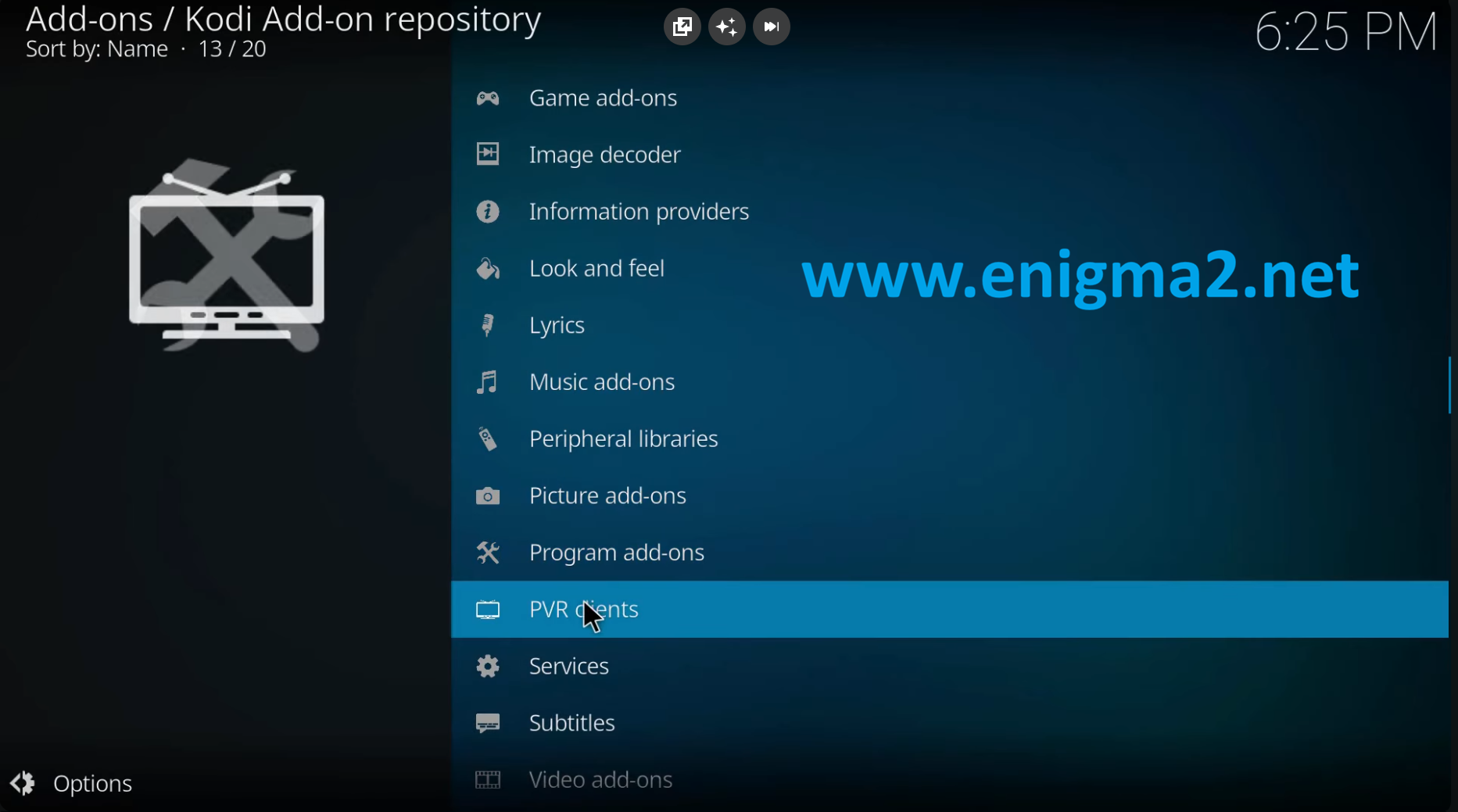
- Click PVR clients
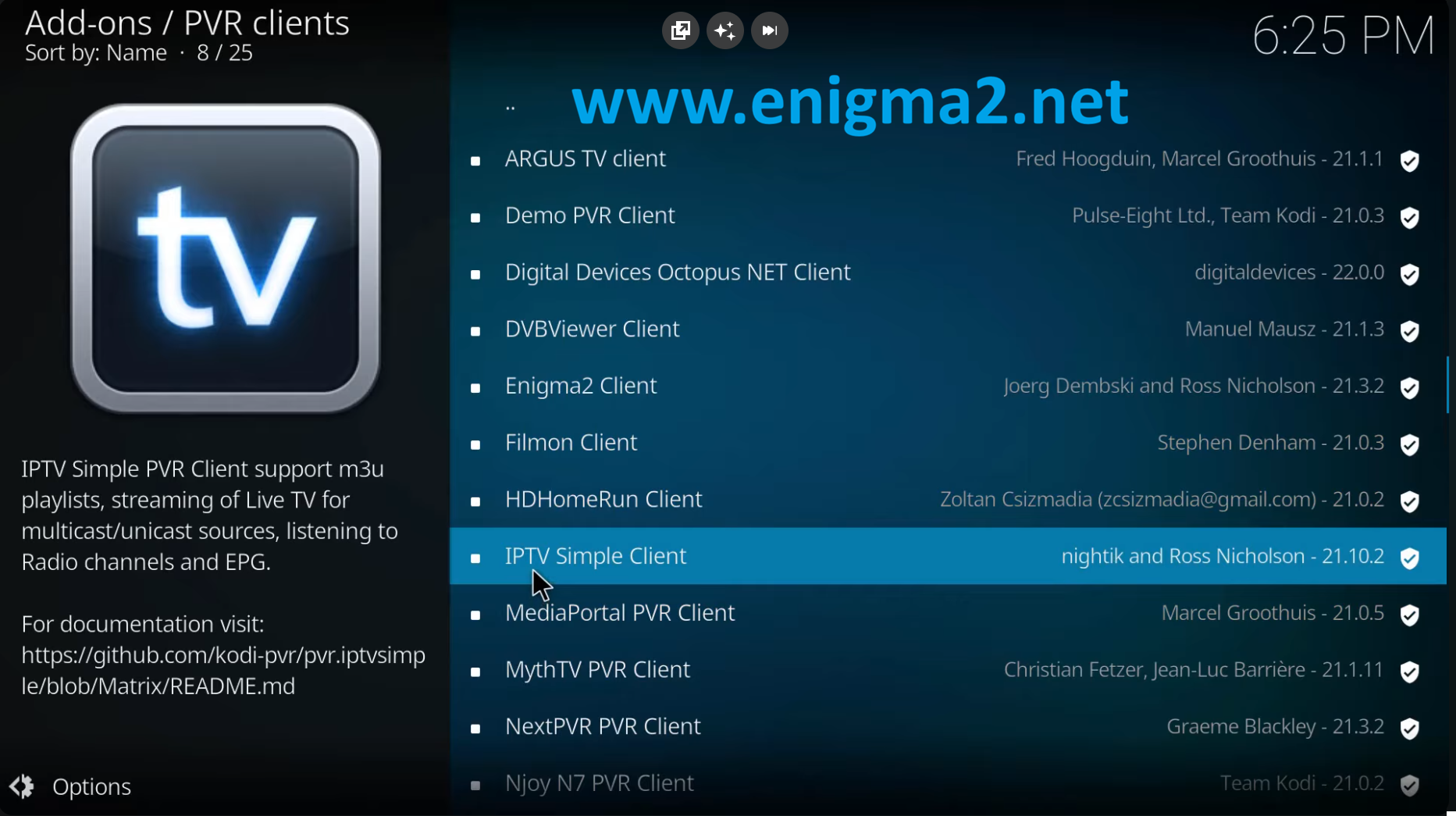
- Click IPTV Simple Client
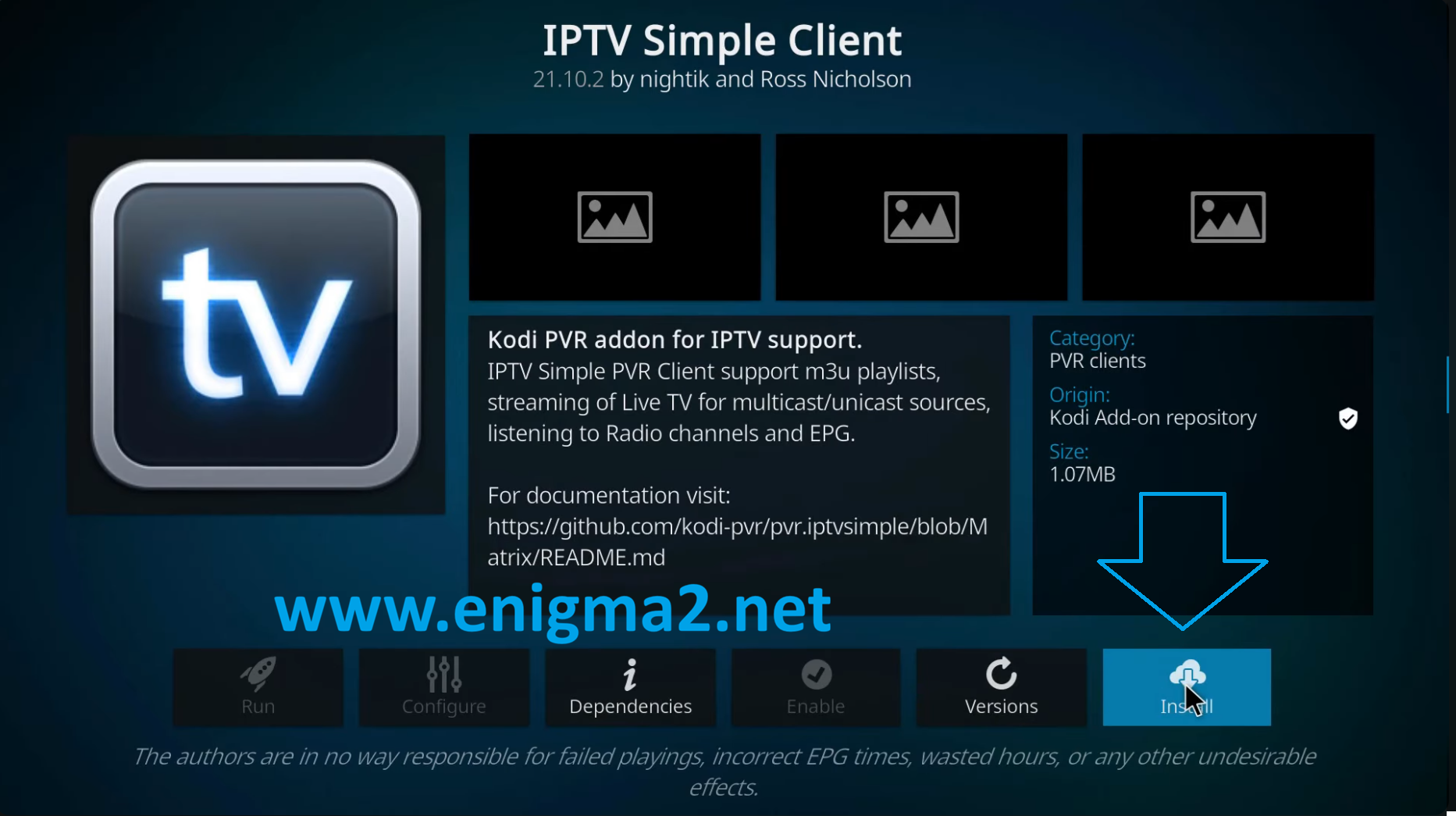
- Click Install
- Wait until you see Add-on installed message
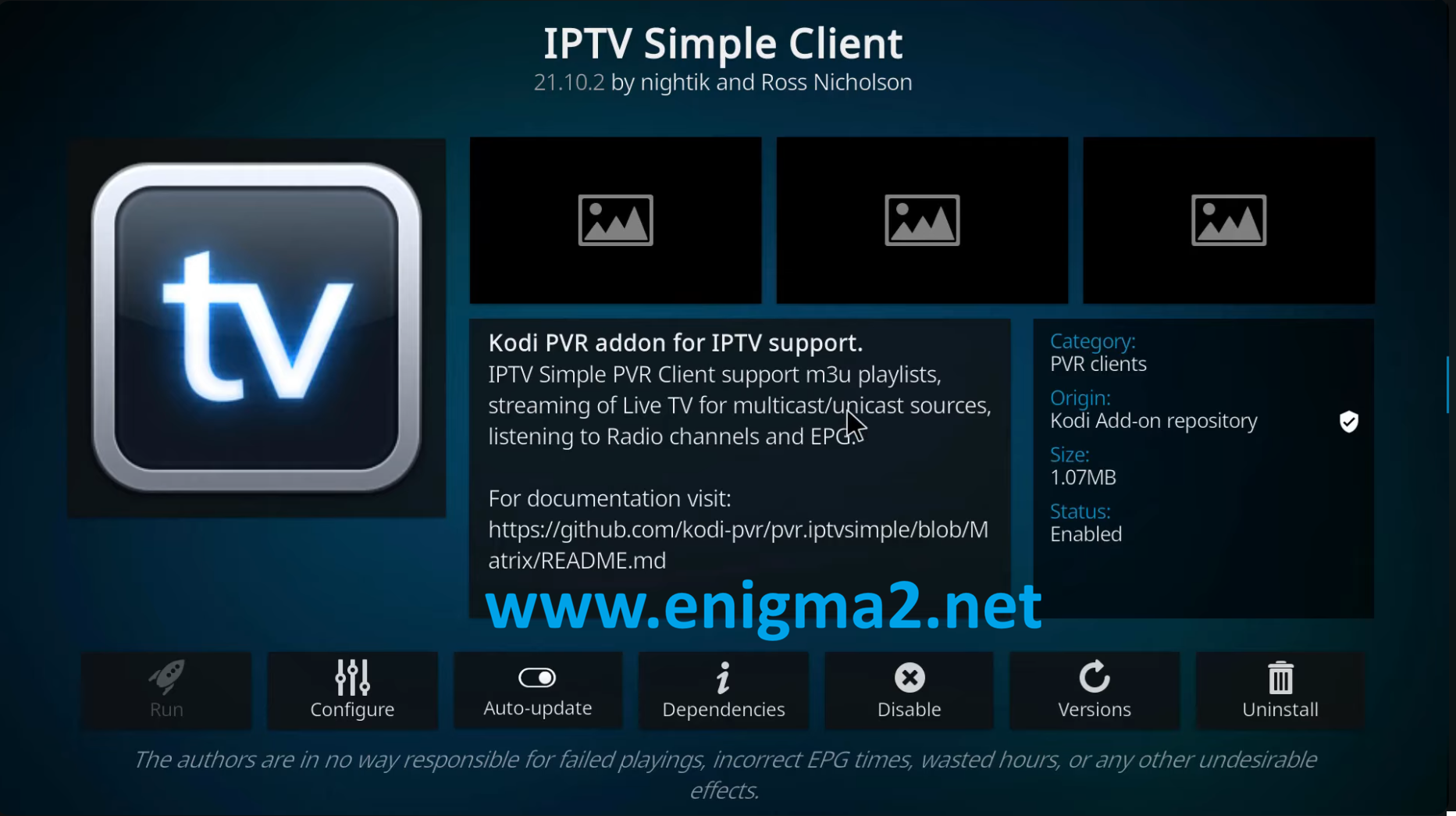
After installing the add-on, you have two options for configuration. The first is with a remote path, which is the URL of an M3U playlist available online. The second is with a local path, which points to an M3U file stored on your device. If you also have an EPG (Electronic Program Guide) URL or file, you can add it in the same settings section to display TV schedules and program information for your channels.
Here is how to configure IPTV Simple Client using remote path:
- Click IPTV Simple Client
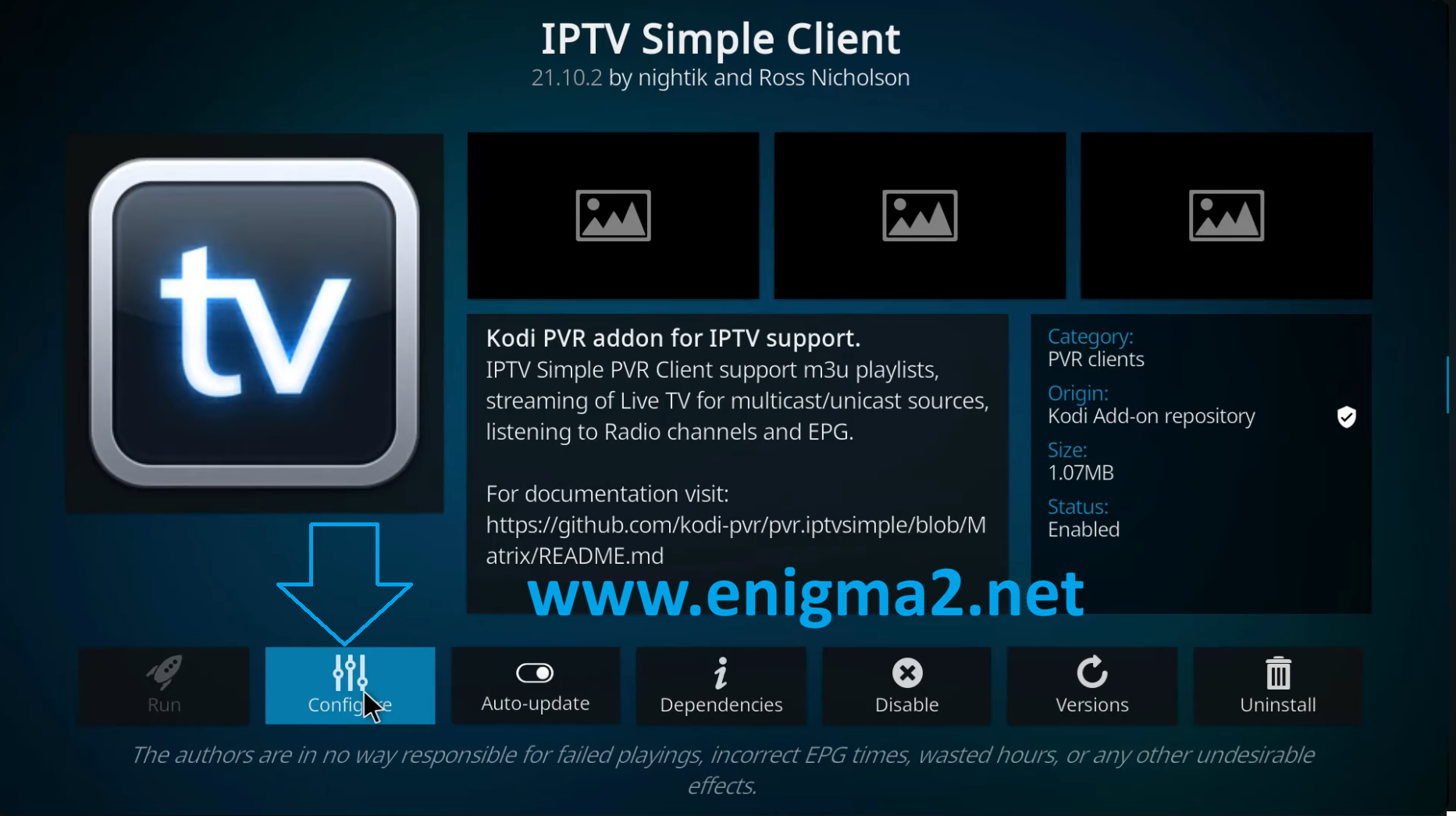
- Click Configure
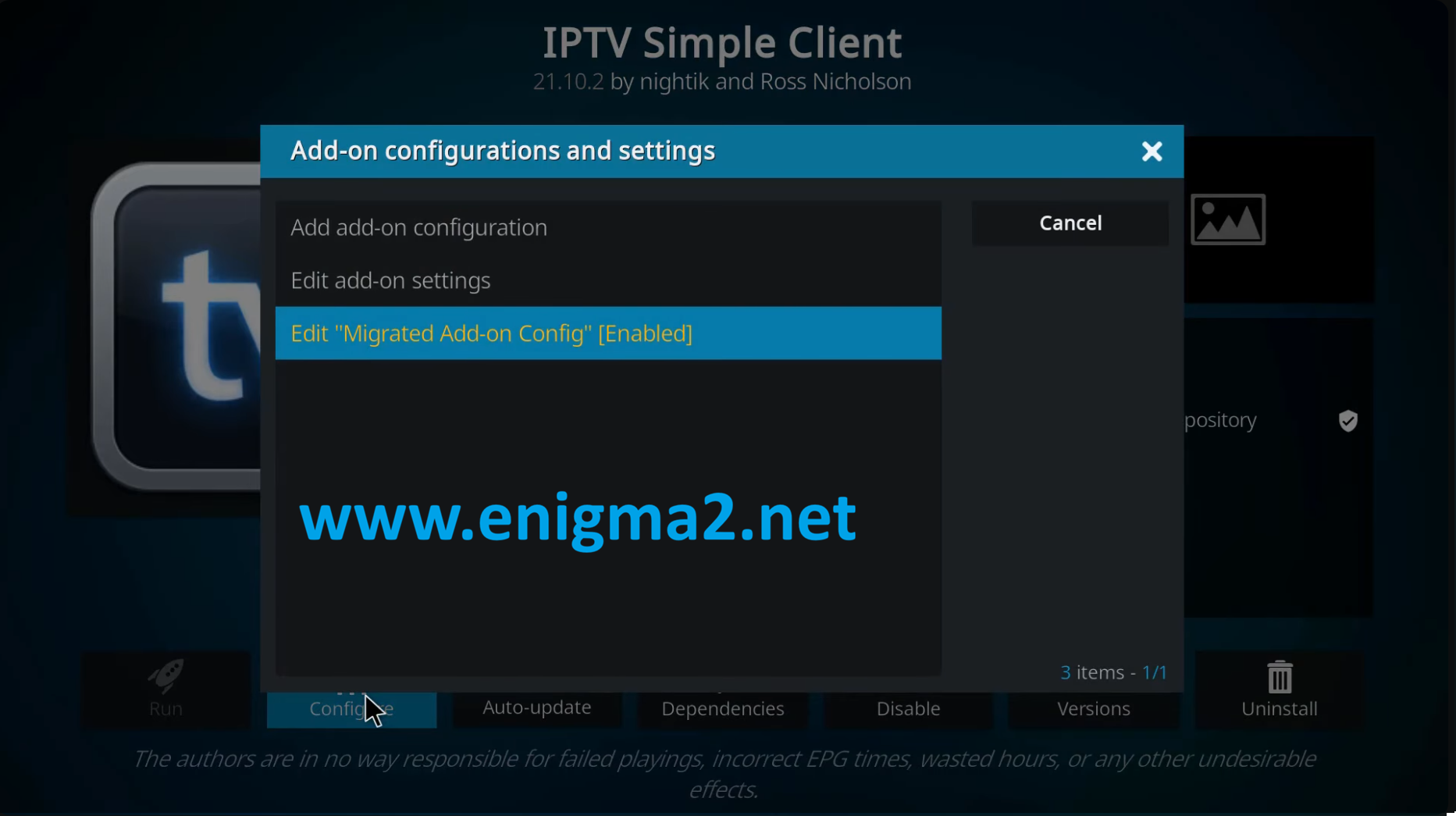
- Select Edit Migrated addon-on Config
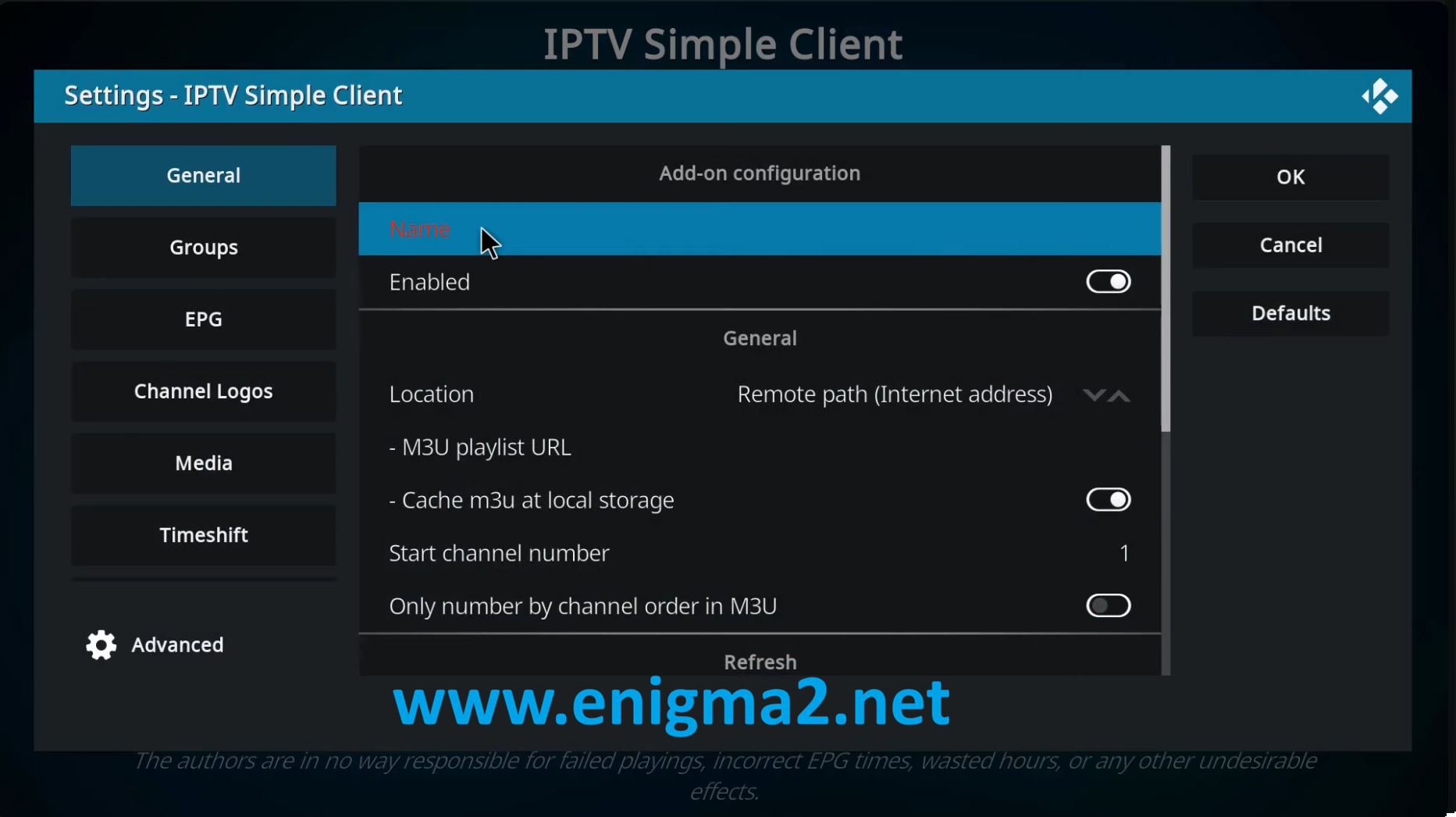
- type name for your iptv list
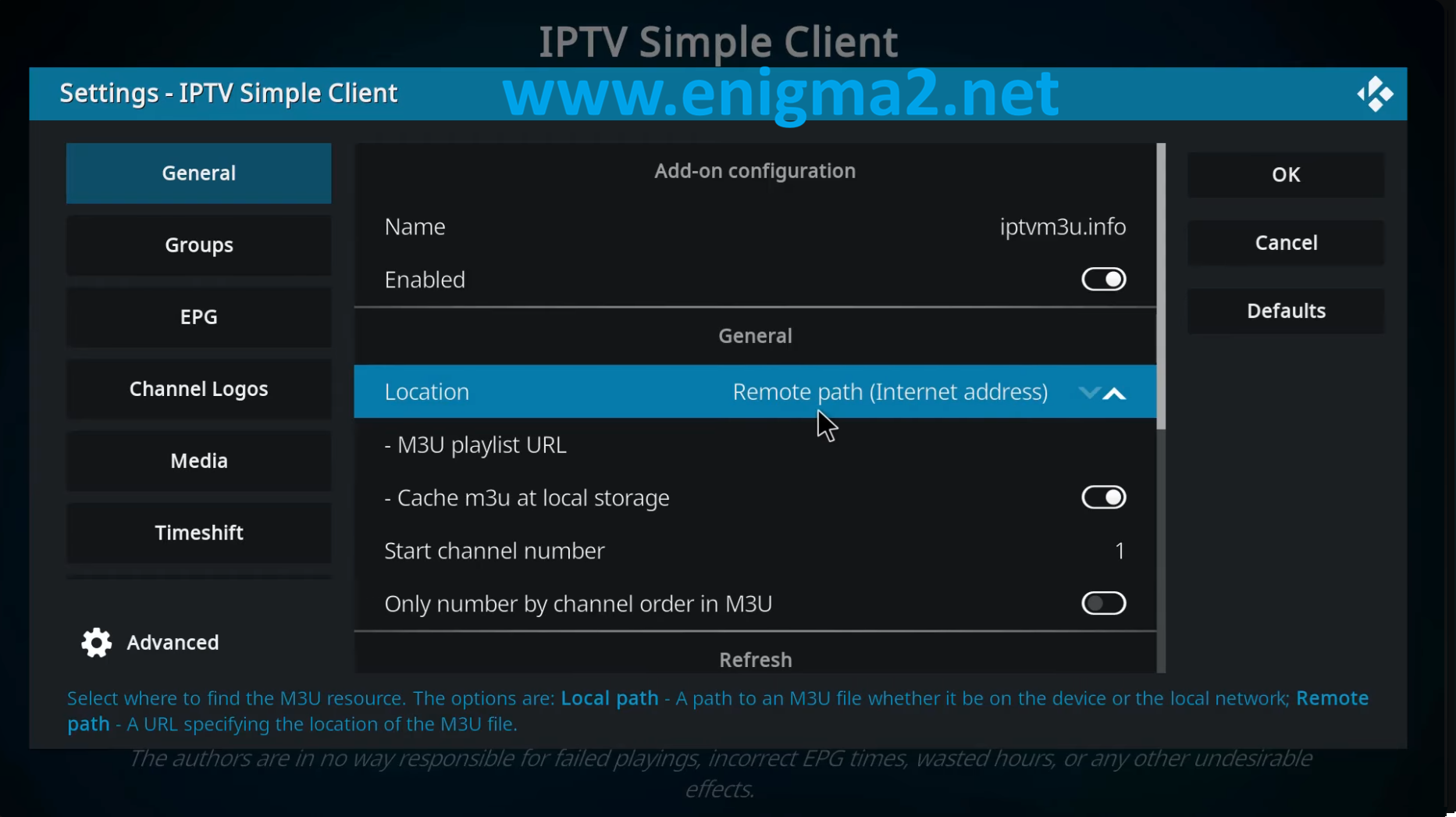
- Location to Remote Path (Internet address)
- Change Location to Remote Path (Internet address)
- Click M3U Play List URL
- Enter the URL of the M3U playlist you want to load, and click OK
- Click OK in the IPTV Simple Client settings menu
- Go back to the Kodi homepage
- Click the power options icon

- Click Exit
- Launch Kodi
- Wait until you see a message that all the channels were loaded
- Click TV
Later in the tutorial, you can find our list of M3U playlists.
Here is how to configure IPTV Simple Client using local path:
- Click IPTV Simple Client
- Click Configure
- Change Location to Local Path (include Local Network)
- Click M3U Play List URL
- Choose the M3U file you want to load, and click OK
- Click OK in the IPTV Simple Client settings menu
- Go back to the Kodi homepage
- Click the power options icon
- Click Exit
- Launch Kodi
- Wait until you see a message that all the channels were loaded
- Click TV
Here is how to configure EPG :
You can use either a remote XMLTV link or a local XMLTV file for your EPG source.
- Click IPTV Simple Client
- Click Configure
- Hover over EPG
- If you have an EPG URL
- Click XMLTV URL and enter the URL of the EPG, and click OK
- If you have an EPG file
- Click Location
- Click XMLTV path and choose the EPG file you want to load, and click OK
- Click OK in the IPTV Simple Client settings menu
- Go back to the Kodi homepage
- Click the power options icon
- Click Exit
- Launch Kodi
- Wait until you see a message that all the channels were loaded
- Click TV
How to add an additional M3U playlist:
- Click IPTV Simple Client
- Click Configure
- Click Add add-on configuration to add another playlist
Using a provider link with username and password
IPTV providers use different formats for their playlist links. If your provider gave you a URL that already includes your username and password, paste the full URL when configuring the Remote Path (Internet address) in the IPTV Simple Client.
Examples of common formats:
- http://server.com:port/get.php?username=USER&password=PASS&type=m3u_plus&output=ts
- http://server.com:port/live/USER/PASS/playlist.m3u8
- http://server.com:port/get.php?username=USER&password=PASS
Do not change or edit anything in the link. Just enter it as-is.
If your provider also provided an EPG URL, add it under the EPG settings. Save the settings, exit Kodi, and restart it to load the channels.
How to manage channels and groups:
An M3U playlist can contain many channels you don’t need and other channels you often use. Therefore, managing the channels that appear in the list of channels is essential. It can be done by arranging them by groups, so it is easier to filter the needed ones. Also, other ways like hiding unwanted channels, hiding unwanted groups, and adding channels to favorites will help you get a better live TV experience.
Hide unwanted channels from the list
- Launch Kodi
- Click TV
- Click the menu button
- Click Manage…
- Click Channel manager
- Hover over the channel you want to hide
- Click Active to disable it
- Click OK
Hide unwanted groups
- Launch Kodi
- Click TV
- Click the menu button
- Click Manage…
- Click Group manager
- Hover over the group you want to hide
- Click Hide group to enable it
- Click OK
Add a favorite channel to favorites
- Launch Kodi
- Click TV
- Hover over the channel you want to add
- Click the menu button
- Click Add to favourites
The Favourites are located under the Kodi homepage.