[TUTORIAL] How to install MGCAMD on PowerSat
Here is a tutorial on the installation and configuration of MGCAMD on the DREAMBOX decoder under a PowerSat image.
For this tutorial you need.
Material:
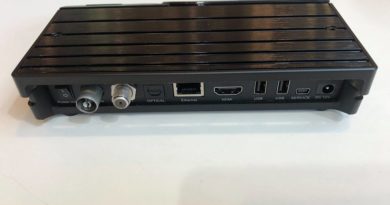
Dreambox DM520, DM525, DM820, DM7080, DM900, DM920
Software:
Winscp for WINDOWS XP,WINDOWS 7, WINDOWS, 8.1, WINDOWS 10

A Mgcamd subscription
If you do not have a Mgcamd subscription you can order it here

1- Installing the MGCAMD
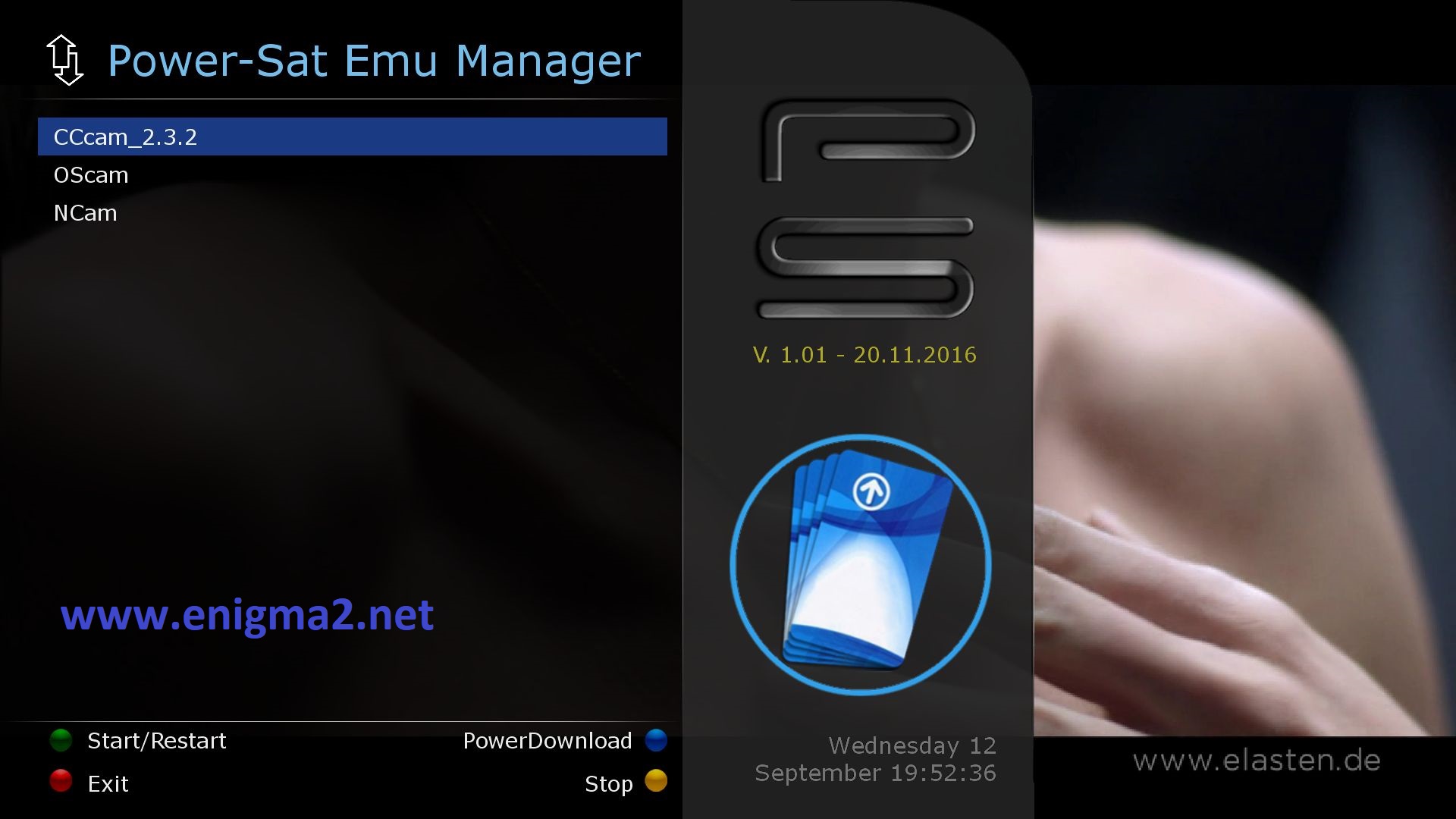
Press BLUE BUTTON to start EMU MANAGER
Press BLUE BUTTON for second time to launch Download Pannel
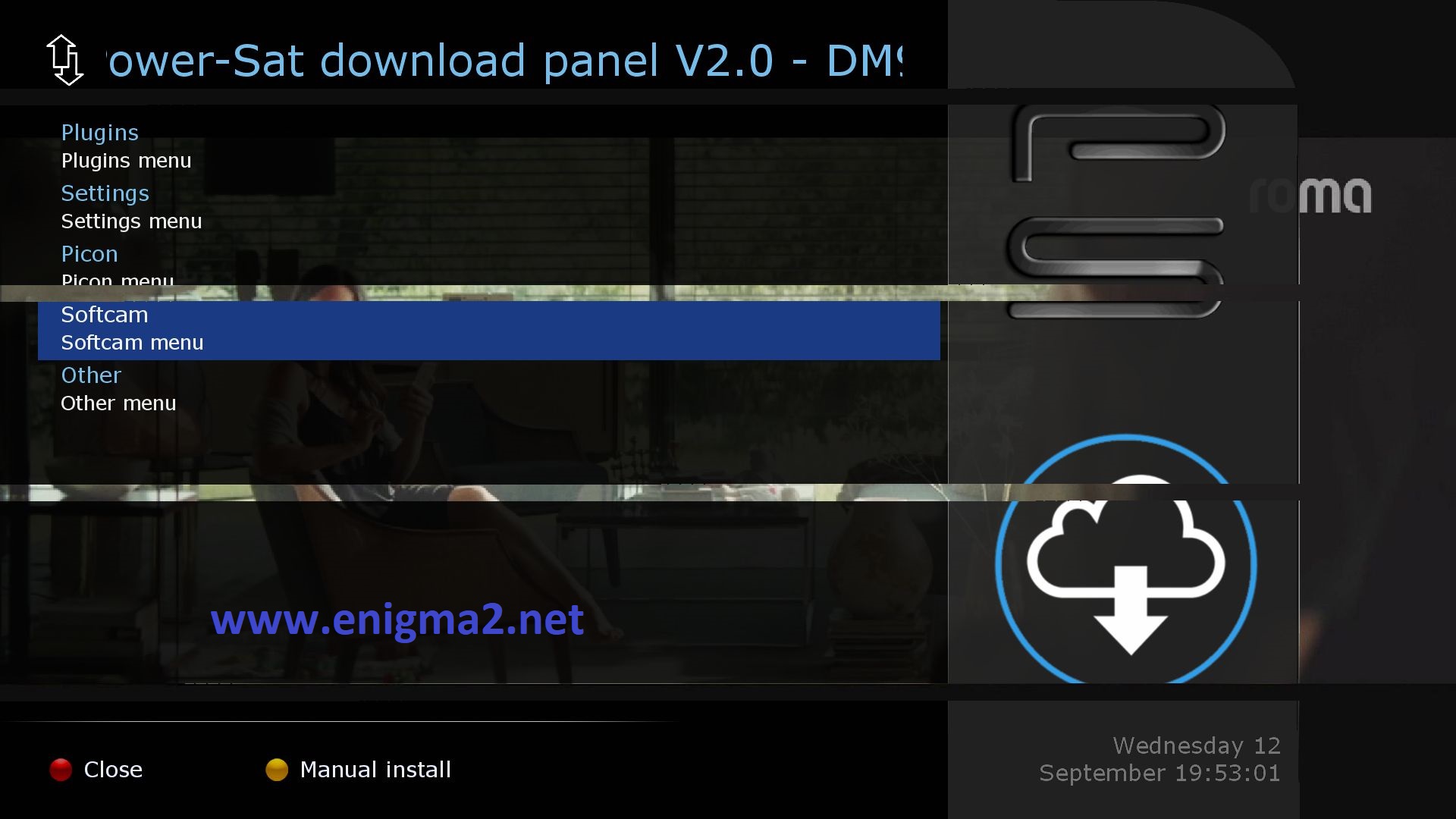
Select SOFTCAM and press OK
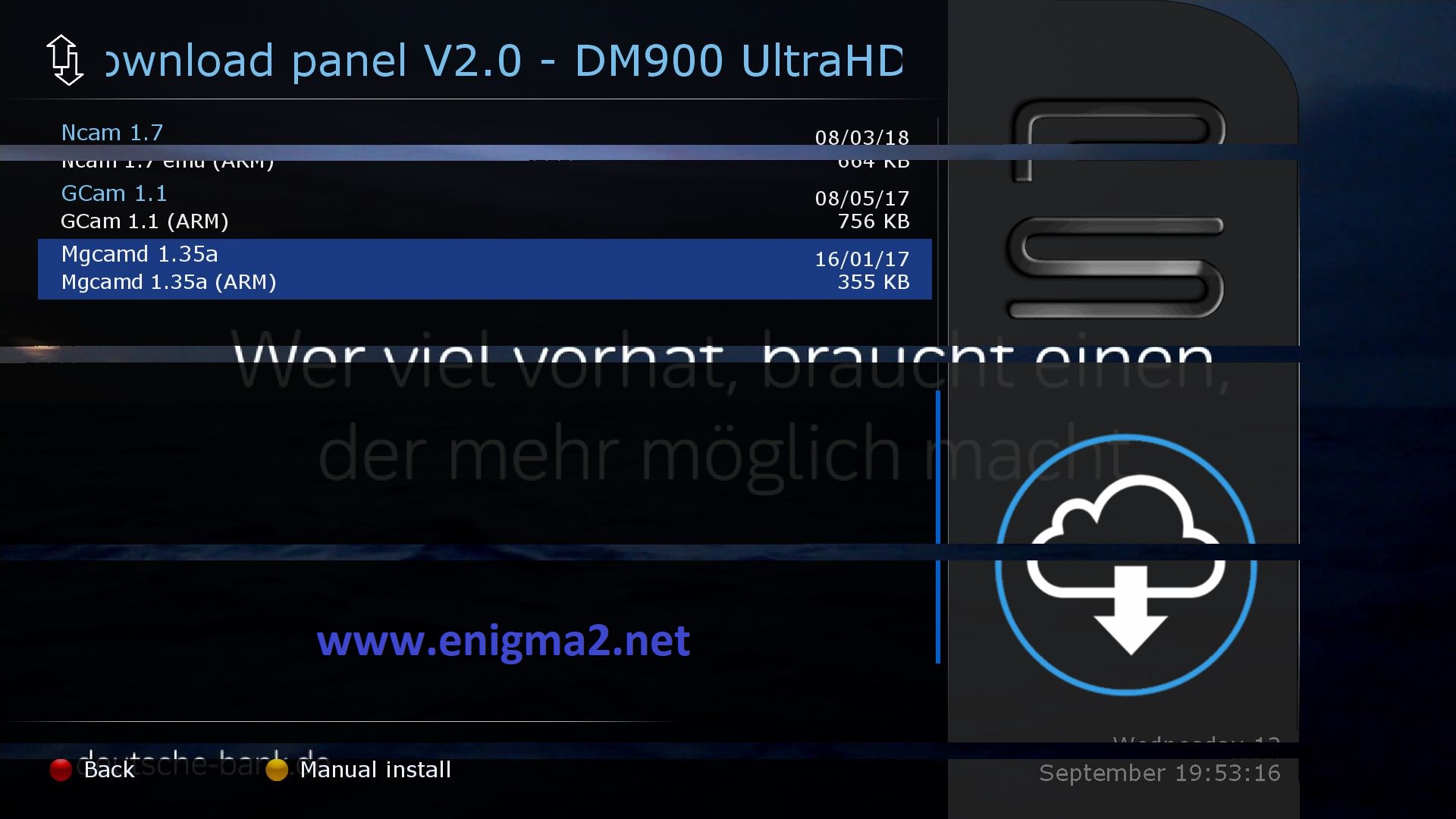
Choose MGCAMD and press OK to start installation
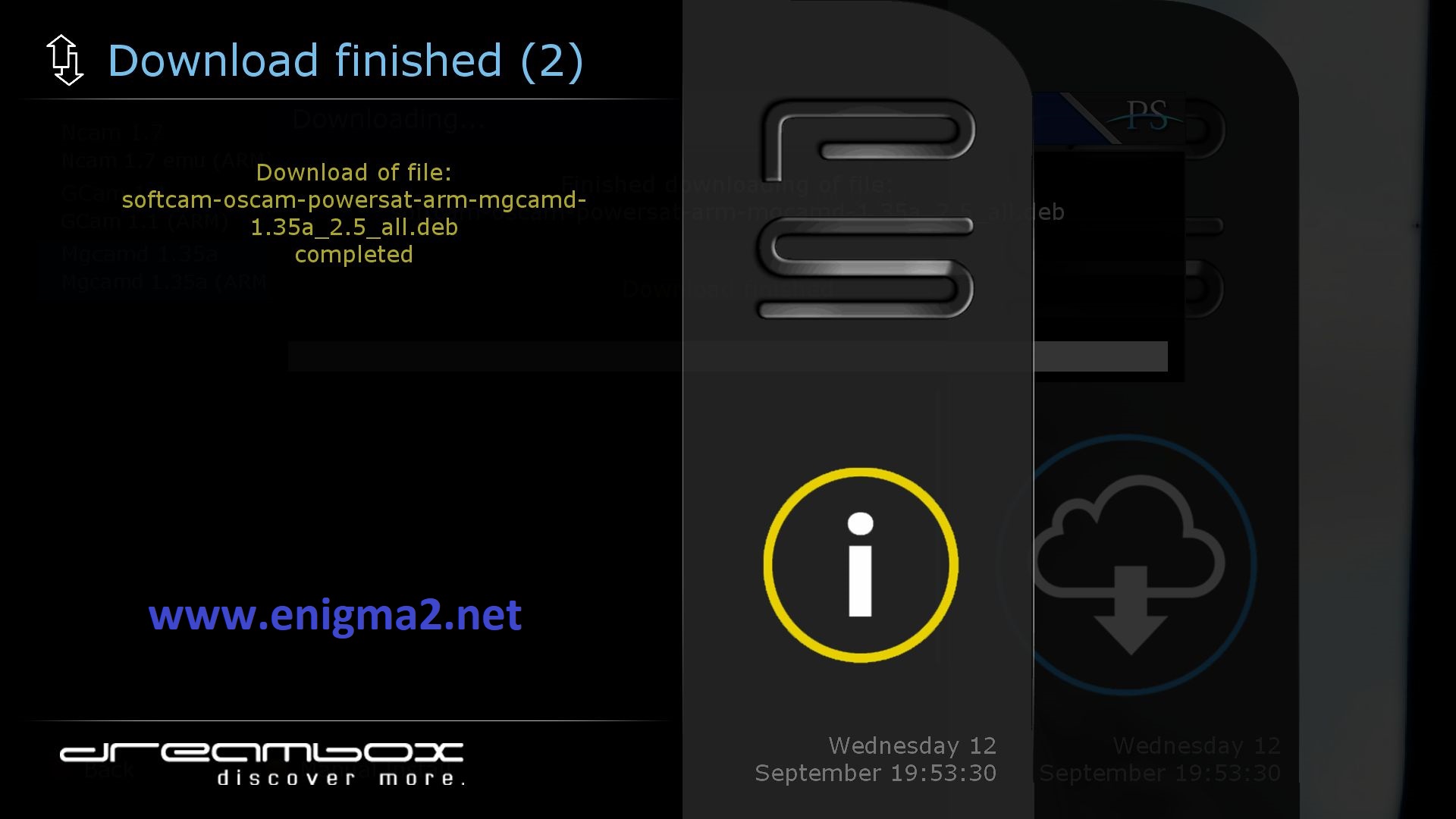
Press OK to confirm installation
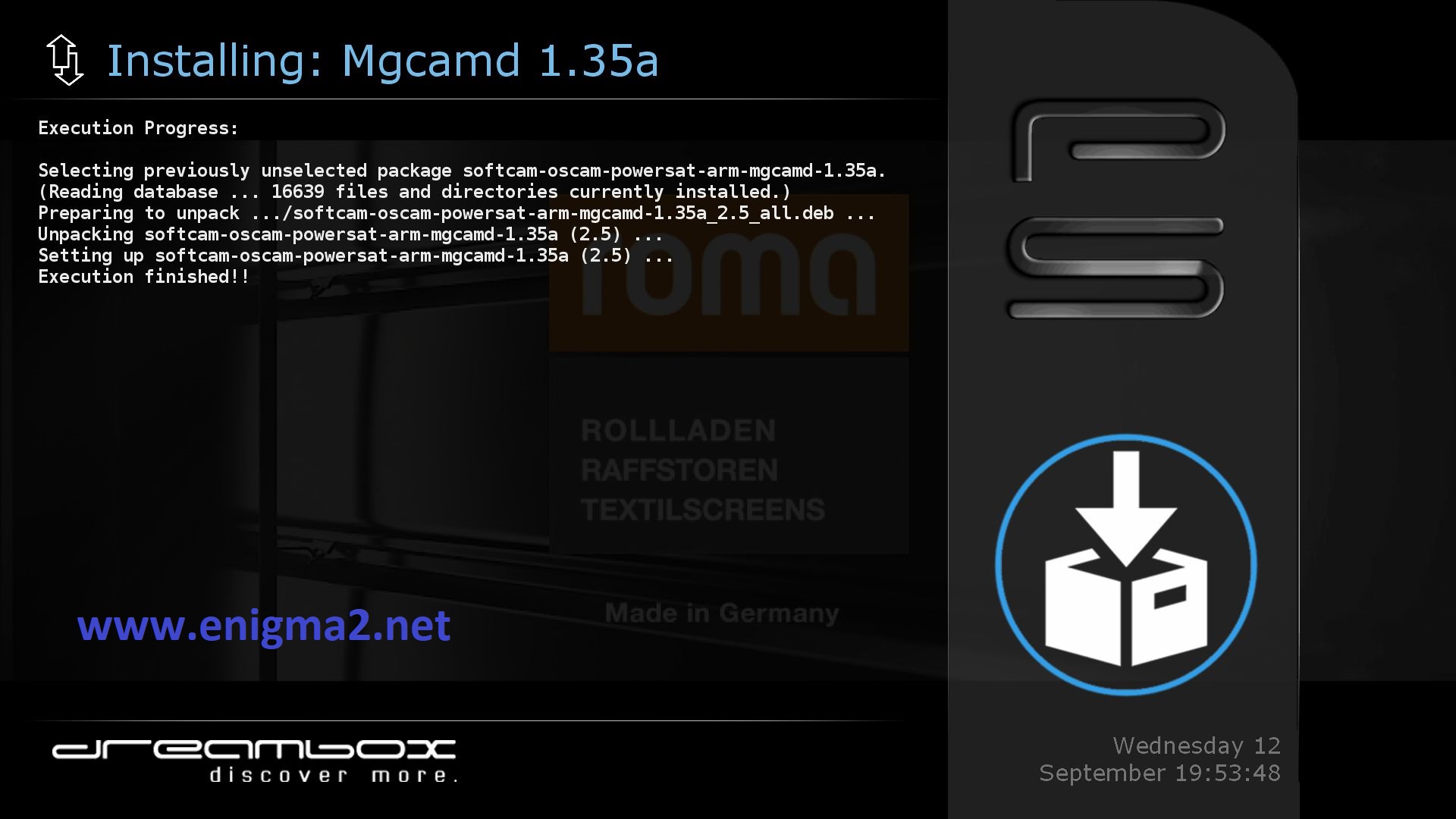
Please wait while installing MGCAMD softcam
After installation press exit
2. Copy of the MGCAMD subscription
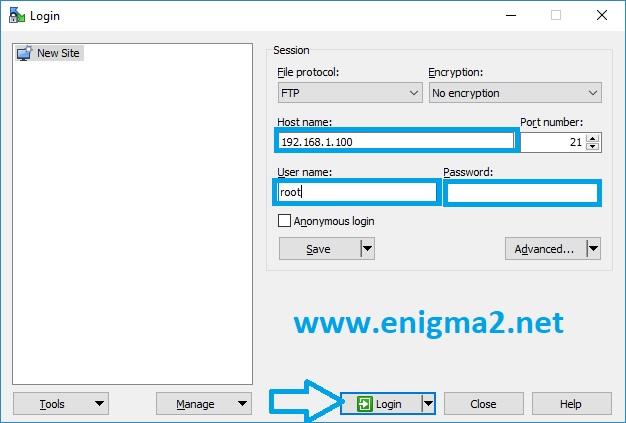
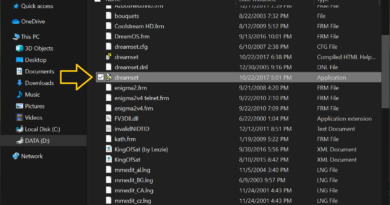
– Launch WINSCP in the home window
File protocol: FTP
Hot name: 192.168.1.100 (ip address of your VU+ )
User name: root
Password: “empty” by default the root password in POWERSAT is empty (no password)
After clicking on Login
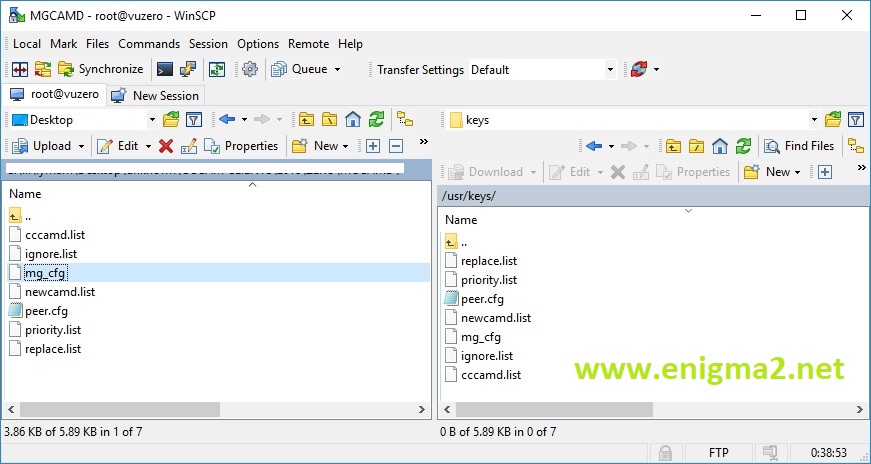
Copy subscription files from your PC to the /usr/keys path of your receiver.
3. Starting MGCAMD
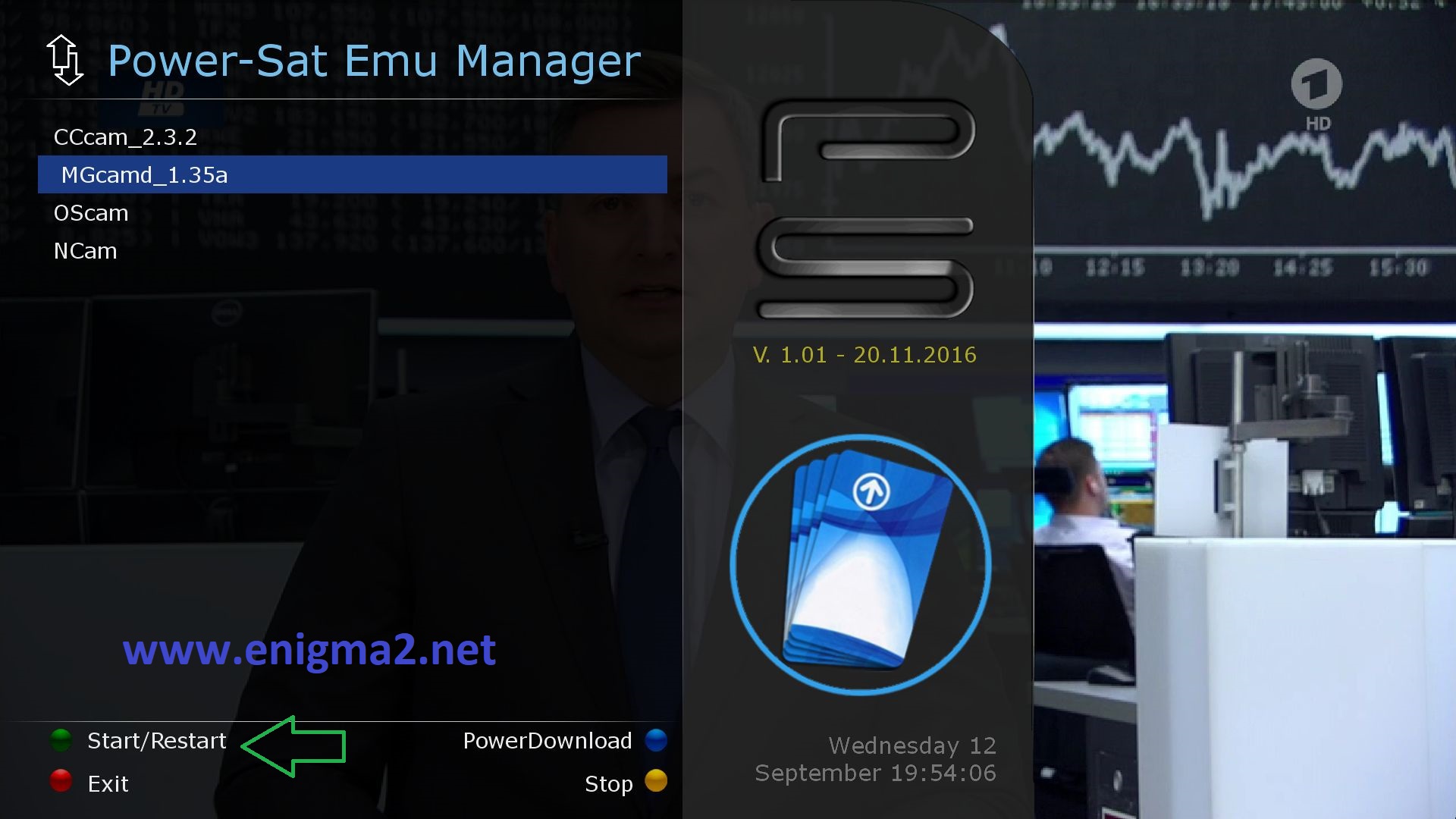
Press the blue button to launch PowerSat EMU MANAGER
Choose MGCAMD and press GREEN BUTTON to start it
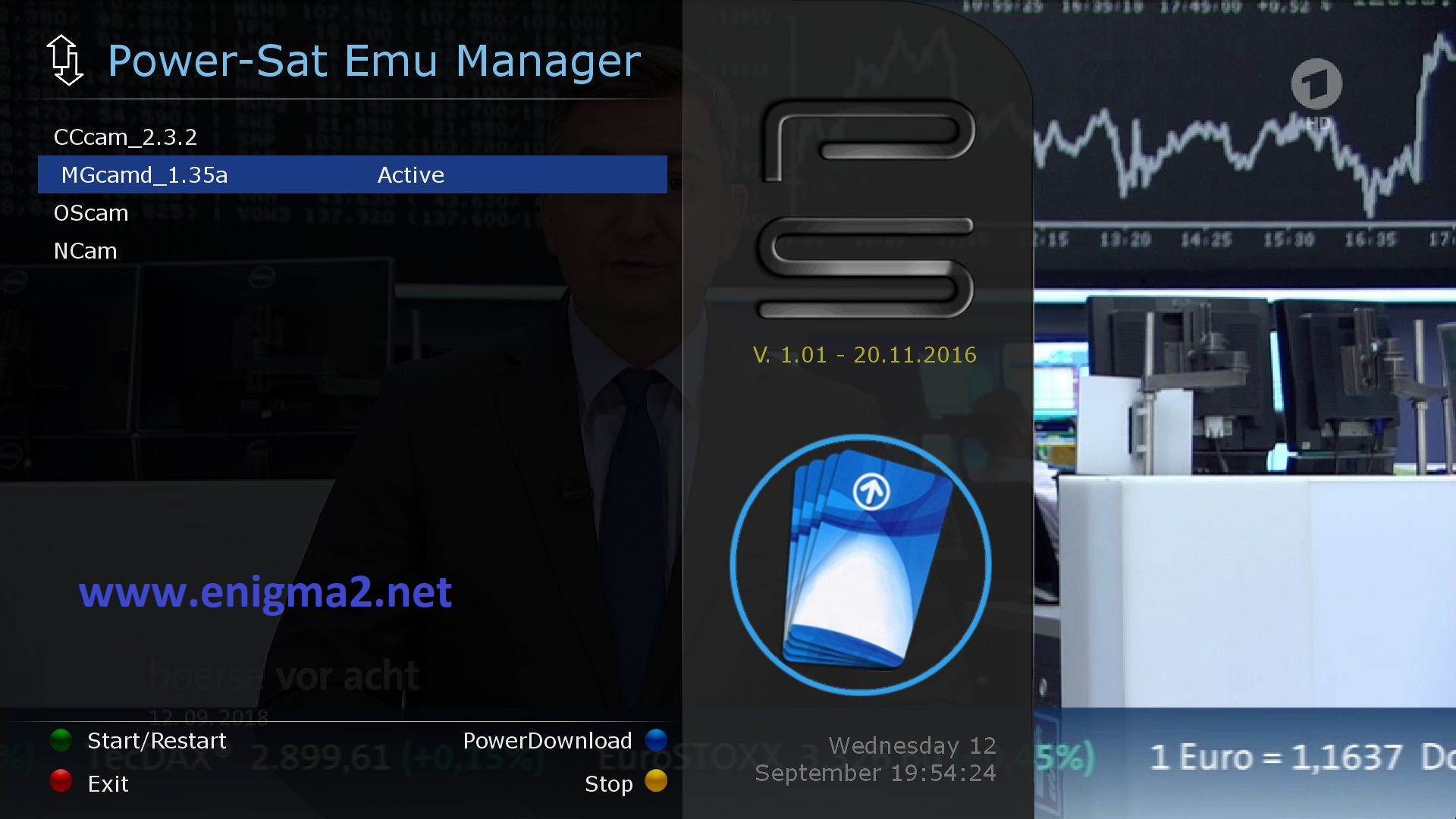
Please wait while starting MGCAMD, now MGCAMD is active