[HOW TO FLASH] how to flash RedEagle SINGLE Box LCD
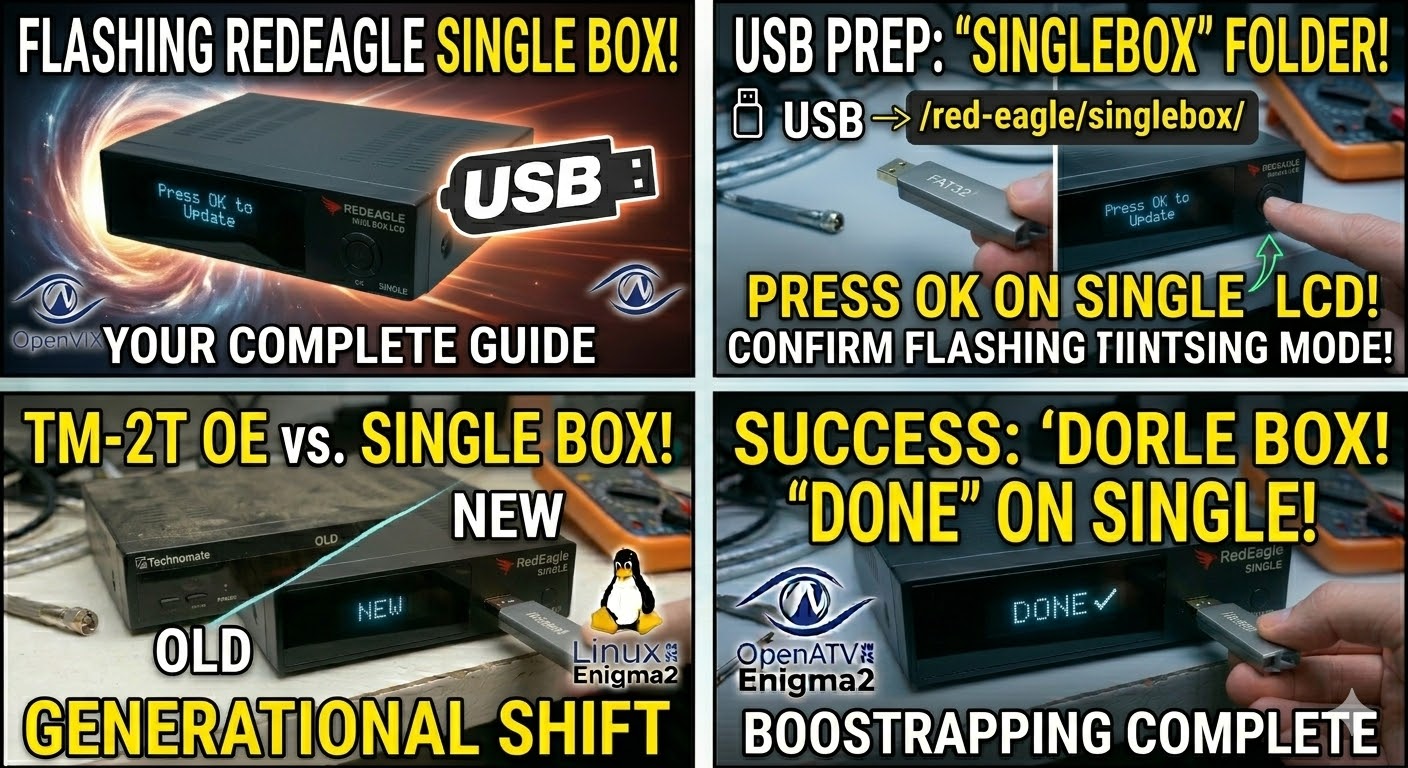
To flash the RedEagle Single Box LCD, the process is identical to its “Twin” sibling, but you must ensure the folder structure on your USB matches the “Single” hardware ID. The built-in LCD makes this one of the easier boxes to flash because it provides clear text prompts.
Preparation
-
USB Drive: Use a high-quality USB 2.0 stick (8GB or less), formatted to FAT32.
-
Download Image: Ensure the firmware (OpenATV, OpenViX, etc.) is specifically for the RedEagle Single Box.
-
Extract Files: Unzip the folder on your PC. You should see a folder named
red-eagle. -
Copy to USB: Transfer the entire
red-eaglefolder to the root of your USB.-
Structure:
USB Stick -> red-eagle -> singlebox -> (image files like kernel.bin, rootfs.bin).
-
The Flashing Process
-
Power Down: Turn off the receiver using the rear power switch.
-
Insert USB: Plug the stick into the rear USB port for the most stable connection.
-
Power On: Flip the rear power switch to ON.
-
Initiate Flash: * Watch the front LCD screen.
-
When the LCD displays “Press OK” or “Update?”, press the OK button on the front panel of the receiver.
-
-
Wait: The LCD will display “Flashing” or “Writing.” Do not disconnect power until the box reboots itself.
-
Complete: Once the setup wizard appears on your TV, the flash is successful and you can remove the USB.
Key Troubleshooting
-
Folder Name: Ensure the subfolder inside
red-eagleis namedsinglebox. If it saystwinbox, the Single Box bootloader will ignore it. -
Force Flash: If the front buttons are non-responsive, open the
singleboxfolder on your USB, find the filenoforce, and rename it toforce. This will trigger the flash automatically upon power-up.