[HOW TO FLASH] how to flash Qviart DUAL 4K UHD
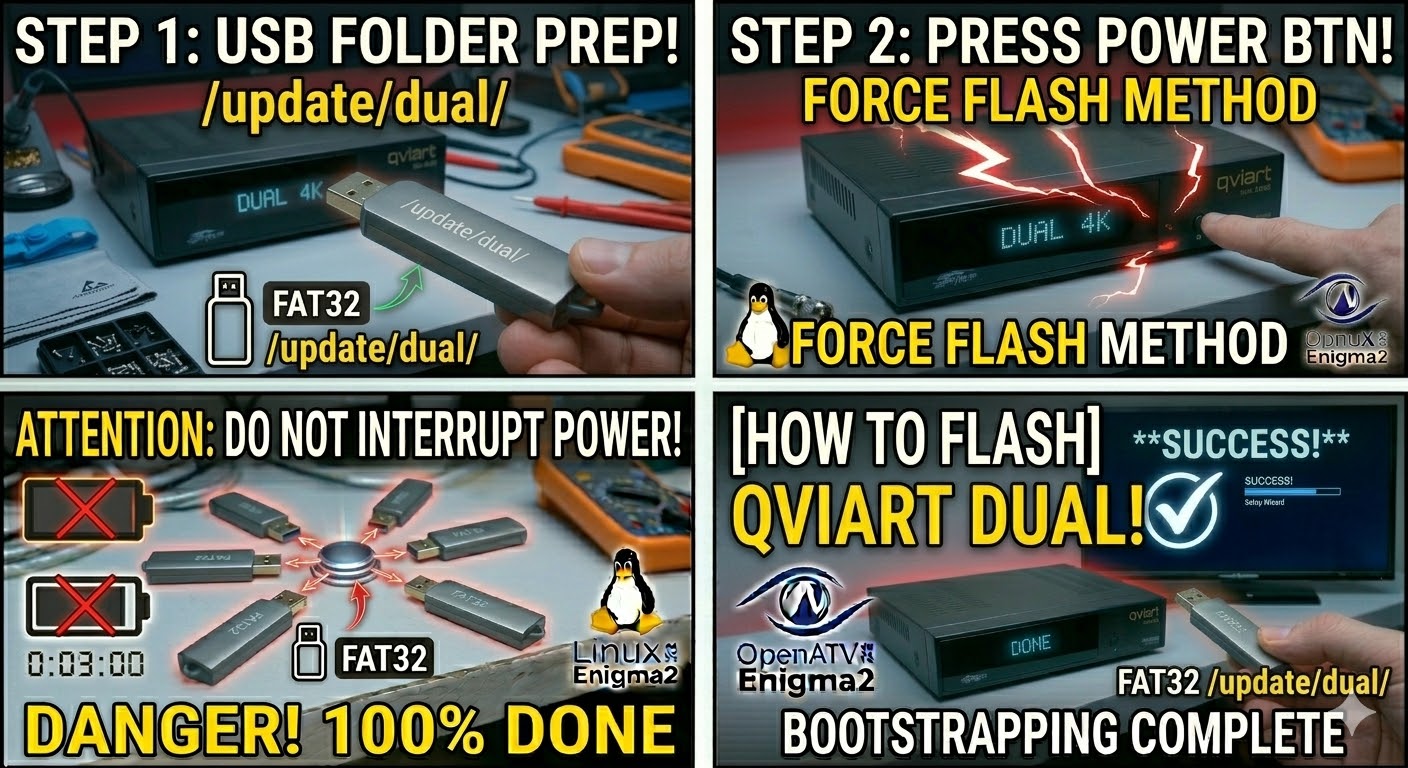
To flash the Qviart DUAL 4K UHD, you are working with a powerful “dual boot” receiver that supports both Android and Linux Enigma2. The flashing process for Enigma2 is similar to other 4K models but requires a specific dual-level folder structure.
Preparation
-
USB Drive: Use a USB 2.0 or 3.0 stick formatted to FAT32.
-
Download Image: Ensure you have the firmware specifically for the Qviart DUAL.
-
Extract Files: Unzip the archive. You should see a folder named
update. -
Copy to USB: Place the
updatefolder in the root of the USB drive.-
Structure:
USB Stick -> update -> dual -> (image files: kernel.bin, rootfs.bin, etc.).
-
The Flashing Process
-
Power Down: Turn off the receiver using the rear power switch.
-
Insert USB: Plug the USB stick into the front USB port (behind the front flap).
-
Power On: Flip the rear power switch to ON.
-
Initiate Flash: * Watch the front panel LCD/VFD display.
-
When it displays “Update?” or “Press Power”, press the Power button on the front panel immediately.
-
-
Wait: The display will show “Flashing” or a progress bar. Because this is a Dual-OS box, the image is quite large and may take 3–5 minutes. Do not interrupt the power.
-
Complete: The box will reboot. Since it is a dual-boot system, it might ask you which OS to boot into, or it will default to the newly flashed Enigma2 image.
Android Recovery (Alternative)
If you are trying to flash the Android side or perform a full factory reset:
-
Power on the box while holding the Power button on the front panel (or using a pin in the Reset hole on the back) until the Android Recovery menu appears on your TV.
-
Select “Apply update from EXT” -> “Update from udisk”.
Quick Tips
-
Folder Hierarchy: The bootloader looks for
/update/dual/. If thedualsubfolder is missing, the flash will not start. -
Force Flash: Rename
noforcetoforcein thedualfolder to bypass the button press requirement.