[HOW TO FLASH] how to flash IQON 200 HD
To flash the IQON 200HD, you will follow the standard procedure for the IQON Broadcom series. Like its bigger brothers (the 300 series), the 200HD requires a specific folder name to trigger the update from a USB stick.
1. Preparation
-
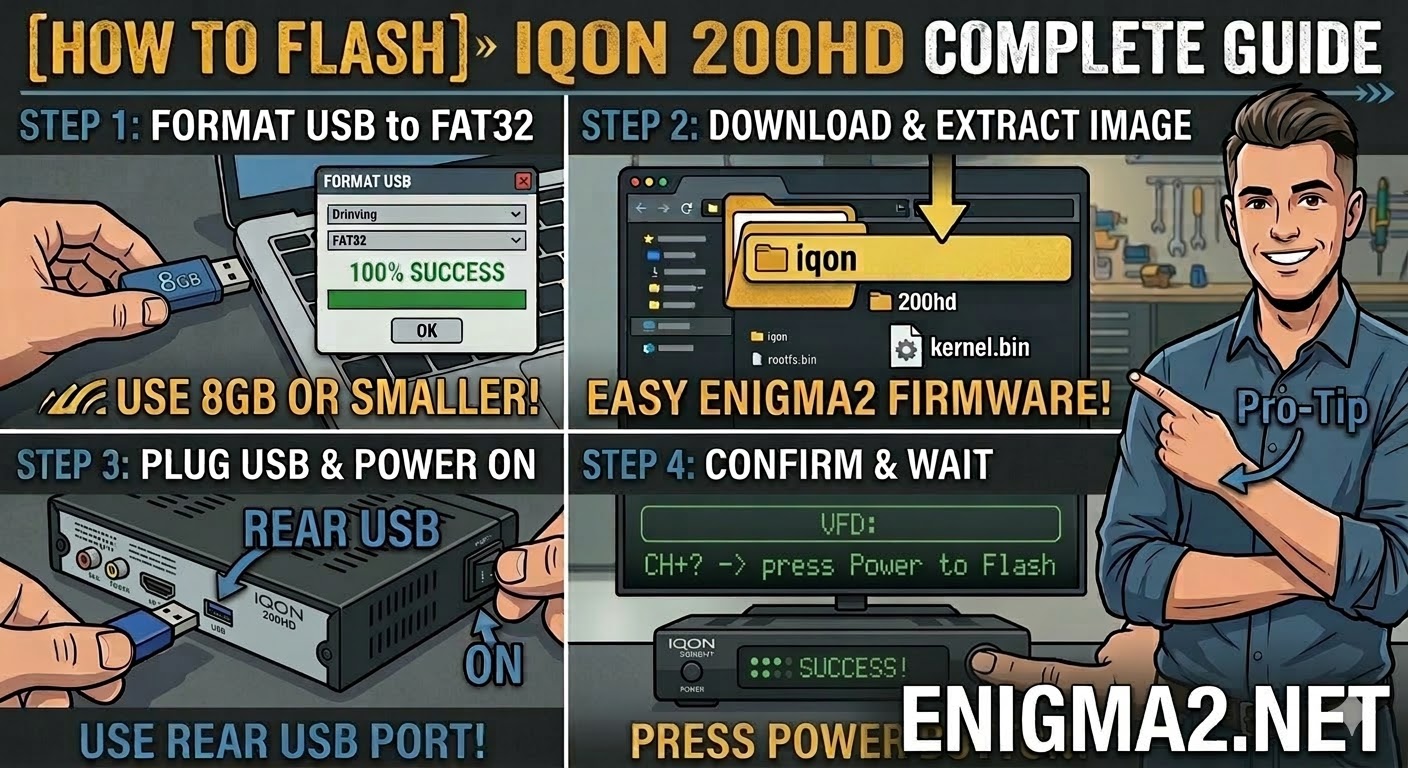
USB Stick: Use a high-quality USB 2.0 stick. 8GB or smaller is the “sweet spot” for this receiver’s bootloader.
-
Format: The stick must be formatted to FAT32.
-
Firmware: Download the image specifically for the IQON 200HD (OpenATV and OpenPLi are the most stable options for this model).
2. Folder Structure
The bootloader identifies the update through the iqon directory.
-
Extract the downloaded firmware
.zipfile. -
You should see a folder named
iqon. -
Copy the entire
iqonfolder to the root of your USB stick.-
Path:
USB:\iqon\200hd\ -
Contents: Inside the
200hdsubfolder, you should see files likekernel.bin,rootfs.bin, andimageversion.
-
3. The Flashing Process
-
Power Off: Turn off the receiver using the power switch at the back.
-
Insert USB: Plug the USB stick into the rear USB port.
-
Power On: Turn the back power switch to ON.
-
Initiate Flash:
-
Watch the front panel display closely.
-
When the receiver detects the valid files, it will display a message like “USB” or “Found Image”.
-
Immediately press the Power button on the front panel to confirm.
-
-
Wait: The display will show the progress (e.g., “FLSH”). Do not turn off the power during this time.
-
Completion: The receiver will reboot automatically once the flash is finished.
Pro-Tip for enigma2.net
The IQON 200HD is a classic Enigma2 box. On your site, remind users that if the “Found Image” prompt doesn’t appear, it is almost always due to the USB stick itself. These older receivers can be very “picky”—if one stick fails, trying a different (older) USB 2.0 stick usually solves the problem.