[HOW TO FLASH] how to flash AMIKO Viper 4K V40
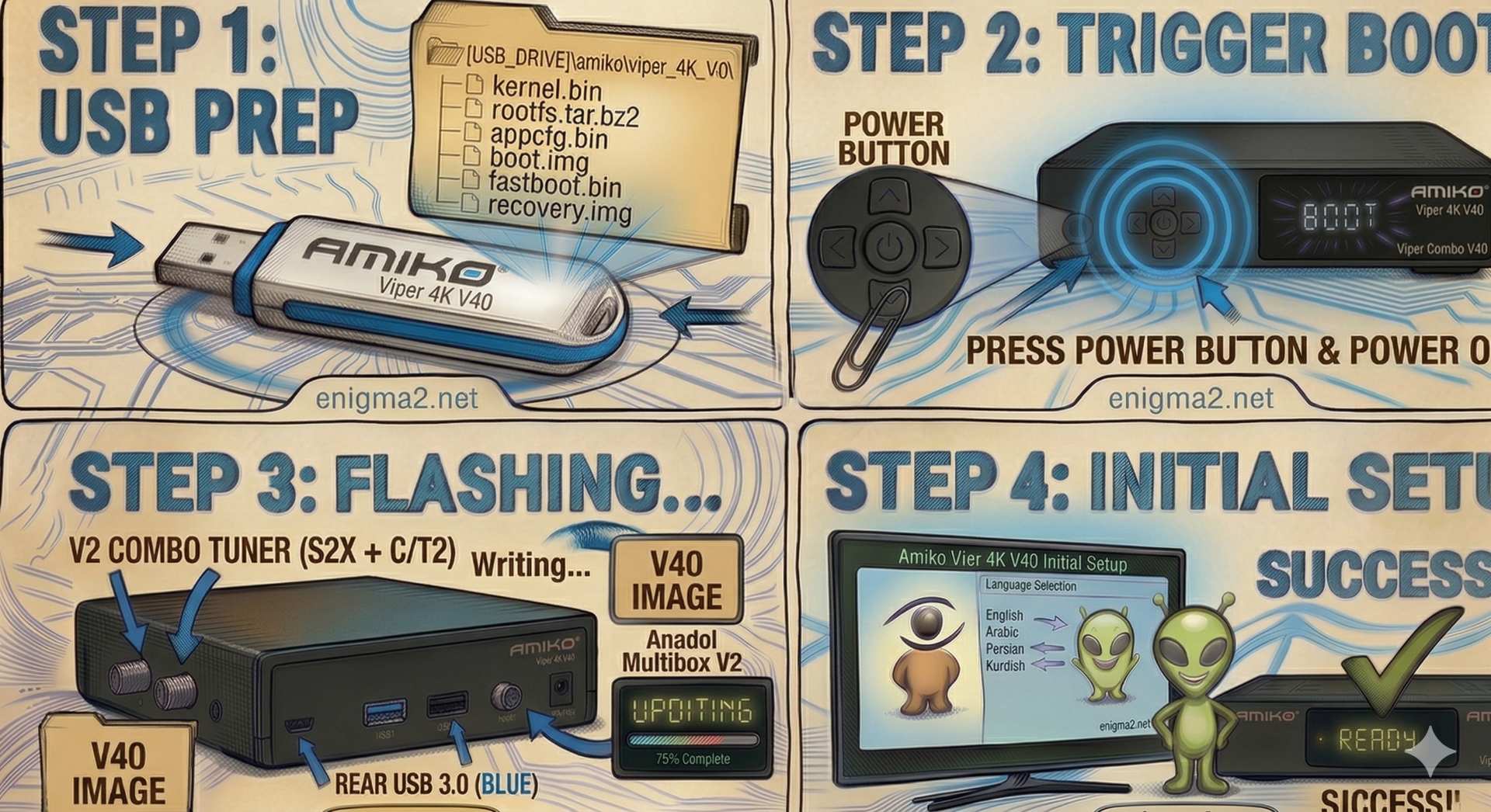
The Amiko Viper 4K V40 is a compact 4K receiver based on the HiSilicon chipset. Like the 4K51 and other modern Amiko 4K models, it uses the Maintenance Mode (Recovery Menu) to flash new images into its multiboot slots.
Step 1: USB Preparation
-
Format: Use a high-quality USB 2.0 or 3.0 stick formatted to FAT32.
-
The File: Download the “recovery” zip file for the Amiko Viper 4K V40 (e.g., OpenATV 7.x).
-
Target Path: Copy the
.zipfile directly to the root directory of your USB drive. Do not unzip it.
Step 2: Accessing the Recovery Menu
-
Power Off: Turn off the receiver using the physical power switch at the back.
-
Insert USB: Plug the stick into the USB 3.0 (blue) port on the side of the unit.
-
The Trigger:
-
Press and hold the Power Button on the front panel.
-
While holding it, flip the rear power switch to ON.
-
Keep holding the front button until the “Maintenance Mode” (Recovery) menu appears on your TV screen.
-
Step 3: Flashing the Image
-
In the menu, select “Flash local image”.
-
Navigate to your USB drive and select the .zip file you just copied.
-
Select a Slot: You have 4 Multiboot slots available (Linux 1, 2, 3, or 4).
-
Select Linux 1 for your primary image.
-
Select another slot to test a new image while keeping your old one functional.
-
-
Confirm the flash and wait for the “Flashing…” progress bar to reach 100%. Once completed, select “Boot” and choose the slot you just updated.

The flashing process should take approximately two to four minutes to complete, while the receiver
is being flashed it is vitally important that you DO NOT power the receiver down for any reason as
this can cause serious and or permanent damage.