[HOW TO FLASH] how to flash Technomate 2T
To flash the Technomate TM-2T (the standard 2T model, not to be confused with the Nano 2T), you need to follow the specific folder structure required for the TM-2T’s bootloader.
Preparation
-
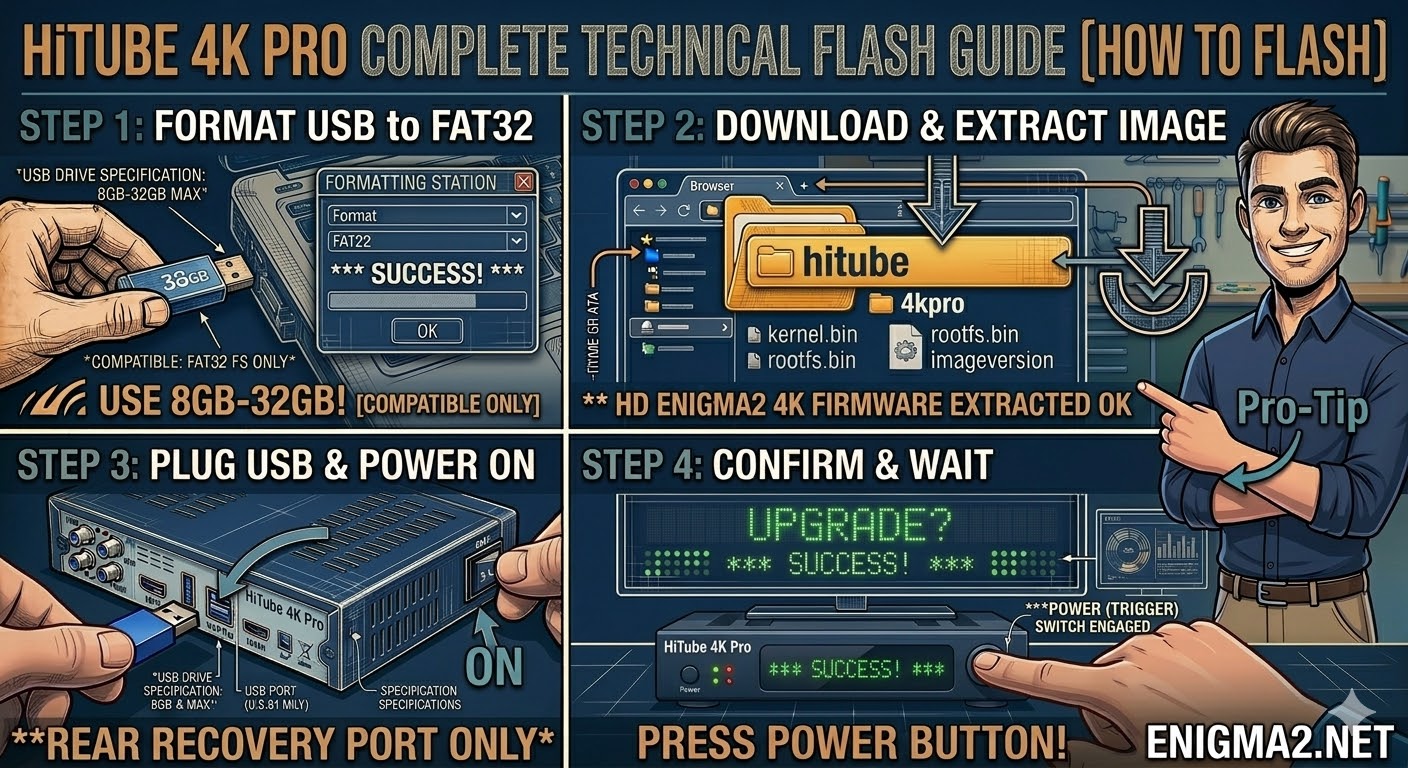
USB Drive: Use a FAT32 formatted USB stick. This model is a “legacy” receiver and works best with older, low-capacity USB 2.0 drives (2GB or 4GB).
-
The Files: Extract your image zip file (e.g., OpenATV, OpenViX, or PurE2). You must see a folder named
technomateand a subfolder inside it namedtm2t. -
Root Path: Copy the
technomatefolder to the root of your USB drive.-
Structure:
USB Root > technomate > tm2t > (files: kernel.bin, rootfs.bin, etc.) -
Note: Ensure the folder is named
tm2texactly.
-
Flashing Steps
-
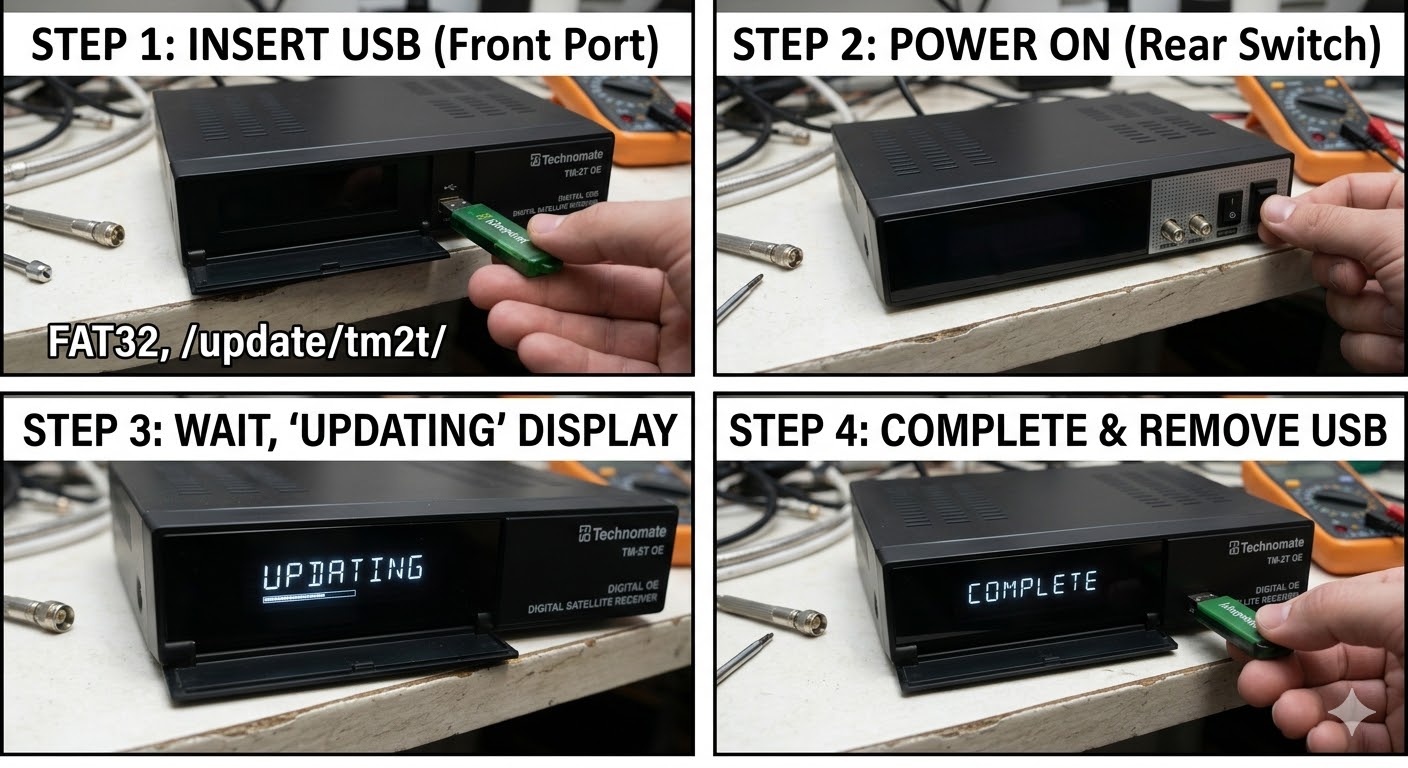
Power Down: Turn off the receiver using the physical power switch at the back.
-
Insert USB: Plug the USB stick into the front USB port (located behind the flap).
-
Power On: Flip the rear power switch to ON.
-
The Trigger:
-
Watch the front panel VFD display.
-
When it shows “Found Update” or “Update? Press OK”, immediately press the OK Button on the front panel (behind the flap).
-
-
Flashing Process: The display will show “Flashing” or show a progress bar. This typically takes 3 to 5 minutes. Do not turn off the power during this time.
-
Completion: Once finished, the display will show “Success” or “Done”, and the box will reboot automatically.
-
Finalize: Remove the USB stick as soon as the box starts to reboot to prevent it from detecting the flash files again on the next boot cycle.
Quick Troubleshooting
-
Box ignores the USB: Double-check that the subfolder is named exactly
tm2t. If it still boots to your old image, try using the rear USB port. -
The “Force” Shortcut: If the front buttons are unresponsive or tricky to time, go into the
tm2tfolder on your USB, find the file namednoforce, and rename it toforce. The receiver will then flash automatically upon power-up.

The flashing process should take approximately two to four minutes to complete, while the receiver
is being flashed it is vitally important that you DO NOT power the receiver down for any reason as
this can cause serious and or permanent damage.