[HOW TO FLASH] how to flash WWiO BRE2ZE 4K
The WWIO BRE2ZE 4K is a high-performance Ultra HD receiver. Because it uses a 4K Broadcom chipset, the flashing process is slightly faster than the HD models, but the folder structure is critical for the bootloader to “see” the new image.
Preparation
-
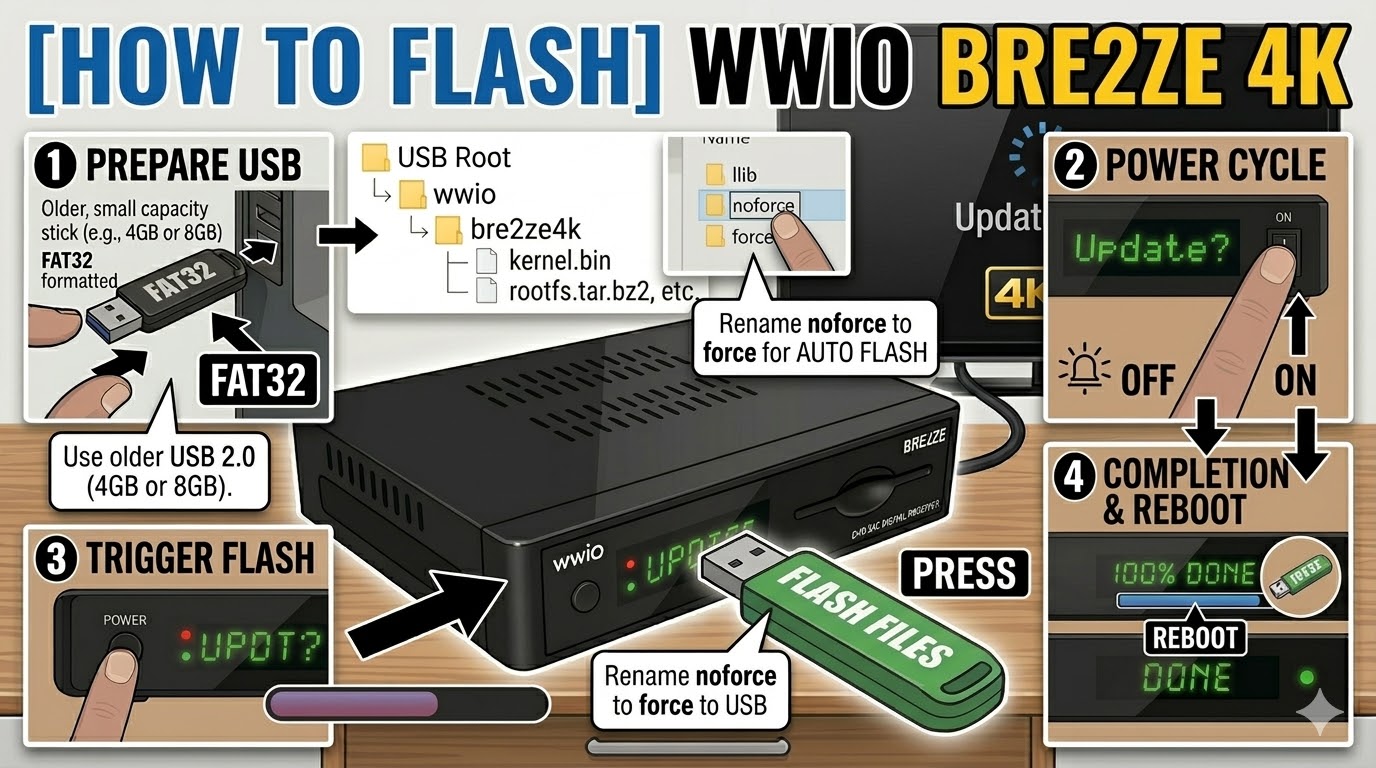
USB Stick: Use a FAT32 formatted USB drive. For 4K receivers, a USB 3.0 stick usually works, but if the box refuses to boot from it, switch to an older USB 2.0 (4GB or 8GB) drive.
-
The Image: Download your Enigma2 image (OpenATV, OpenHDF, etc.) and extract the zip.
-
Folder Path: You must have a folder named
wwioand a subfolder namedbre2ze4k.-
Path:
USB Stick > wwio > bre2ze4k > (image files: kernel.bin, rootfs.tar.bz2, etc.)
-
Flashing Steps
-
Power Down: Turn off the receiver using the rocker switch at the back.
-
Insert USB: Plug the USB stick into the side or rear USB port.
-
Power On: Switch the receiver back to ON.
-
The Trigger: * Watch the front panel display. When it detects the USB, it will show “UPDATE?” or “Press OK”.
-
Immediately press the Power Button (or the OK button, depending on the image) on the front panel.
-
-
Flashing Process: The display will change to “Flashing…” or show a percentage. This usually takes less than 3 minutes.
-
Reboot: Once finished, the display will show “DONE” or “SUCCESS”, and the box will reboot automatically.
-
Finalize: Pull the USB stick out as soon as the boot logo appears on your TV screen.
Troubleshooting & Tips
-
The “Force” Method: If you can’t get the button timing right, go into the
bre2ze4kfolder on your USB and rename the filenoforcetoforce. This will trigger an automatic flash the moment you power the box on. -
No Video Signal: If the screen stays black after flashing, wait at least 5 minutes. The 4K resolution might need a moment to handshake with your TV during the initial setup wizard.

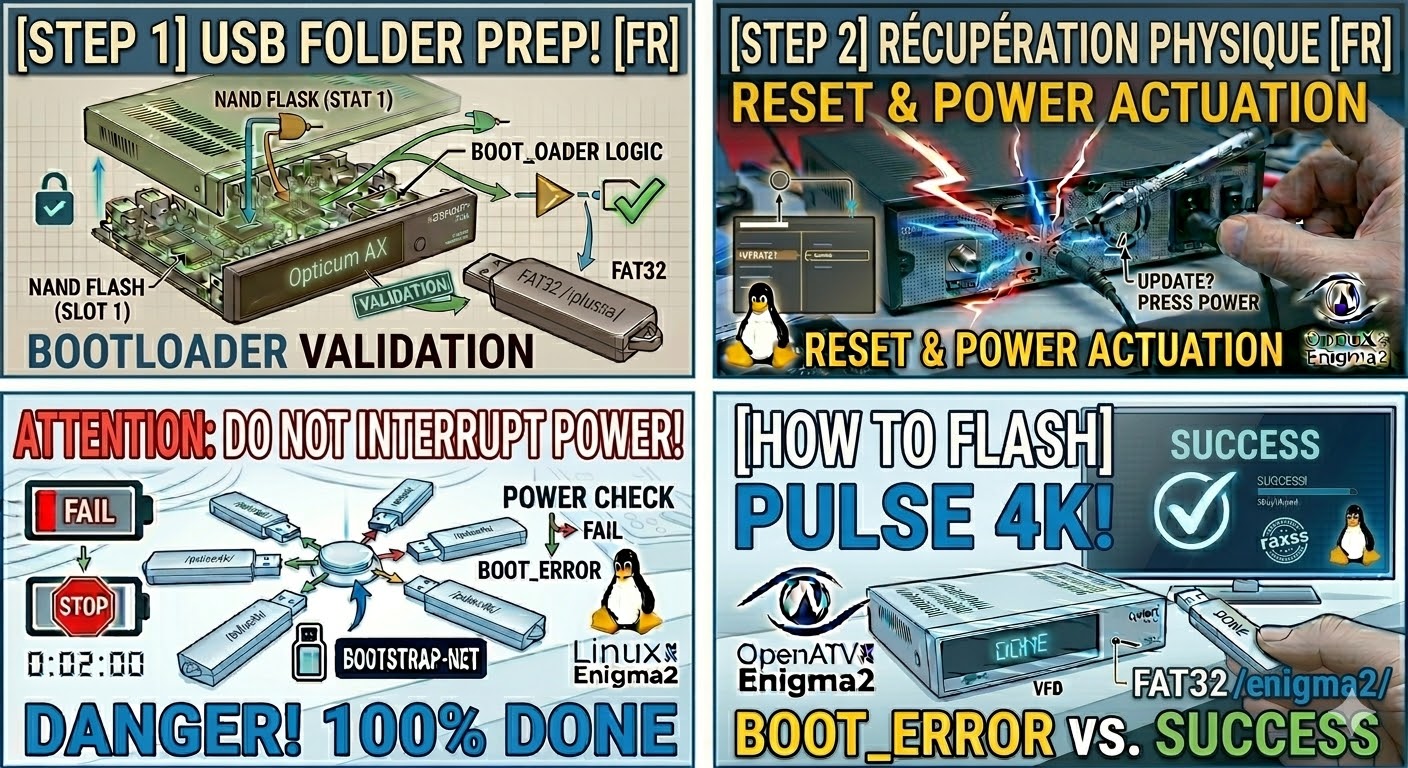
The flashing process should take approximately two to four minutes to complete, while the receiver
is being flashed it is vitally important that you DO NOT power the receiver down for any reason as
this can cause serious and or permanent damage.