[HOW TO FLASH] how to flash WWIO bre2zet2c
The WWIO BRE2ZE T2C is a popular H.265/HEVC Linux Enigma2 receiver. Flashing it follows the standard “power-cycle and confirm” method used by many Broadcom-based boxes.
Preparation
-
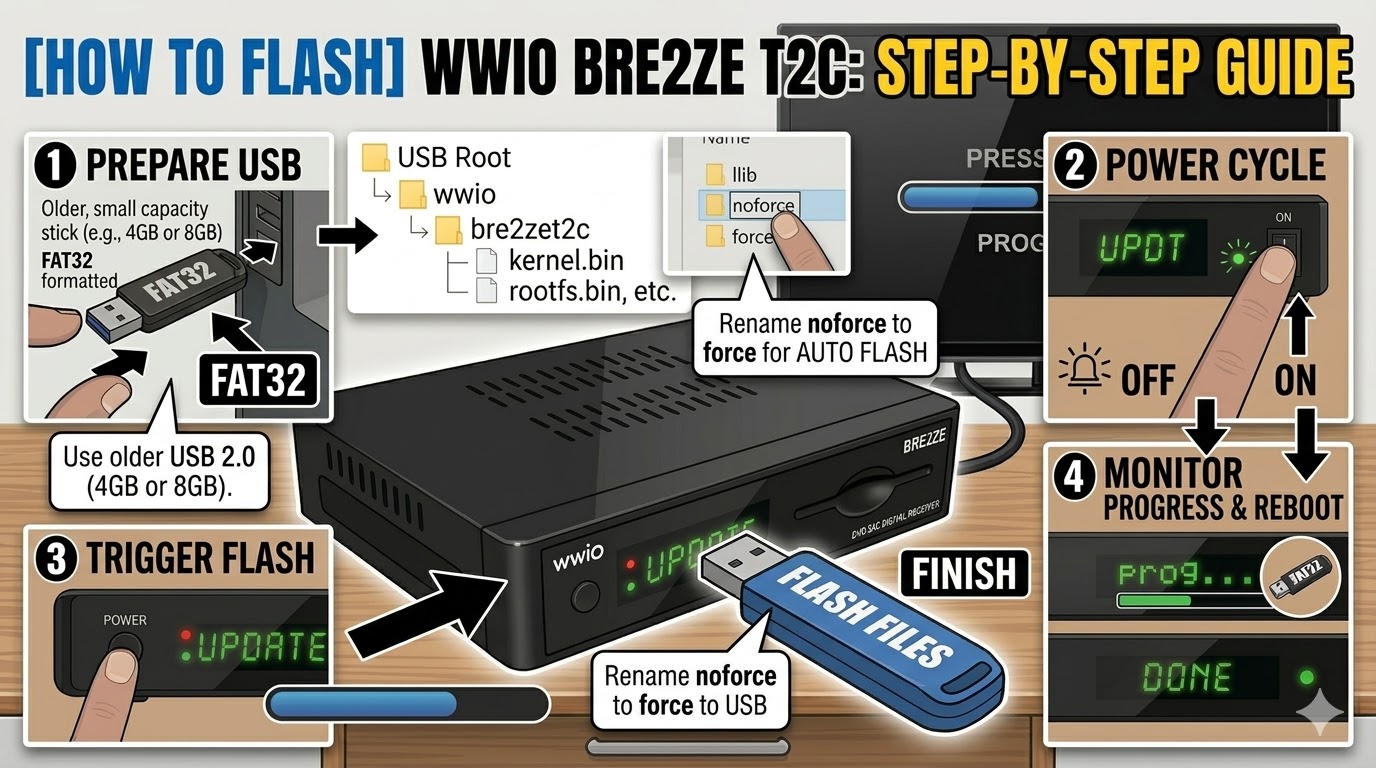
USB Stick: Use a high-quality USB stick (8GB or smaller is best) formatted to FAT32.
-
The Image: Download your preferred image (e.g., OpenATV, OpenHDF, or Egami).
-
Folder Structure: Extract the zip file. You must have a folder named
wwioand a subfolder inside it namedbre2zet2c.-
Path:
USB Root > wwio > bre2zet2c > (files: kernel.bin, rootfs.bin, etc.)
-
Flashing Steps
-
Power Down: Turn off the receiver completely using the power switch at the back.
-
Insert USB: Plug the USB stick into one of the USB ports (the rear port is usually more stable for flashing).
-
Power On: Flip the rear power switch to ON.
-
The Trigger: * Watch the front panel display. When it detects the USB, it will display “UPDT” or “UPDATE”.
-
Immediately press the Power Button on the front panel of the receiver to confirm.
-
-
Flashing Process: The display will change to “prog” or show a progress bar/percentage. This takes about 2 to 4 minutes. Do not interrupt the power.
-
Finish: Once the process is complete, the box will display “DONE” or “REBOOT” and restart automatically.
-
Remove USB: Unplug the USB stick once the box starts to reboot so it doesn’t try to flash again.
Troubleshooting
-
If it doesn’t see the USB: These boxes can be picky. Try a different USB stick (older USB 2.0 drives often work better than newer USB 3.0 ones).
-
The “Force” Method: If you can’t get the button press to work, find the file named
noforcein thebre2zet2cfolder on your USB and rename it toforce. This will make the box flash automatically as soon as it powers on.

The flashing process should take approximately two to four minutes to complete, while the receiver
is being flashed it is vitally important that you DO NOT power the receiver down for any reason as
this can cause serious and or permanent damage.